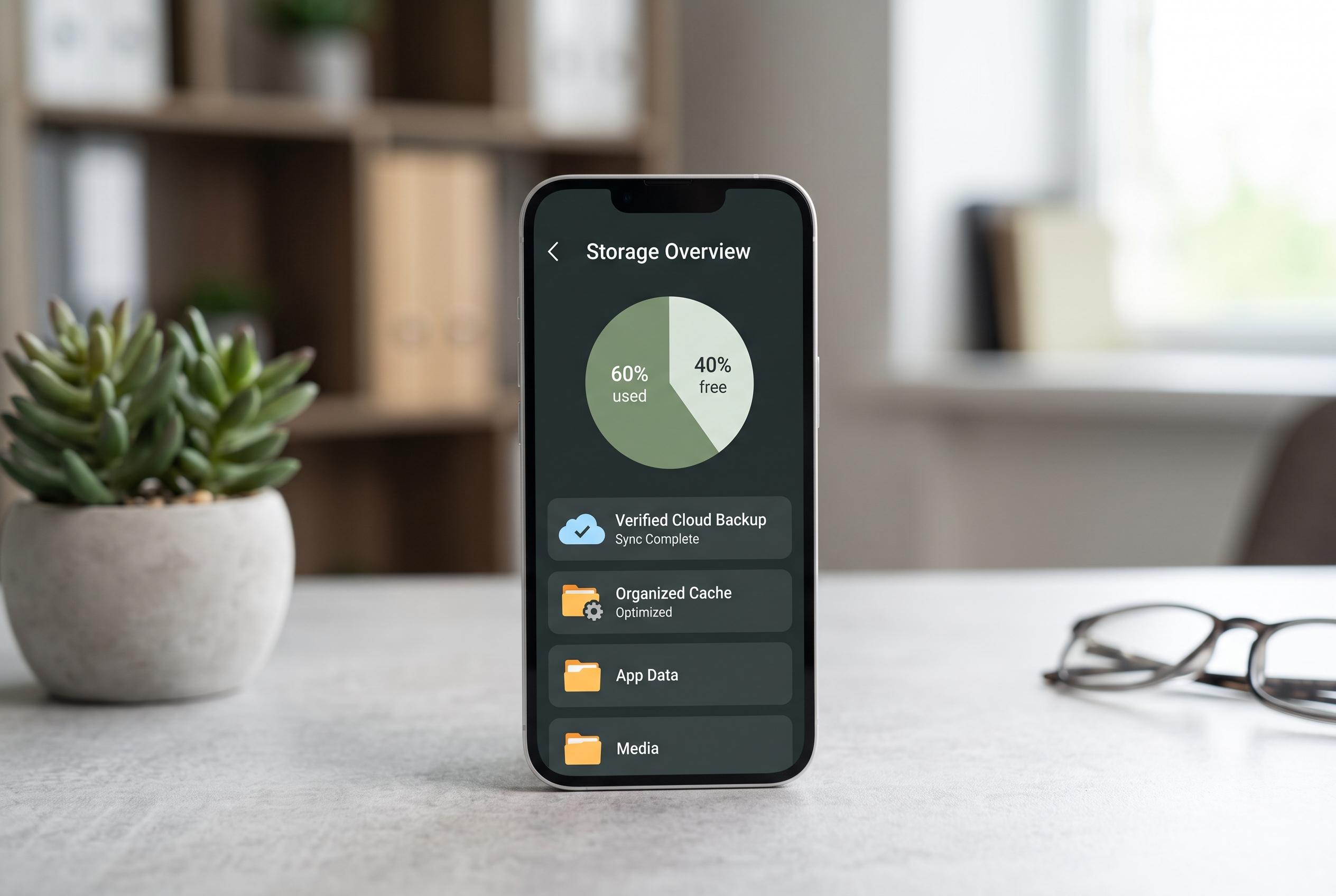

A guide to safely managing phone storage by verifying cloud backups, controlling cache, and avoiding misleading cleaning apps to prevent accidental data loss and ensure seamless device performance.
The first thing to understand when a phone starts complaining about storage is whether the photos you are about to delete exist anywhere else. That matters because, as Fresh From Cache notes, a picture may be safely backed up, stored only on the device or sitting in a backup that has quietly stopped. On iPhone, Apple’s iCloud Photos settings show whether syncing is active, while Google Photos on Android will clearly indicate whether backup is complete, still running or has stopped. If the status is anything short of complete, deleting files can mean losing the only copy.
That warning is not theoretical. Apple says that when iCloud Photos is enabled, deleting an image on one device removes it everywhere it is synced. Google’s own behavior is similar: if a photo is backed up, deleting it in Google Photos removes it from the library across devices. Both platforms do offer a grace period through Recently Deleted or Trash, but those windows are limited. Oukitel and other Android troubleshooting guides say a lot of people misunderstand cloud storage and assume a photo is safe simply because it once backed up, even when the account has since filled up or stopped syncing.
Before clearing space, it helps to identify what is actually using it. PhoneArena and other Android help guides point to the same usual culprits: videos, app data, cached files, message attachments and downloads from streaming apps. The Fresh From Cache guide notes that video is often the biggest offender by far, with even a few clips consuming more space than thousands of still images. It also highlights “System Data” on iPhone and “System” storage on Android, both of which can swell with caches, logs and temporary files that users cannot always remove directly.
The safest cleanup starts with moving media off the phone without deleting it. Fresh From Cache recommends using iPhone’s Optimize Storage setting or Google Photos’ Free up space tool once backup is confirmed. After that, the next gains usually come from offloading unused apps on iPhone, clearing app caches on Android, trimming old message attachments and removing downloaded music, podcasts and video. Guides from Facil and SamMobile suggest checking storage menus first so users can target the biggest files rather than guessing.
Only after the backup situation is clear should users empty the trash or Recently Deleted folders, because that is what actually finalizes the space savings. Even then, the article warns against “cleaner” apps, which often duplicate tools already built into the phone and can create more problems than they solve. The broader lesson is simple: a full phone is not just inconvenient. It can block backups, interfere with updates and eventually stop the camera from saving new photos at all.
Disclaimer: This content is intended for informational purposes only. Readers are advised to exercise their own judgement, conduct due diligence, or consult a qualified expert before acting on any information provided.