

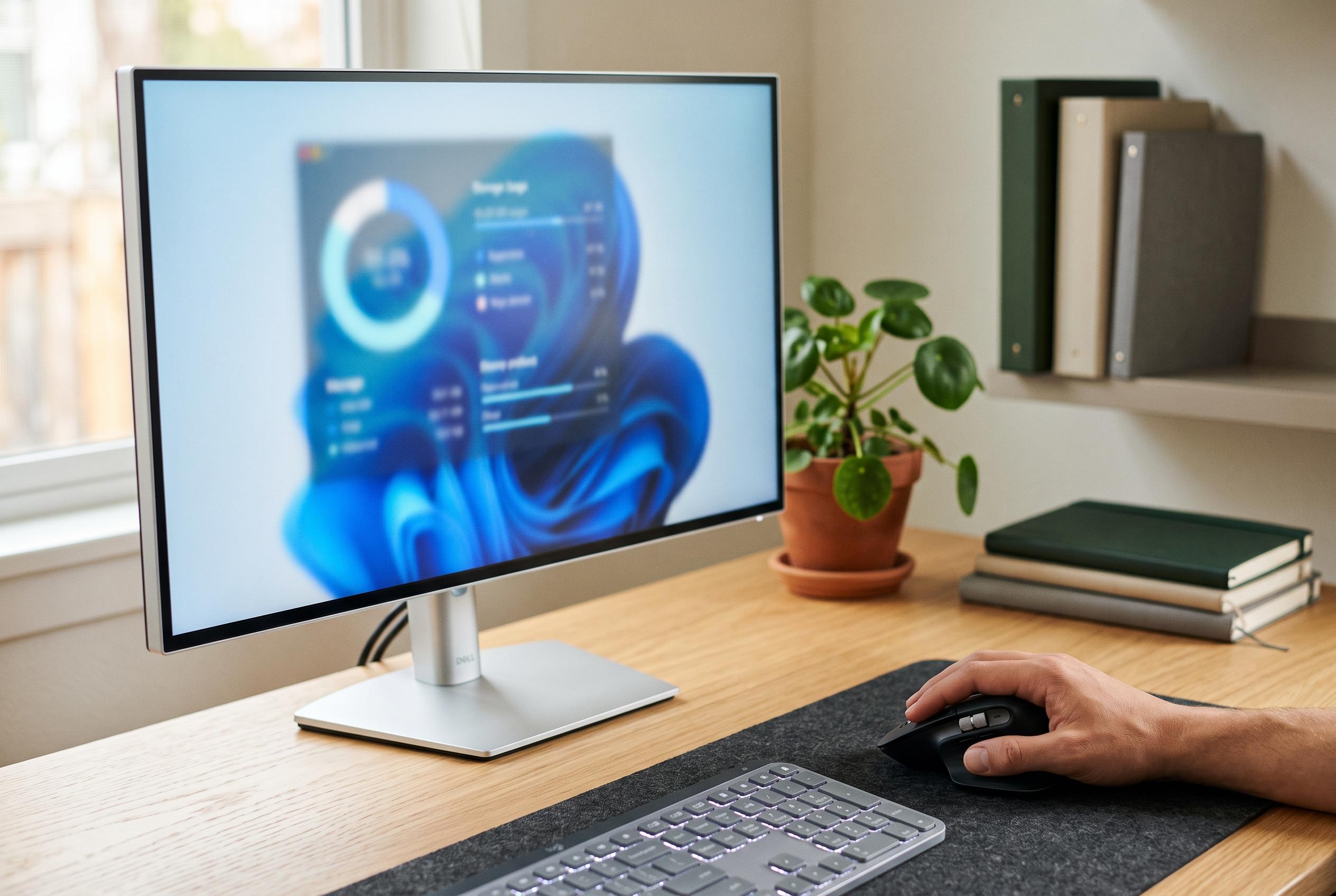

Microsoft’s integrated storage tools now offer a comprehensive approach to freeing up space, emphasising safe file removal, automated cleaning, and targeted uninstallation to keep Windows PCs optimised and clutter-free.
The safest way to reclaim space on a Windows PC is to begin with Microsoft’s own storage tools, not by hunting through folders in File Explorer. Microsoft’s current support guidance for Windows 10 and Windows 11 says the Storage page now does more than show a free-space figure: it breaks usage into categories such as Installed apps, Temporary files and System & reserved, and pairs that with Cleanup recommendations that can flag large files, rarely used apps and previous Windows installations that are usually safe to remove.
That matters because not everything under “System & reserved” is disposable. Microsoft says Windows deliberately holds back part of a drive for caches, temporary data and update-related files so the machine can continue to run and update properly. If the PC starts running short, Windows can release some of that reserved space. The same settings area also includes Advanced storage settings, where “Storage used on other drives” shows how space is being used across additional internal or external drives rather than only the main system disk.
For most people, the biggest gains still come from software they no longer use. Tom’s Guide recommends opening Storage, going into the apps list and sorting by size so the largest programs appear first, making it easier to remove forgotten games and bulky utilities. Engadget adds a useful distinction: many machines, especially those sold by large PC manufacturers, arrive with preloaded software that is not essential. Removing that kind of surplus software can improve performance as well as free capacity, and Engadget argues that using the normal uninstall route leaves fewer leftovers than simply deleting files.
Temporary files are the next obvious target, but they need a little more care. Tom’s Guide notes that this section can include downloaded files and system error memory dump files. PCWorld’s Windows 11 guide says the operating system often preselects items such as Windows Update Cleanup, Files for Transfer Optimization and Thumbnails, which are generally safe to remove. Depending on the machine, the same page may also offer Previous Windows Installation(s), Windows Upgrade Log Files, Recycle Bin contents and Downloads. That is where users need to slow down: old update files are usually expendable, but Downloads and the bin may still contain documents or installers they meant to keep.
If regular maintenance is the goal, Storage Sense is the built-in automation worth configuring properly. Microsoft says it is off by default, although Windows may enable it temporarily if a device is critically low on space and the user has never set it up. It works only on the system drive, applies only to the signed-in user and runs when the device is online and signed in. Microsoft’s documentation also gives a simple warning sign: a PC is in a low-disk state when the capacity bar on the Storage page turns red.
The important limitation is that Storage Sense is more conservative than many users assume. Microsoft says it will not touch Downloads or cloud-stored files unless the user explicitly tells it to do so. The same settings panel lets users choose how often to clear Recycle Bin items, whether untouched Downloads should be removed after a set period and when locally cached cloud files should become online-only. On Windows 11 version 22H2, Microsoft says OneDrive files default to becoming online-only after 30 days of inactivity. Even then, files marked “Always keep on this device” are exempt, and Microsoft says the process does not permanently delete them.
There are also a few older Windows tools that remain useful. TechRadar recommends going through File Explorer to This PC, right-clicking a drive, opening Properties and running Disk Cleanup followed by “Clean up system files”. That route can remove system clutter missed elsewhere, and the More Options tab can be used to clear old System Restore points. Engadget ties that housekeeping to general responsiveness, advising users to review Task Manager’s Startup apps tab as well, because a machine that feels full often also feels slow thanks to unnecessary programs launching at boot.
Drive type matters too. Engadget says older mechanical hard drives can still benefit from the built-in Defragment and Optimize Drives tool, while SSDs should not be manually defragmented because the trade-off in wear is not worth the negligible performance gain. TechRadar similarly treats storage care as routine maintenance rather than an emergency measure. In practice, the best sequence is simple: use Storage and Cleanup recommendations to identify the biggest offenders, remove unneeded software, clear temporary files carefully, then let Storage Sense handle the repeat work.
Disclaimer: This content is intended for informational purposes only. Readers are advised to exercise their own judgement, conduct due diligence, or consult a qualified expert before acting on any information provided.



