

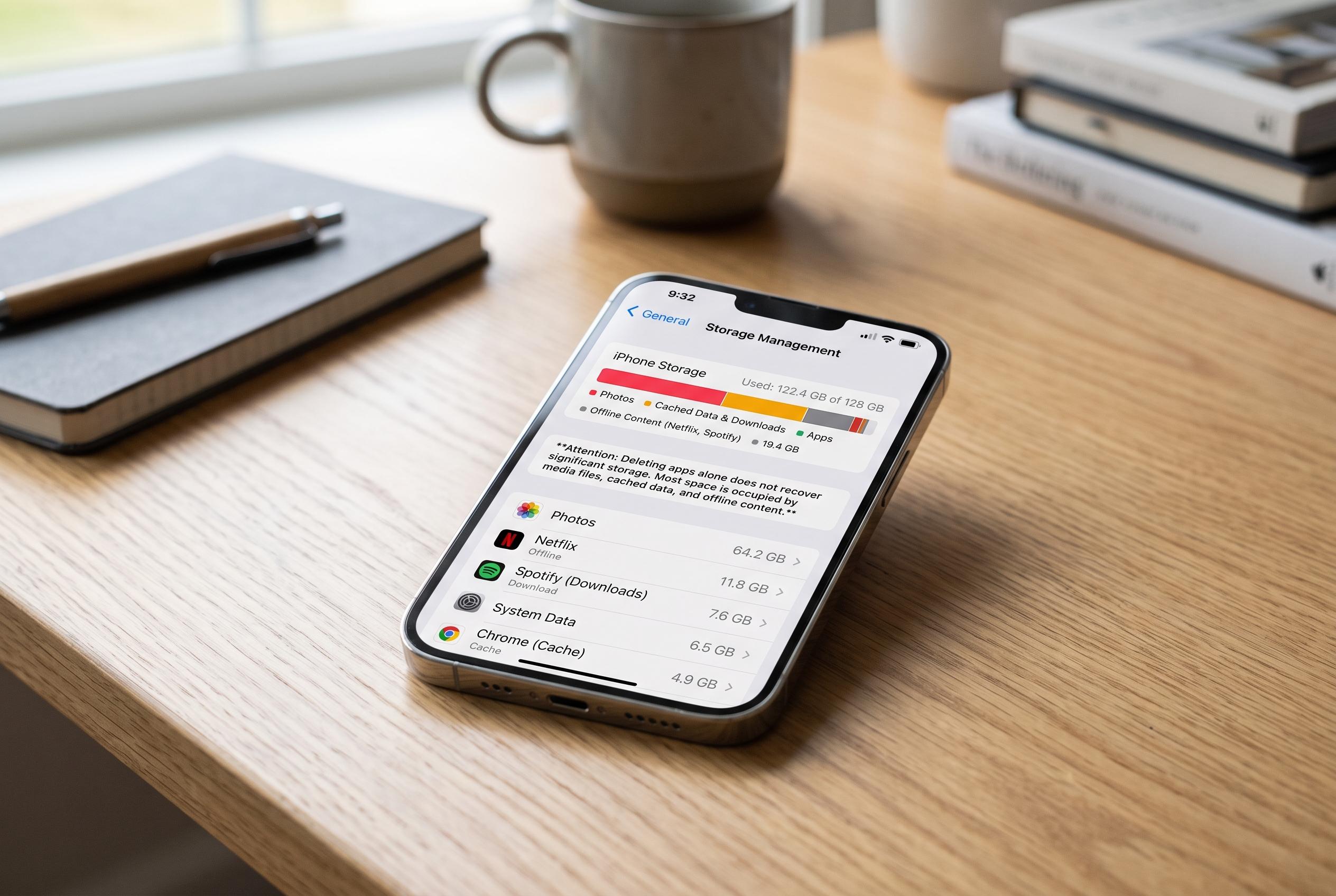

Removing apps alone rarely clears space on iPhone and Android devices. The real culprits are media files, cached data, shared storage, and offline content that linger long after apps are deleted, requiring users to explore deeper storage management strategies.
Deleting apps is often the least effective way to free a phone that is running out of space. On both iPhone and Android, the storage problem usually lies elsewhere: in photos, videos, downloads, cached data, offline media and files that are kept in recovery folders or shared storage, according to Media Indonesia and several storage guides.
A common source of confusion is that not every “delete” action removes everything. On iPhone, removing an app from the Home Screen only hides the icon, while offloading the app keeps user data in place. On Android, archiving can preserve the app’s data and shortcut for later restoration. Only a full uninstall removes the app itself, and even then files stored separately on the device may remain.
The largest space consumers are often media files rather than apps. Media Indonesia notes that a handset may appear full because photos, videos, mail attachments or downloaded content occupy far more space than the applications that users choose to remove. That is why deleting several relatively small apps may barely change the storage bar if the real burden sits in the Photos category or in large video folders.
Another issue is shared storage. Messaging apps, camera tools and editors often save files into the gallery or the Downloads folder, where they remain even after the app has been removed. Storage guides from Cleanor and Asurion say this is one reason a phone can stay full after deleting what seems like a major source of clutter: the app may be gone, but its exported media, saved files and attachments are still on the device.
Cache and system files can also hold space for longer than users expect. Asurion and related phone-storage guides say background caches, system data and app-generated temporary files build up over time, while iPhone’s System Data can include logs, indexes, Siri assets and browser data. Deleted items may also remain in Recently Deleted or Trash folders for up to 30 days, which means they still count against available storage until those folders are emptied.
Offline downloads and cloud copies add another layer. Streaming services, music apps and map tools can store gigabytes of content locally, often outside the main app-size figure shown in settings. Files synced from cloud services may also keep a local version on the phone unless storage-saving options are enabled. On iPhone, Apple’s optimisation tools are designed to keep smaller device copies while leaving full-resolution files in the cloud; on Android, Google Photos offers a similar free-up-space function.
The practical answer is to check the storage breakdown rather than simply uninstalling apps. Users need to clear Trash or Recently Deleted folders, remove offline downloads, inspect shared storage folders and distinguish between RAM and internal storage. Closing apps may improve performance, but it does not recover space used by photos, videos or documents.
Disclaimer: This content is intended for informational purposes only. Readers are advised to exercise their own judgement, conduct due diligence, or consult a qualified expert before acting on any information provided.



