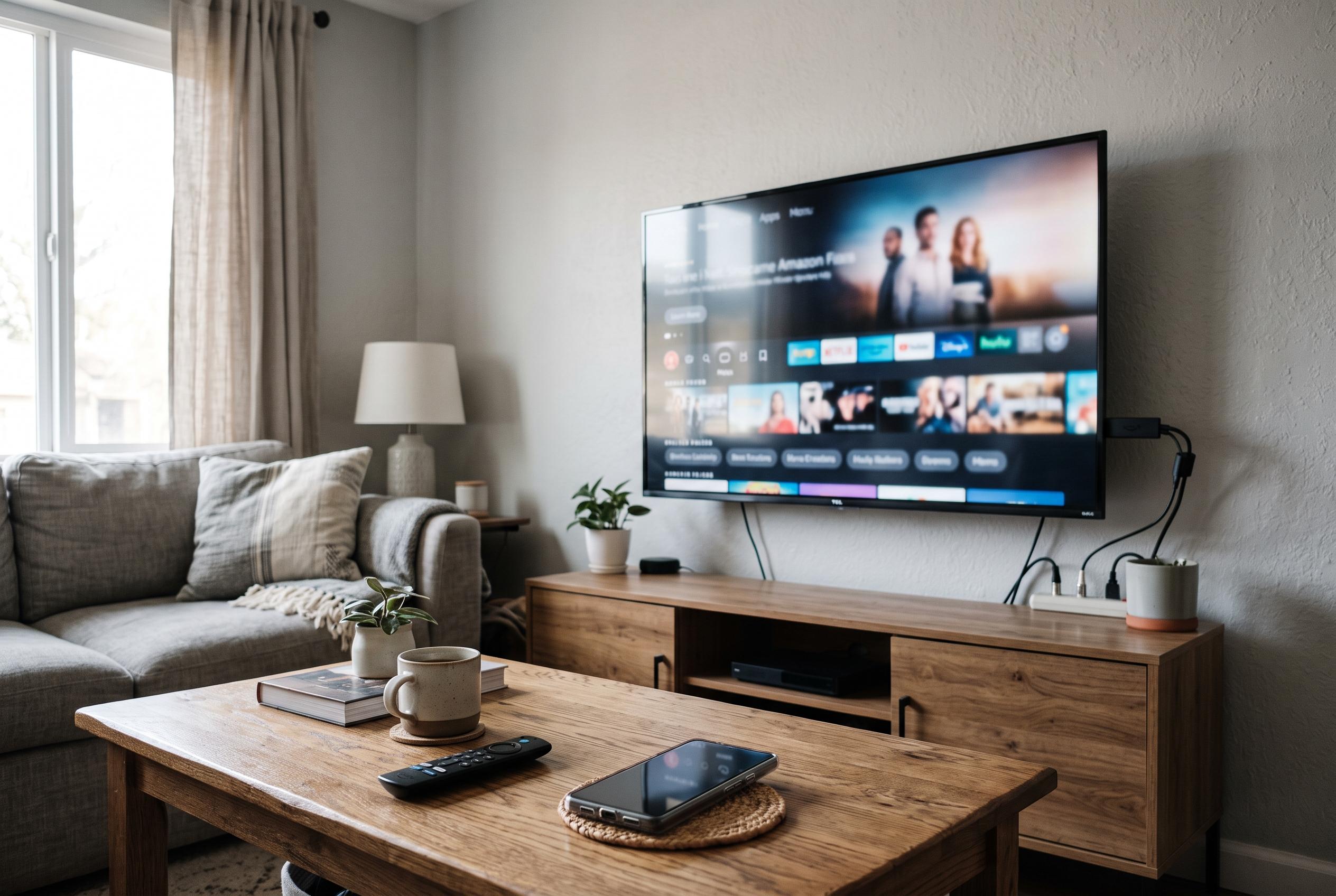

Limited storage, weaker hardware and touchscreen-focused interfaces can make HDO Box less reliable on televisions and streaming sticks than on phones, while unofficial downloads raise additional security concerns.
Streaming apps rarely behave identically across phones, televisions and media sticks. A service that opens cleanly on an Android handset may struggle on an older TV box, particularly where storage is limited, software is customised by the manufacturer or the interface was built for touch rather than a remote control. For users researching Hdobox, the key issue is not only whether the app can be installed, but whether the device can support it reliably.
Compatibility depends on more than downloading an APK. The device needs a matching Android version, enough memory, sufficient storage and playback components that can handle the chosen video format. According to the guidance published by Budget Savvy Diva, users should check the developer’s compatibility notes before installing any third-party streaming software, rather than assuming that an app made for Android phones will behave the same way on every television device. That warning is echoed by HDO Box installation guides, which stress that platform-specific requirements matter as much as the app itself.
On phones and tablets, troubleshooting often begins with the basics: close other apps, free up storage, restart the device and check whether battery-saving settings are limiting performance. The Budget Savvy Diva guide also advises reviewing permissions carefully and keeping the operating system updated, while making sure the app actually supports the installed version. HDO Box usage guides similarly point to routine fixes such as meeting the stated prerequisites, following the correct installation steps and ensuring the software version matches the device.
Android TV and streaming sticks introduce a separate set of problems. Many have weaker processors, less memory and tighter storage limits than phones, which can become obvious when menus are heavy or when video resolution is high. According to device-compatibility pages for HDO Box, remote-control navigation can also be awkward if an app was designed first for a touchscreen. That makes input support, display resolution and store availability important checks before installation. The same guides recommend using only legitimate versions supplied by the developer and treating sideloading from unknown sources as a security risk.
When playback fails, the symptoms can vary: loading errors, black screens, crashes, unsupported audio or video formats, or controls that do not respond properly on a television interface. The practical approach is to isolate the fault step by step. First, confirm that the internet connection is stable. Then restart the app and the device, clear the app cache if necessary and verify that enough storage remains. If the problem persists, test other lawful media sources in a trusted player to determine whether the fault lies with the app, the file format or the external service feeding the content.
Security remains central when any streaming app is installed outside an official store. The guides associated with HDO Box urge users to verify the publisher, inspect permissions and avoid modified packages that promise unrestricted access to premium content. They also advise choosing authorised platforms where possible, both to reduce security uncertainty and to improve the chances of dependable support. In practice, that means treating compatibility and legitimacy as linked questions: an app may run on a device, yet still be a poor choice if its source, permissions or content rights are unclear.
Disclaimer: This content is intended for informational purposes only. Readers are advised to exercise their own judgement, conduct due diligence, or consult a qualified expert before acting on any information provided.