

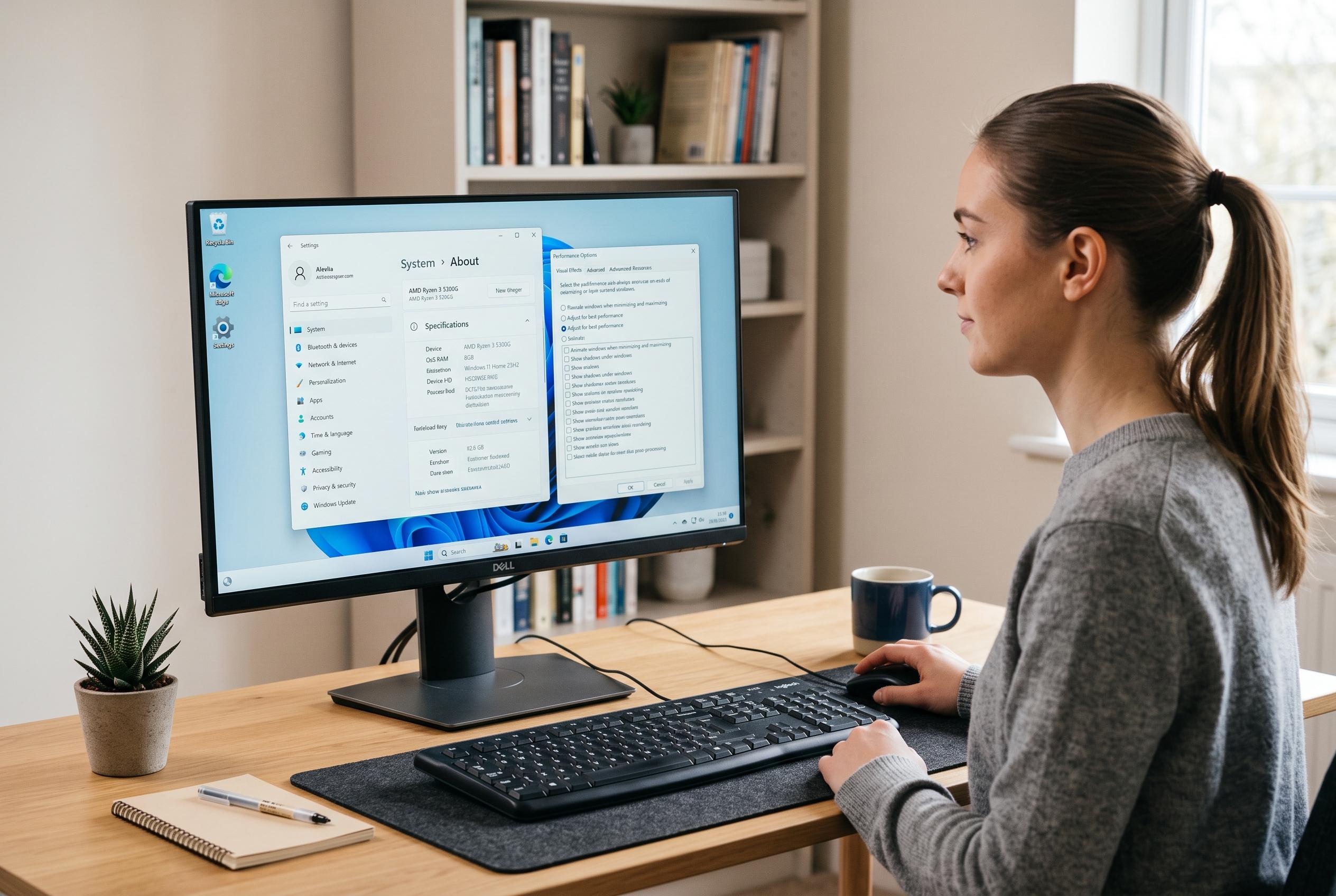

Microsoft guidance highlights simple settings adjustments, like disabling animations, reducing startup apps and tweaking power modes, to enhance responsiveness on less powerful machines running Windows 11.
Windows 11 can feel heavier than Microsoft would like, especially on modest machines with 8GB of RAM or less. The operating system’s visual polish, constant background activity and search features can all add friction, but several of the quickest gains come from cutting that overhead rather than replacing hardware. Microsoft’s own support guidance now points users towards many of the same basics: reduce startup load, trim background activity and simplify visual effects.
One of the most immediate changes is to switch off animations and transparency effects. Microsoft says these visual features can be adjusted through Windows settings, and they are among the easiest ways to make the desktop feel more responsive. On older systems, or machines with weaker integrated graphics, the benefit is often less about benchmark gains and more about making every click and window transition feel less delayed.
Startup apps are another common source of drag. Windows Central notes that too many programmes launching at sign-in can slow boot times, consume memory and make the system feel sluggish for the first few minutes after login. Microsoft’s support page recommends the same approach: remove what you do not need, and review background permissions where possible. On laptops, that can also help with battery life.
More aggressive users can go further by using tools such as Autoruns or third-party debloating utilities to strip out leftover startup entries and reduce the amount of work Windows has to do in the background. That may be particularly useful on ageing PCs, where every spared process matters. The same logic applies to services: disabling unnecessary ones will not transform a fast desktop, but it can improve responsiveness on underpowered systems.
Power settings also matter, particularly on laptops. Windows normally runs in Balanced mode, which can hold back performance until demand rises. Switching to Best performance can reduce that lag, although Microsoft and other guides note the trade-off is usually more heat and shorter battery life. It is a sensible setting to test on portable machines, and less useful on newer desktops with ample headroom.
Search can be another source of irritation. Disabling Bing-powered web results will not make Windows itself faster, but it can make search feel quicker and less cluttered. For those who want a more drastic change, Windows Search can be turned off entirely in favour of a faster third-party search tool. That approach is more blunt, but it reflects a broader point: in Windows 11, perceived speed often improves most when users remove features they do not need.
Disclaimer: This content is intended for informational purposes only. Readers are advised to exercise their own judgement, conduct due diligence, or consult a qualified expert before acting on any information provided.



