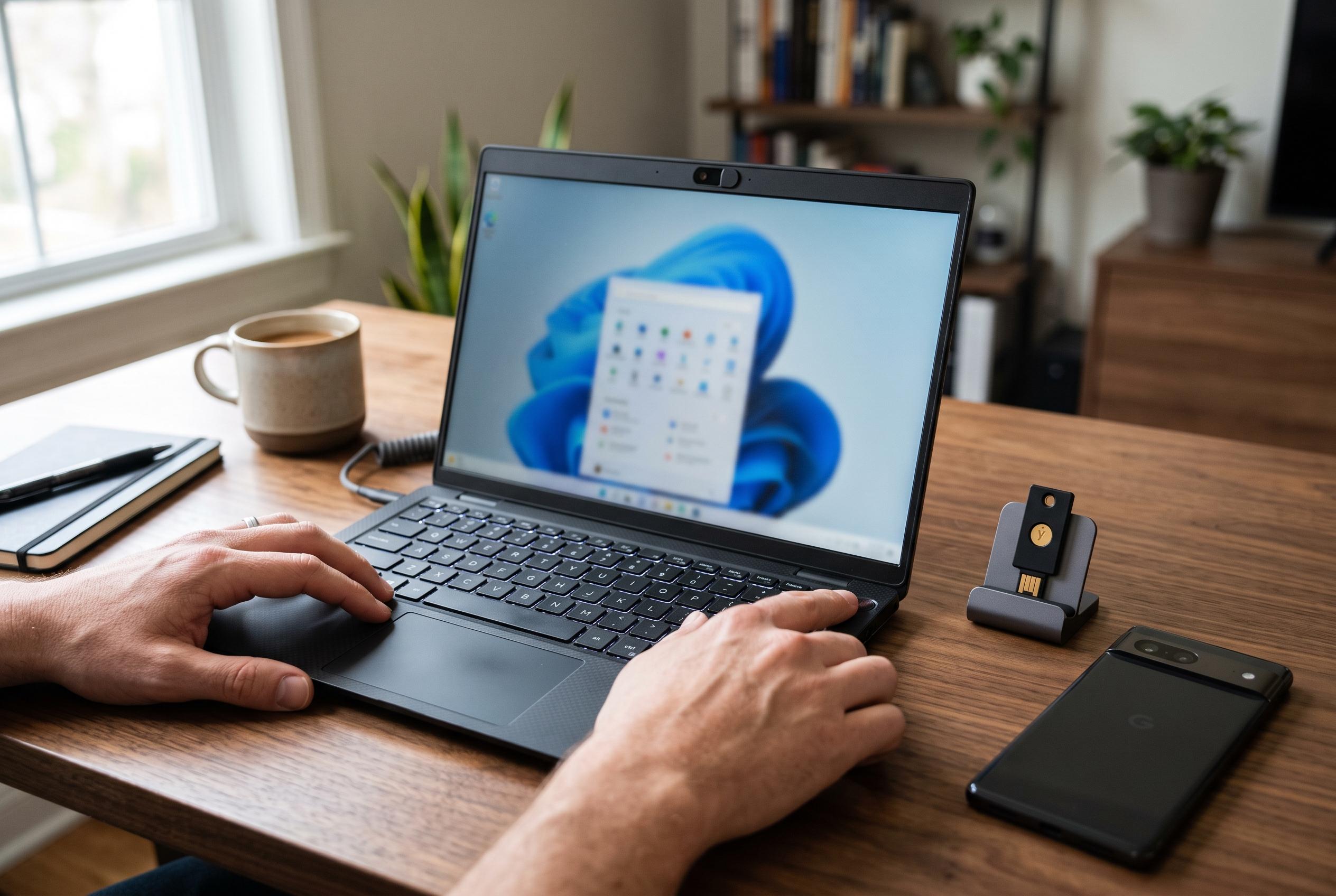

Many Windows 11 users leave critical security features inactive, despite their potential to thwart malware, ransomware and unauthorised system changes, a new analysis highlights the importance of enabling controls like Tamper Protection and Controlled Folder Access.
Windows 11 includes a set of security controls that many users leave untouched, even though they can materially reduce exposure to common attacks. Microsoft’s own guidance makes clear that features such as Tamper Protection, Controlled Folder Access and Smart App Control are intended to harden the system against malware, ransomware and unauthorised changes to Defender settings. In practice, they are most useful because they address a familiar weakness: attackers often try to subvert the security tools already on the machine rather than break through them head on.
Tamper Protection is one of the most important of these safeguards. Microsoft says it is designed to stop malicious software, and even apps running with administrative rights, from altering key Microsoft Defender Antivirus settings. That matters because modern malware often aims to switch off real-time protection or cloud-delivered protection before carrying out its main payload. Enabling Tamper Protection adds a barrier against that kind of quiet interference and helps preserve the device’s security configuration.
Controlled Folder Access offers a different kind of protection, aimed at ransomware. According to Microsoft Learn, the feature allows only trusted applications to change files in protected folders, while blocking untrusted software from making changes. That makes it particularly relevant for people who store financial documents, personal records or work files locally. Microsoft’s documentation also notes that activity can be monitored, which makes the feature more practical for users who want visibility as well as protection.
Smart App Control takes a more preventative approach by assessing whether an application should run at all. Microsoft says it uses cloud-based intelligence and digital signature checks to block software that is known to be malicious or fails trust requirements. The trade-off is that it can be strict, especially for developers or power users who run their own unsigned tools. For everyday users, though, it can provide a useful layer of filtering before suspicious software ever starts.
A more modest but still valuable option is Dynamic Lock, which helps with physical security rather than malware defence. By pairing a phone with the PC, Windows can automatically lock the device when the phone is no longer nearby. It is not a substitute for strong sign-in credentials or full-disk encryption, but it does reduce the risk of an unattended laptop being accessed in public spaces or shared offices. Together, these settings show that Windows Security is more capable than many users assume, provided they take the time to turn the protections on.
Disclaimer: This content is intended for informational purposes only. Readers are advised to exercise their own judgement, conduct due diligence, or consult a qualified expert before acting on any information provided.