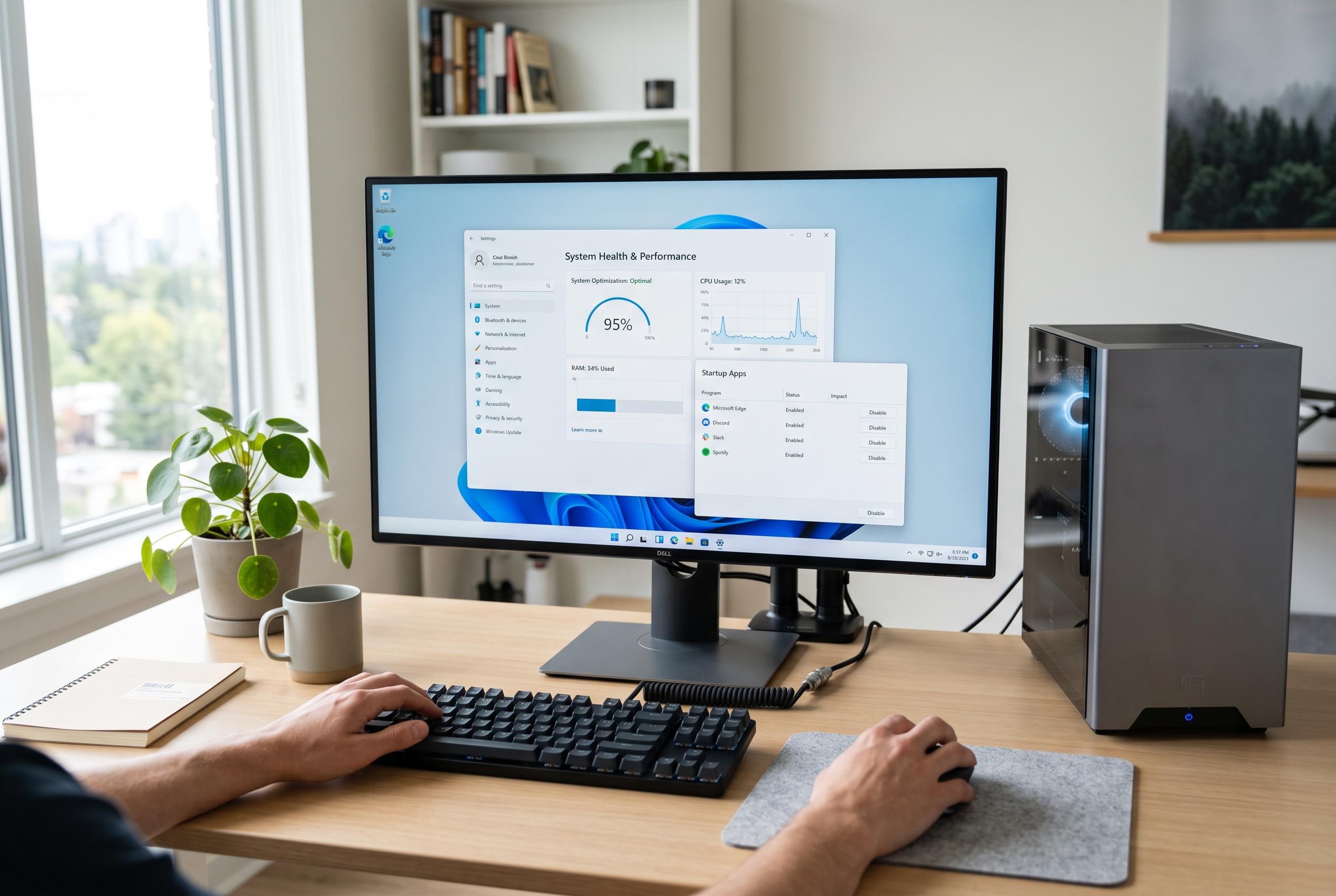

Persistent sluggishness in Windows 11 is often caused by cumulative system pressures, prompting Microsoft and users to adopt layered troubleshooting strategies ranging from startup management to hardware upgrades.
Windows 11 can feel noticeably slower after months of use, but the cause is usually cumulative rather than mysterious. Microsoft’s own performance guidance points to the same broad pressures: too many startup apps, background activity, visual effects, low storage headroom, and unnecessary services all add overhead. The practical response is to treat slowdown as a systems problem, not a single fault.
The first place to look is startup load. Microsoft recommends removing apps that launch automatically, and Windows Central has likewise highlighted startup control, unused app removal and routine restart cycles as effective first-line steps. That advice matters because many common apps quietly reserve memory and CPU time before a user has opened anything. On lower-spec machines, that can be enough to make boot times and desktop responsiveness feel degraded.
Visual effects and background services are another source of friction. Microsoft says performance can improve when users reduce animations, adjust visual effects and choose a higher power mode. Windows 11’s modern interface is designed to look polished, but on integrated graphics and modest CPUs, transparency, blur effects and constant compositing can add measurable drag. Related reporting from Windows Central and DigitNaut suggests Microsoft is still working to lower the operating system’s memory footprint and smooth out interface lag, including context menus and File Explorer behaviour.
Storage health also matters. Microsoft advises users to optimise drives, clear unused files and keep enough free space available, while Windows Central notes that search indexing, page file settings and leftover installation files can all contribute to slowdowns. On systems with SSDs, performance usually remains far better than on mechanical drives, but a crowded system disk can still produce stalls, especially when Windows is updating caches or writing temporary files.
For stubborn cases, the more technical steps are system repair, malware scanning and hardware review. Microsoft recommends checking resource usage and using built-in maintenance tools, while third-party guides also point to SFC and DISM, offline Defender scans and driver updates as sensible next moves. Windows Central’s reporting on Microsoft’s broader optimisation efforts is a reminder that Windows 11 is being tuned for leaner devices, including 8 GB systems, but that does not remove the need for adequate hardware. If a PC still struggles after software cleanup, the likely fix is not another tweak but an SSD, more RAM or a clean reinstall.
Disclaimer: This content is intended for informational purposes only. Readers are advised to exercise their own judgement, conduct due diligence, or consult a qualified expert before acting on any information provided.