

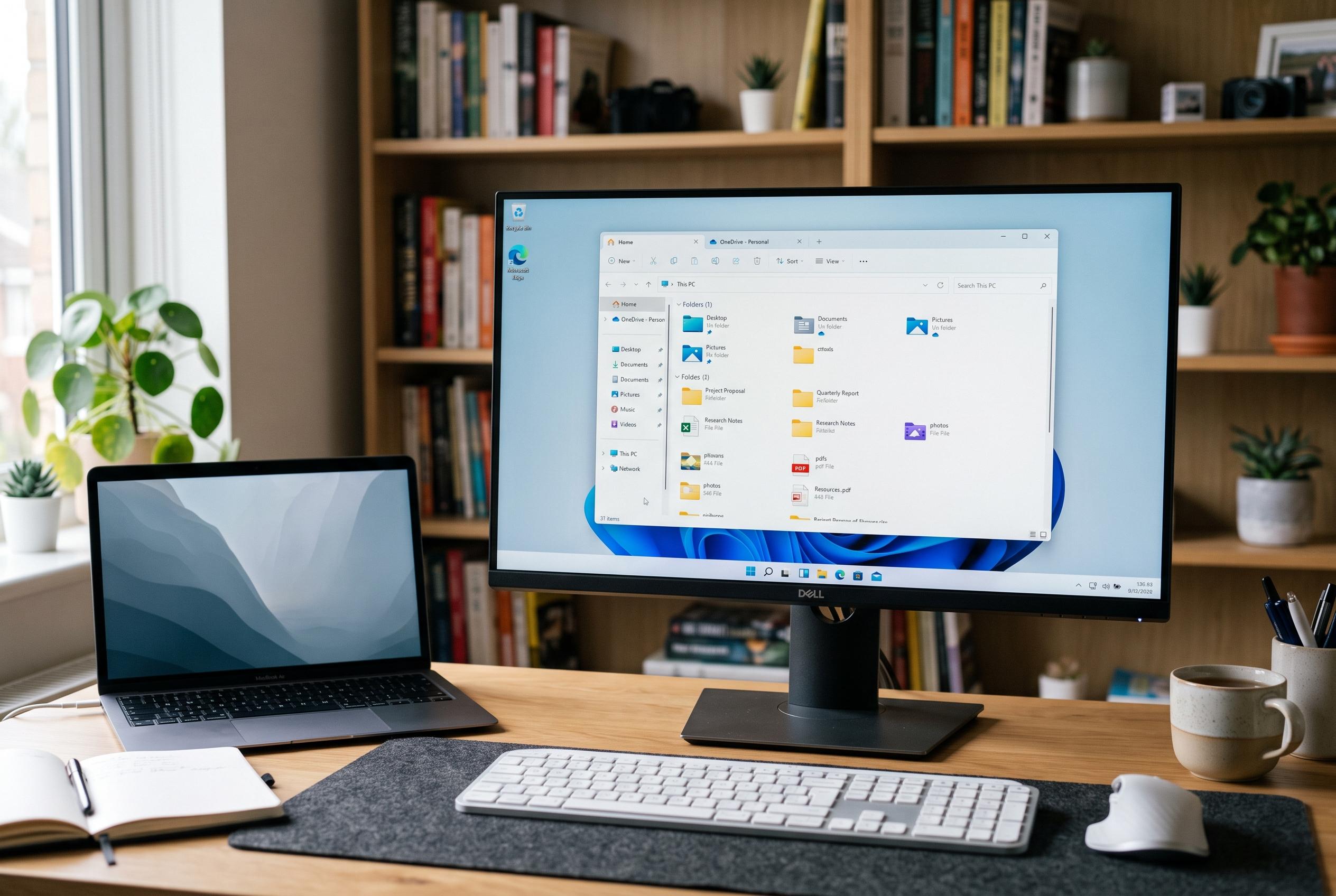

Microsoft’s latest Windows 11 update redefines File Explorer as a versatile, cloud-connected application with new navigation features, shortcuts, and tabbed management, marking a significant shift from traditional Windows habits as support for Windows 10 ends.
File Explorer is no longer just the folder window many Windows users treat as background furniture. In Microsoft’s current guidance, it sits at the centre of local and cloud file access, and the most useful shortcuts now reflect that broader role. The familiar Windows key + E command still opens it instantly, but the more important shift is that modern File Explorer on Windows 11 is built around Home, Quick access and newer navigation features rather than the older drive-first layout. That matters more now because Microsoft ended support for Windows 10 on 14 October 2025. (support.microsoft.com)
The basic entry point has been stable for years. TechRadar’s Windows 10 guide described three equivalent ways to launch File Explorer: the taskbar folder icon, Start search, or Windows key + E, and Microsoft still documents the same shortcut today. What has changed is the landing page. In Windows 11 version 22H2 and later, File Explorer opens to Home by default, and Microsoft says that view is designed to surface recent and favourited Office.com files and search across both the PC and connected cloud storage. Users who prefer a more traditional layout can switch the default back to This PC. Microsoft also notes that Desktop, Documents, Downloads, Pictures, Music and Videos are pinned in Quick access by default and are no longer shown under This PC in the same way. (techradar.com)
Once inside the app, the official keyboard list is richer than many casual round-ups suggest. Microsoft documents Alt + Left Arrow and Alt + Right Arrow for moving back and forward through locations, Alt + Up Arrow for climbing one level in the folder path, and Alt + Enter for opening the Properties dialogue for the selected item. It also lists Alt + P for the Preview pane. Zapier argues that this is one of the most practical hidden tools in File Explorer because it lets users inspect images, PDFs, Word documents, Excel spreadsheets and text files in a sidebar without opening each file separately. (support.microsoft.com)
Some of the most effective time-savers are not inside File Explorer at all, but around it. Microsoft’s shortcut reference says Windows key + comma temporarily peeks at the desktop, Windows key + D shows or hides the desktop, Windows key + Up Arrow maximises the active window and Windows key + M minimises all windows. It also documents a less widely known taskbar shortcut: Windows key + Shift + number starts a new instance of the app pinned in that taskbar position. For pinned apps that need elevated rights, Windows key + Ctrl + Shift + number opens a new instance as administrator. That is a more precise, official route than relying on taskbar menus or repeated mouse clicks. (support.microsoft.com)
Where Windows 11 clearly moves beyond older Explorer habits is tabbed file management. Zapier notes that Ctrl + T opens a new File Explorer tab and Ctrl + W closes one, bringing browser-like behaviour to folder work. A middle-click on a folder, or the “Open in new tab” command, lets users branch into another location without spawning yet another window. The same guide highlights right-click drag-and-drop as an underrated control method: instead of letting Windows guess whether an item should move or copy, the gesture produces an explicit menu offering Copy here, Move here and Create shortcuts here. (zapier.com)
The next layer of efficiency comes from sorting and naming files at scale. Zapier recommends F2 to rename a selected file, then Tab to jump immediately to the next file for another rename; when several files are selected together, File Explorer can apply one name with sequential numbering added automatically. For large, cluttered folders, switching to Details view with Ctrl + Shift + 6 enables filtering from the column headers. Microsoft’s own File Explorer guide adds three settings that are especially useful for technical work and troubleshooting: file name extensions, hidden items and item check boxes, all available through the View menu. (zapier.com)
The wider Windows shortcut set also matters because file work rarely happens in isolation. Microsoft says Windows key + V opens clipboard history only if Clipboard history has first been enabled in Settings, while SlashGear reports that the panel stores up to 25 previous entries. PCWorld’s Chris Hoffman recommends that feature as part of a daily shortcut workflow, especially when reusing copied names, text fragments and images. The same applies to Ctrl + Shift + Esc for direct access to Task Manager, Windows key + Tab for Task View, Windows key + Ctrl + Left or Right Arrow for moving between virtual desktops, and Windows key + H for voice typing. Those are not File Explorer commands, but they reduce friction around the same document-heavy tasks. (support.microsoft.com)
There is, however, a version check hidden inside many shortcut lists. Microsoft’s reference and SlashGear both note that Windows key + Z does not behave the same way everywhere: on Windows 11 it opens Snap Layouts, while in Windows 10 it is tied to commands for full-screen apps. That difference captures the larger point. The most valuable Explorer shortcuts today are not simply the fastest way to open a folder window. They are the ones that help users understand how Microsoft has reorganised File Explorer around Home, cloud-connected search, pinned locations and Windows 11-only features, while older Windows 10 habits increasingly sit on an unsupported platform. (support.microsoft.com)
Disclaimer: This content is intended for informational purposes only. Readers are advised to exercise their own judgement, conduct due diligence, or consult a qualified expert before acting on any information provided.



