

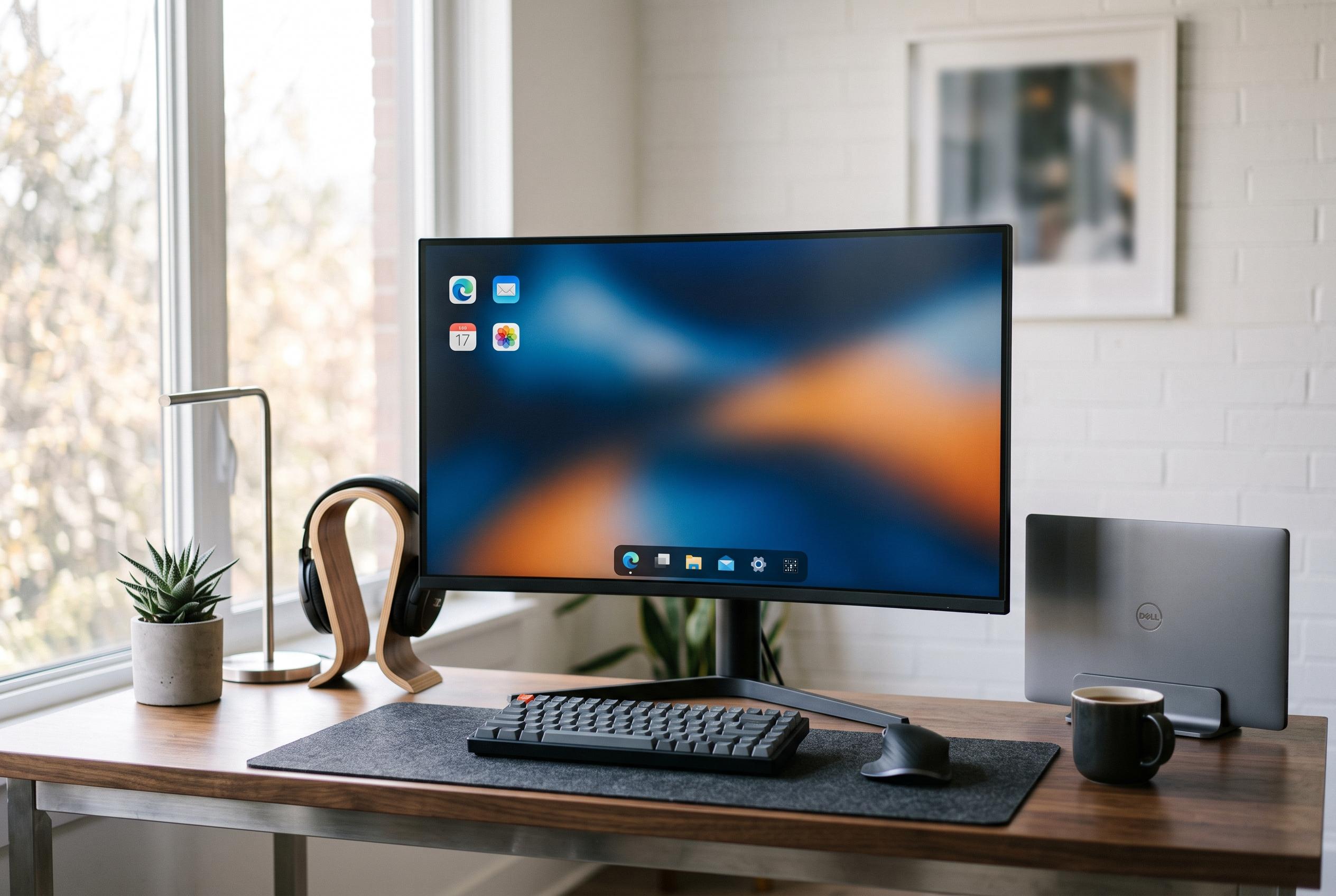

Windows 11’s promotional features can be toned down or removed entirely, allowing users to create a cleaner and more streamlined desktop experience through simple settings adjustments and advanced system edits.
Windows 11 is built with several visible layers of promotion and suggestion, but many of them can be turned down or removed. For users who want a cleaner desktop, the main pressure points are the Widgets surface, the Start menu’s recommendations, pinned content Microsoft adds by default, and search highlights that can crowd the interface with extra material. PCWorld and PC Guide both note that the Widgets panel can be controlled from Settings, while more aggressive removal methods also exist for users comfortable with deeper system changes.
The first place to look is Widgets. Windows 11 can surface them both on the taskbar and, in more limited form, on the lock screen, but those feeds often bundle together weather, news and market data whether or not the user wants them. According to PCWorld, the taskbar widget entry can be switched off in Personalisation, and the lock screen can be set so that its status area shows none at all. PC Guide adds that users who want to go further can use administrative tools such as Group Policy, Registry edits or service changes to disable the feature more thoroughly.
The Start menu is the next source of clutter. Microsoft’s defaults can surface tips, shortcuts, new apps and other suggested items alongside recently added software and recommended files. PCWorld says these can be disabled in the Start section of Settings, while Windows Central and All Things How describe the same area as the place to control the Recommended section more broadly. The result is a simpler menu that shows installed apps without the extra promotional material.
There is also the matter of pre-pinned items. Windows can place shortcuts in Start for apps a user has not chosen, which makes the panel feel busier than necessary. Those entries can be removed one by one, and foldered pins can be broken apart before deletion. Once the unused shortcuts are cleared, many users rely instead on taskbar pins for the handful of applications they open every day.
Search is the final area where Microsoft’s defaults can get in the way. Search highlights may add trending queries, games or trivia, but they can also turn the search panel into another channel for Microsoft content. The setting sits under Privacy & security rather than Personalisation, which makes it easier to miss, but turning it off leaves a more direct search box with local apps and useful shortcuts. For users who want Windows to feel less crowded, these small changes can make a noticeable difference.
Disclaimer: This content is intended for informational purposes only. Readers are advised to exercise their own judgement, conduct due diligence, or consult a qualified expert before acting on any information provided.



