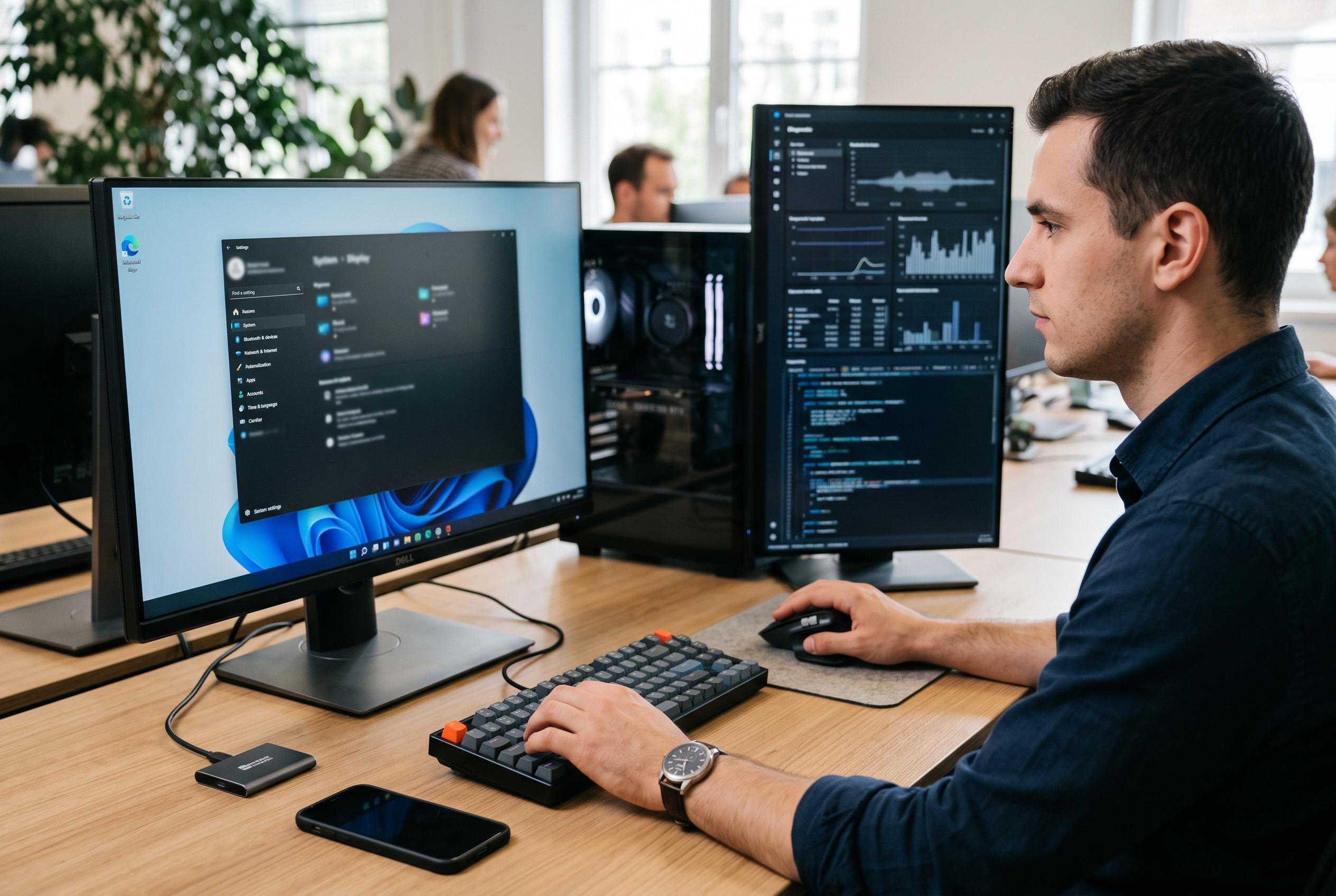

The latest updates to Windows 11’s Task Manager transform it from a basic process list into an advanced troubleshooting and system analysis instrument, with features like AI hardware monitoring and efficiency modes that help optimise performance and diagnose issues more effectively.
Windows 11’s Task Manager has evolved into a far more capable diagnostic tool than the simple process list many users still expect. It can now help identify runaway apps, spot start-up bottlenecks, measure energy impact and expose suspicious behaviour without installing extra utilities. Used properly, it gives a clear picture of where the system is spending its CPU time, memory and storage bandwidth, which is often enough to fix a slowdown before resorting to more drastic measures.
Speed matters when a machine is hanging or a game has frozen on full screen. According to PCWorld, the quickest way to bring up Task Manager is still the keyboard shortcut rather than the older security screen, and that direct access can save valuable time when a programme stops responding. Windows Central also notes that the tool can be kept in the foreground, which is useful when an application has locked the display and is hiding the controls needed to close it.
One of Task Manager’s most practical additions is Efficiency Mode. Windows Central reports that this feature lowers the priority of selected processes so they use fewer resources, which can help with battery life and heat on laptops without fully terminating the programme. In the same spirit, the tool’s expanded performance view now gives a more detailed picture of how modern hardware is behaving, including newer AI-related components. On systems with a Neural Processing Unit, Windows Central says Task Manager can show NPU activity and related memory data, making it easier to tell whether AI work is being handled by the NPU, the GPU or the CPU.
For everyday troubleshooting, the task list remains the most useful place to start. HP explains that Task Manager can be used to inspect process priority, CPU affinity and real-time resource use, while also helping users identify memory leaks and other persistent inefficiencies. The search field and the column controls make it easier to isolate a problem application, and the process details can be expanded to reveal the underlying service or executable path when something looks suspicious. That is especially important when a generic system process appears to be the culprit, because closing the wrong item can destabilise Windows itself.
Security-minded users also benefit from the extra detail. A process that appears to be a system component but points to an unusual location can indicate malware or another unwanted programme, particularly if it launches from a temporary folder or user profile rather than a protected Windows directory. In cases where a programme is not responding, the wait-chain analysis can show whether the fault lies with the app itself or with another process, driver or dependency that it is waiting on. Windows Central and HP both describe these deeper diagnostic views as part of what makes Task Manager more than a simple kill switch.
The same approach applies to start-up management and broader performance checks. Both HP and PCWorld highlight the value of disabling unnecessary start-up items, while Windows Central emphasises that Task Manager can show bottlenecks in real time instead of relying on guesswork. That is why the tool remains central to Windows maintenance: it helps users decide whether the problem is CPU load, memory pressure, disk saturation or a misbehaving background service. In many cases, the answer is visible in a few clicks, and no third-party optimiser is required.
Disclaimer: This content is intended for informational purposes only. Readers are advised to exercise their own judgement, conduct due diligence, or consult a qualified expert before acting on any information provided.