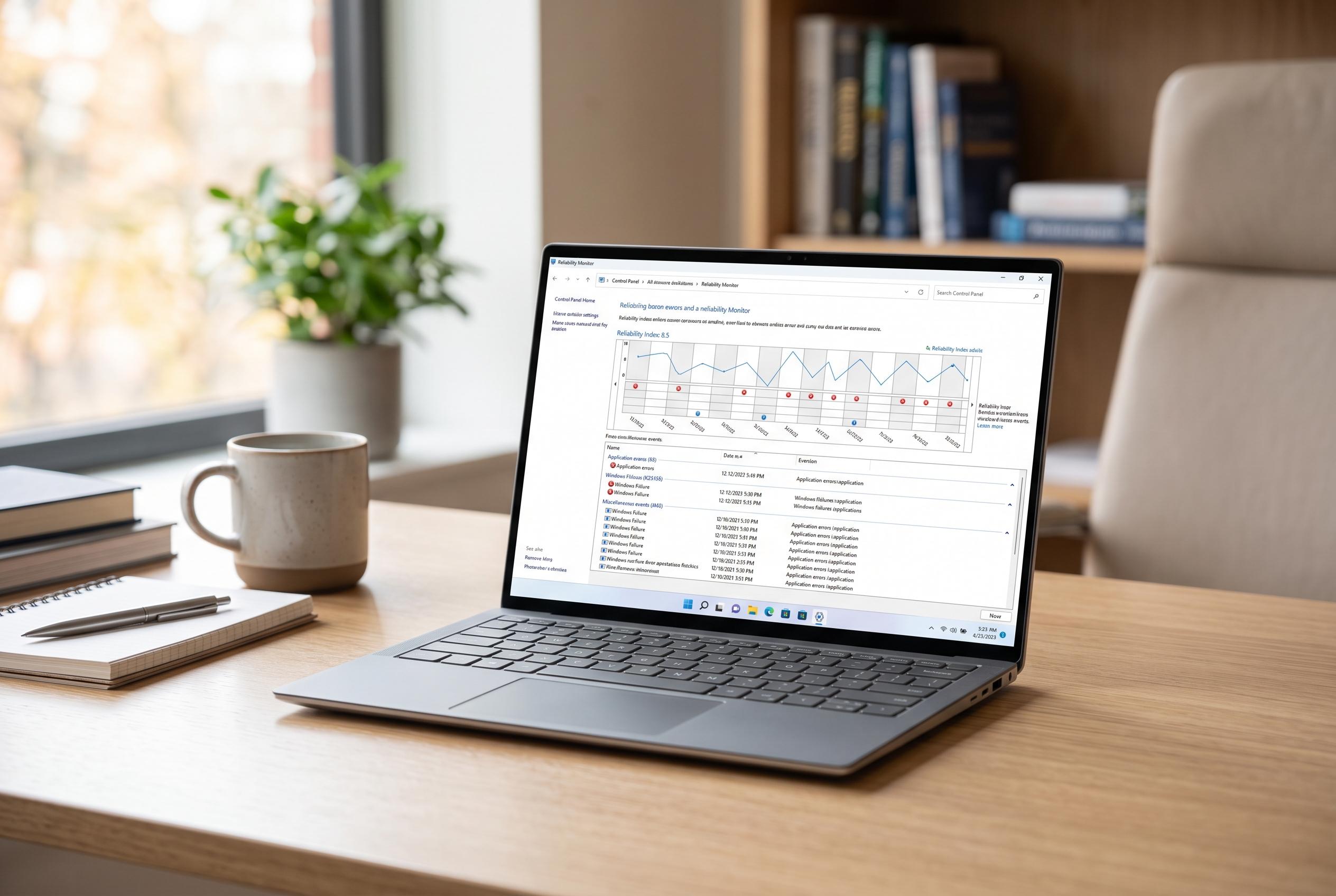

Since its introduction in Windows Vista, Reliability Monitor has quietly provided users with an accessible way to track system stability, yet it remains overshadowed by more complex tools. Discover why it’s still a valuable resource for troubleshooting and monitoring Windows performance.
Windows includes a number of diagnostic tools that are easy to miss, and one of the most useful is Reliability Monitor. According to How-To Geek, the feature has been part of Windows since Vista launched in 2007, yet it remains buried in the Security and Maintenance area of Control Panel rather than surfaced more prominently for everyday users. Microsoft’s own documentation from the Vista era describes it as part of the broader Reliability and Performance Monitor, designed to show how system changes line up with stability over time.
Its value is in its simplicity. The tool presents a timeline of events, including application crashes, Windows failures, warnings linked to updates and general information events, then converts that history into a Stability Index on a scale from 1 to 10. Ars Technica noted at the time of Vista’s release that the score gives more weight to recent problems, which makes it useful for spotting whether a system has become less stable after a driver update, hardware change or software installation. Computerworld and Dell both say the monitor is especially helpful for diagnosing crashes, hangs and reliability problems without forcing users to dig through log files.
That practical usefulness is exactly why the feature has endured. How-To Geek said the author used Reliability Monitor to track instability tied to a CPU undervolt, memory running at an unstable speed and, more recently, a blue screen linked to Bug Check Code 50. The same timeline also showed GPU driver errors recorded as LiveKernelEvent 193 and repeated failures for the Xbox app’s internal MicrosoftGamingApp updates, which had to be completed manually through the Microsoft Store. The point is not that Reliability Monitor fixes these problems, but that it makes patterns visible quickly enough for a user to act on them.
Microsoft has long positioned the tool as a stability-history view rather than a deep forensic utility. TechTarget says administrators also use it to monitor software installs, uninstalls, application failures and hardware failures, while Dell describes it as a way to track system state across logon and shutdown. That broader scope makes it useful in both consumer and server settings, even if the interface is aimed more at quick interpretation than exhaustive analysis.
For most people, the attraction is that it is easier to read than Event Viewer. How-To Geek says the fastest way to open it is to search for Reliability Monitor in Windows Search and choose View reliability history, though it can also be reached through Control Panel, System and Security, then Security and Maintenance. In practice, it is a low-friction way to investigate crashes, failed updates and driver faults, and one that Microsoft has kept in Windows for nearly two decades without giving it much prominence.
Disclaimer: This content is intended for informational purposes only. Readers are advised to exercise their own judgement, conduct due diligence, or consult a qualified expert before acting on any information provided.