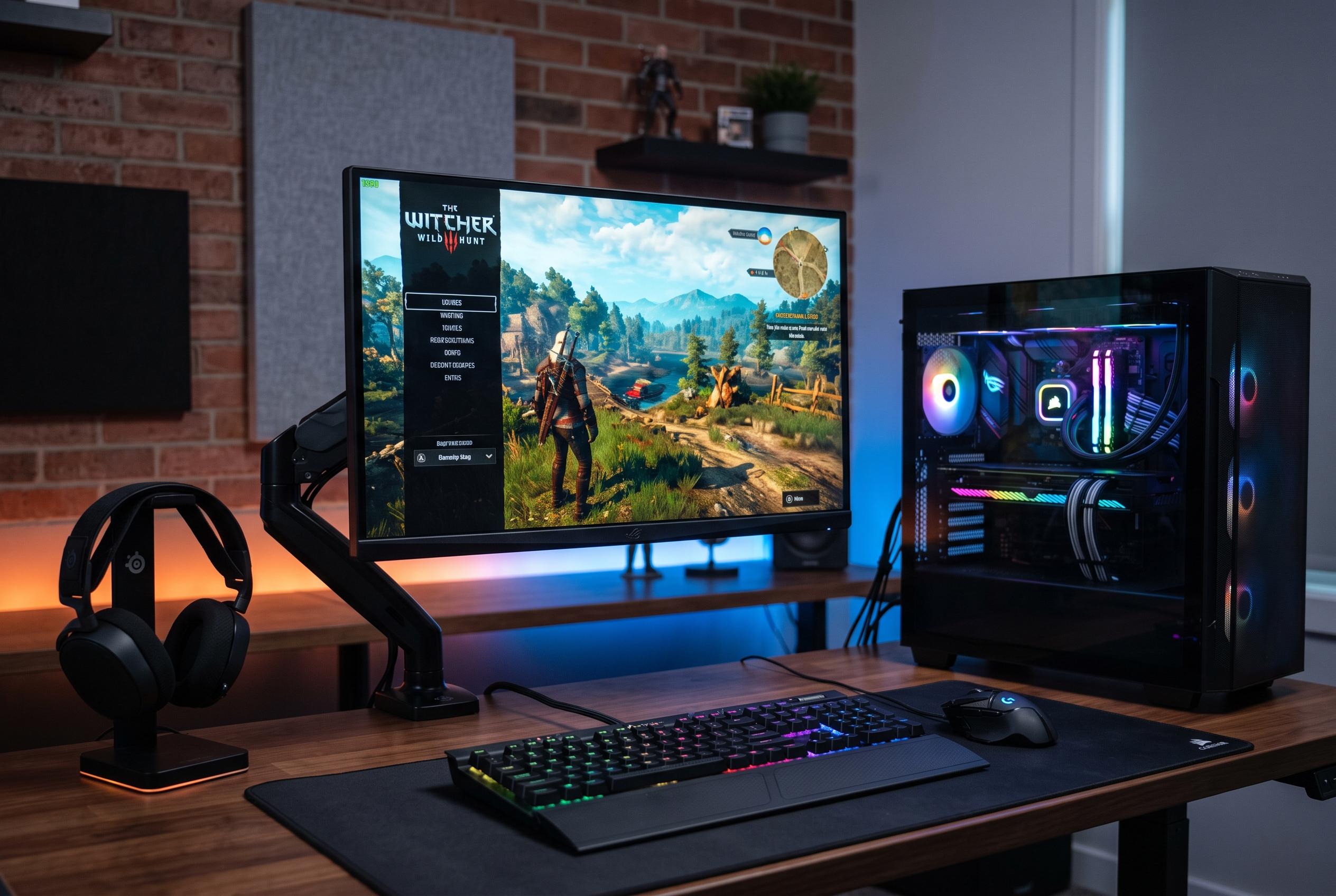

While software adjustments in Windows can enhance gaming stability, the primary factor for smooth frame rates remains stronger hardware, with recent updates offering small but meaningful improvements for dedicated gamers.
For PC gaming, software tweaks can help, but they cannot replace stronger hardware. A dedicated graphics card remains the single most important component, with the processor, memory and storage also playing a major role in avoiding bottlenecks. According to Microsoft, the most useful Windows adjustments are best seen as support measures: they will not transform a weak system into a strong one, but they can help a capable machine deliver steadier frame rates and fewer slowdowns.
The first priority is to make sure the game is using the right GPU. On Windows 11, users with both integrated and discrete graphics can assign a title to the high-performance processor through the Graphics settings menu, which helps prevent a game from running on the weaker integrated chip. Microsoft also supports hardware-accelerated GPU scheduling on compatible systems, a feature designed to reduce latency in some workloads. At the same time, keeping graphics drivers current remains essential. NVIDIA, AMD and Intel regularly release updates that can improve stability and performance, especially around major game launches.
Windows itself can also be trimmed back. Visual effects such as animations and transparency make the interface look polished, but they consume resources that could otherwise be used by a game. Setting the system to favour best performance reduces that overhead. The same logic applies to overlays, which place extra interface layers on top of a game for chat, recording or monitoring. These can be useful, but they also add background work and may sometimes cause compatibility problems. Disabling the Xbox Game Bar overlay, along with similar overlays from Discord or graphics drivers, can free up a small but useful amount of performance.
Another area worth checking is power management. Windows uses a balanced power plan by default, which is sensible for everyday use, but a high-performance plan is often better for gaming because it allows components to stay at higher operating levels for longer. Windows 11’s Game Mode is also worth testing. Microsoft says it reduces background activity and prioritises system resources for the game in use, although in practice the effect can vary by machine and title. For some users it makes a clear difference; for others, the gain may be modest.
Security and virtualisation features can also affect performance on some PCs. Windows Memory Integrity and the Virtual Machine Platform both serve legitimate purposes, but they may add overhead that is unnecessary during a gaming session. Microsoft recommends turning them off only when needed and then restoring them afterwards. That caution matters. These are not settings to leave disabled casually on a general-purpose computer. Still, for users chasing the best possible frame rates on a dedicated gaming machine, they are among the more meaningful optional adjustments. The broader lesson is simple: the largest gains still come from better hardware, but the right Windows configuration can help extract more from what is already installed.
Disclaimer: This content is intended for informational purposes only. Readers are advised to exercise their own judgement, conduct due diligence, or consult a qualified expert before acting on any information provided.