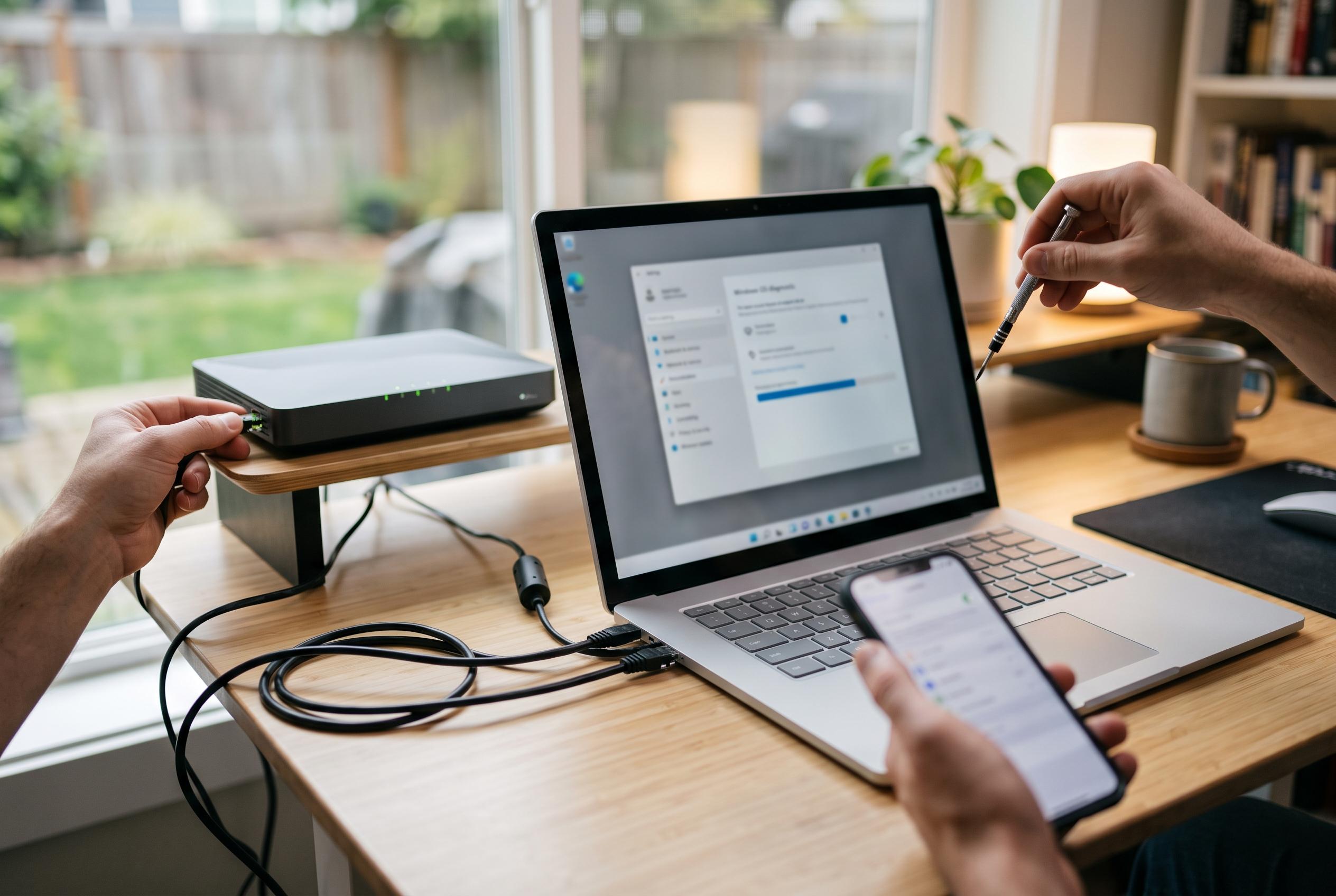

When Windows shows a Wi-Fi connection but fails to load pages, the problem is typically a software glitch. Experts recommend network resets, driver repairs, and configuration checks before hardware replacement.
A Windows PC that shows a Wi-Fi connection yet refuses to load pages usually has a software problem rather than a dead router or a failed internet line. In practice, the fault often sits between the network adapter, Windows networking stack and whatever has altered the connection settings, such as a bad update, a VPN client, a security suite or a stale IP configuration. Microsoft’s support guidance and other technical explainers point to the same broad pattern: the link exists, but Windows is no longer handling it correctly.
The quickest place to start is Windows’ built-in network reset. On Windows 11, this is found under Settings, then Network & internet, then Advanced network settings, where the Network reset option reinstalls the adapters and returns the core networking components to a clean state. Windows 10 offers the same type of reset from its Network and Internet settings page. After the reboot, the machine will usually need the Wi-Fi password entered again, but it also clears out many of the corrupted parameters that can leave the computer connected without real access.
If that does not restore browsing, the next step is to use an elevated Command Prompt. Microsoft recommends a set of repair commands that rebuild the networking stack and refresh name-resolution data. The most important are netsh winsock reset, netsh int ip reset and ipconfig /flushdns. Together, these commands rebuild Winsock, reset TCP/IP configuration and clear the DNS resolver cache. In some cases, users also need to release and renew the IP address so that Windows requests a fresh network lease from the router.
DNS and addressing problems are common when the Wi-Fi symbol looks healthy but websites still fail to open. The computer may be reaching the router correctly while failing at the stage where domain names are translated into numeric addresses. Tools such as DNS Jumper, mentioned in the supplied material, can quickly switch to alternative resolvers such as Google or Cloudflare. If you prefer to work directly in Windows, it is worth checking that no proxy remains enabled from a work or school environment and that the adapter is set to obtain its IP address automatically rather than using a static value that may no longer suit the current network.
Security software is another frequent source of silent disruption. Third-party antivirus products often include firewall layers that can block traffic after an update, and Windows’ own protection tools can also interfere during troubleshooting. Temporarily disabling these filters is a sensible test, not a permanent fix. If connectivity returns while the protection is off, the issue is likely to be a rule or filtering problem rather than the router or the Wi-Fi card itself. At that point, the software should be reconfigured or replaced rather than left in a broken state.
When the operating system still refuses to cooperate, the fault may lie in the driver or the adapter. Device Manager allows you to roll back a recent driver update or remove the device so that Windows reinstalls a clean version on restart. If the adapter disappears entirely, or if error codes such as 10 or 43 persist, the problem is more serious and may point to failing hardware. In those cases, a USB Wi-Fi adapter can be a practical temporary workaround while the internal card is tested or replaced. Some older routers also struggle with IPv6, so disabling that protocol can help on legacy hardware.
There are also a few less obvious checks worth making before declaring the machine broken. A router restart can clear duplicate local IP assignments, and some access points will quietly block a device by MAC address if parental controls or access filtering have been configured. Microsoft’s guidance also suggests testing the same network from another device to confirm whether the fault is limited to one PC. Taken together, the pattern is clear: when Windows says Wi-Fi is connected but nothing loads, the fix is usually a reset, a driver repair or a configuration correction, not a hardware failure.
Disclaimer: This content is intended for informational purposes only. Readers are advised to exercise their own judgement, conduct due diligence, or consult a qualified expert before acting on any information provided.