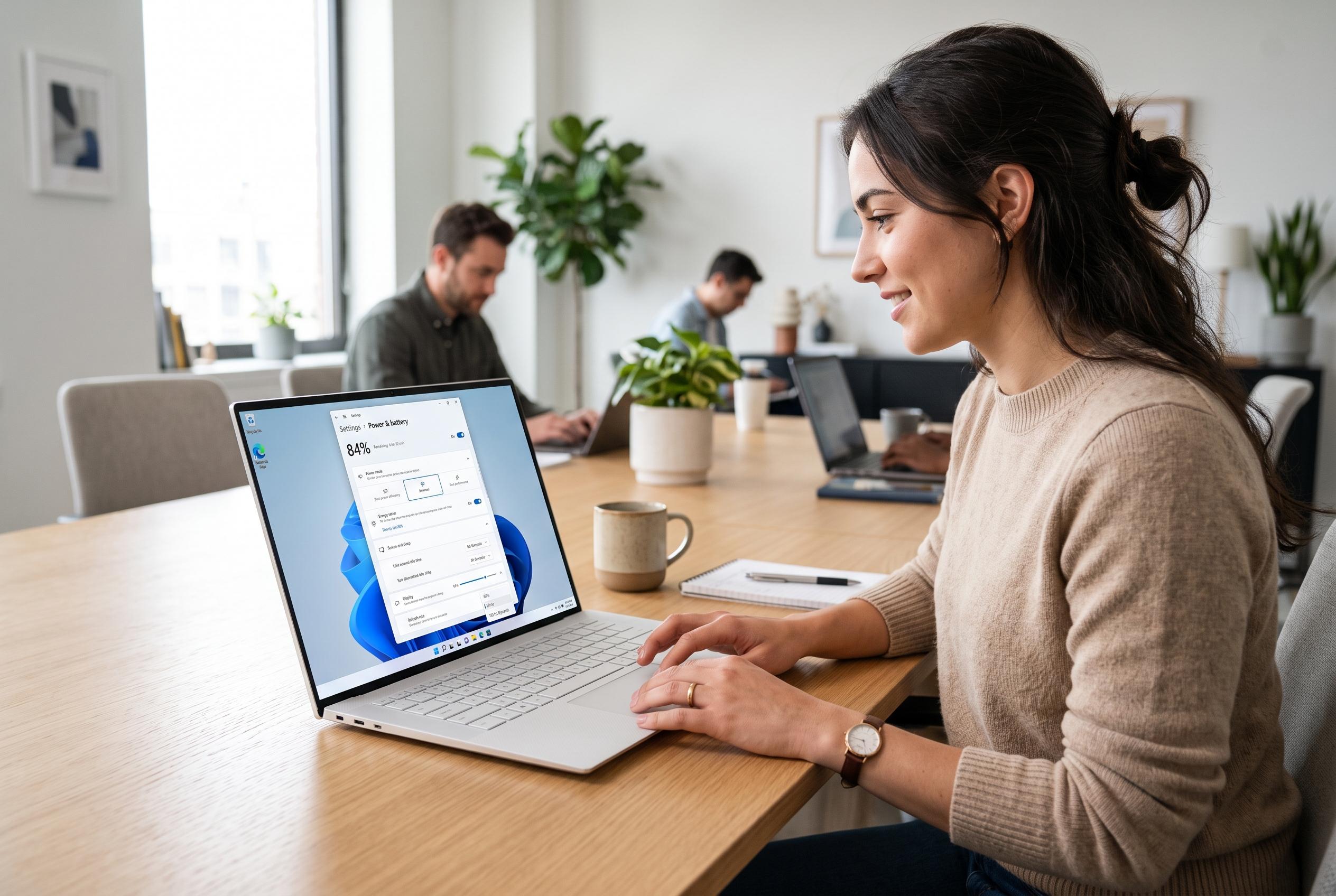

Microsoft’s latest Windows 11 features offer improved power efficiency through adjustable settings like Power mode, Energy Saver, display brightness, and refresh rates, yet their effectiveness varies with device hardware and battery condition.
Windows 11 includes several built-in power controls that can make a noticeable difference to battery life, but they work by cutting consumption rather than fixing weak battery health. Microsoft says the most effective changes are to reduce background activity, limit screen power use and shorten idle timers, though the results will still vary with the device’s hardware, firmware, display type and battery condition.
The first setting worth checking is Power mode. In Windows 11, selecting Best power efficiency reduces consumption by constraining background activity, according to Microsoft Support. That can help when battery life matters more than instant responsiveness, although the option is not exposed on every PC because availability depends on the device’s hardware and configuration.
Energy Saver is the second major control. Microsoft says it can lower power use by managing system processes, reducing background activity and, in some cases, dimming the display. It can be set to switch on automatically at a chosen battery level or remain enabled until the laptop is plugged in again. On some newer releases, Microsoft is also testing a more adaptive version that would turn Energy Saver on and off based on workload rather than battery level alone.
Display settings often produce the most practical gains. Lowering brightness remains one of the most reliable ways to extend runtime because a brighter panel draws more power. Microsoft’s guidance also notes that energy recommendations and adaptive brightness features are hardware-dependent, and may not be available on every external monitor or suitable for colour-sensitive work.
Idle timers matter as well. A shorter screen-off timeout stops the panel from wasting power while the computer stays active in the background. A separate sleep timeout saves even more, because it reduces system activity rather than just blanking the display. The distinction is important: screen-off still leaves Windows running, while sleep places the machine into a lower-power state.
Refresh rate is another factor that is easy to overlook. On supported systems, a lower refresh rate can reduce display demand, while Dynamic Refresh Rate can balance smooth motion with better efficiency on compatible Windows 11 hardware. Microsoft says Dynamic Refresh Rate requires variable-refresh-rate support and a display capable of at least 120 Hz, so older laptops and many external screens will not offer it.
None of these changes can repair a worn battery. They can only reduce current power draw. If a laptop still runs poorly after the settings are adjusted, Microsoft recommends checking Battery usage in Settings and generating a battery report with powercfg /batteryreport to compare design capacity with the battery’s current full-charge capacity. That can help distinguish a settings problem from age-related battery degradation.
Disclaimer: This content is intended for informational purposes only. Readers are advised to exercise their own judgement, conduct due diligence, or consult a qualified expert before acting on any information provided.