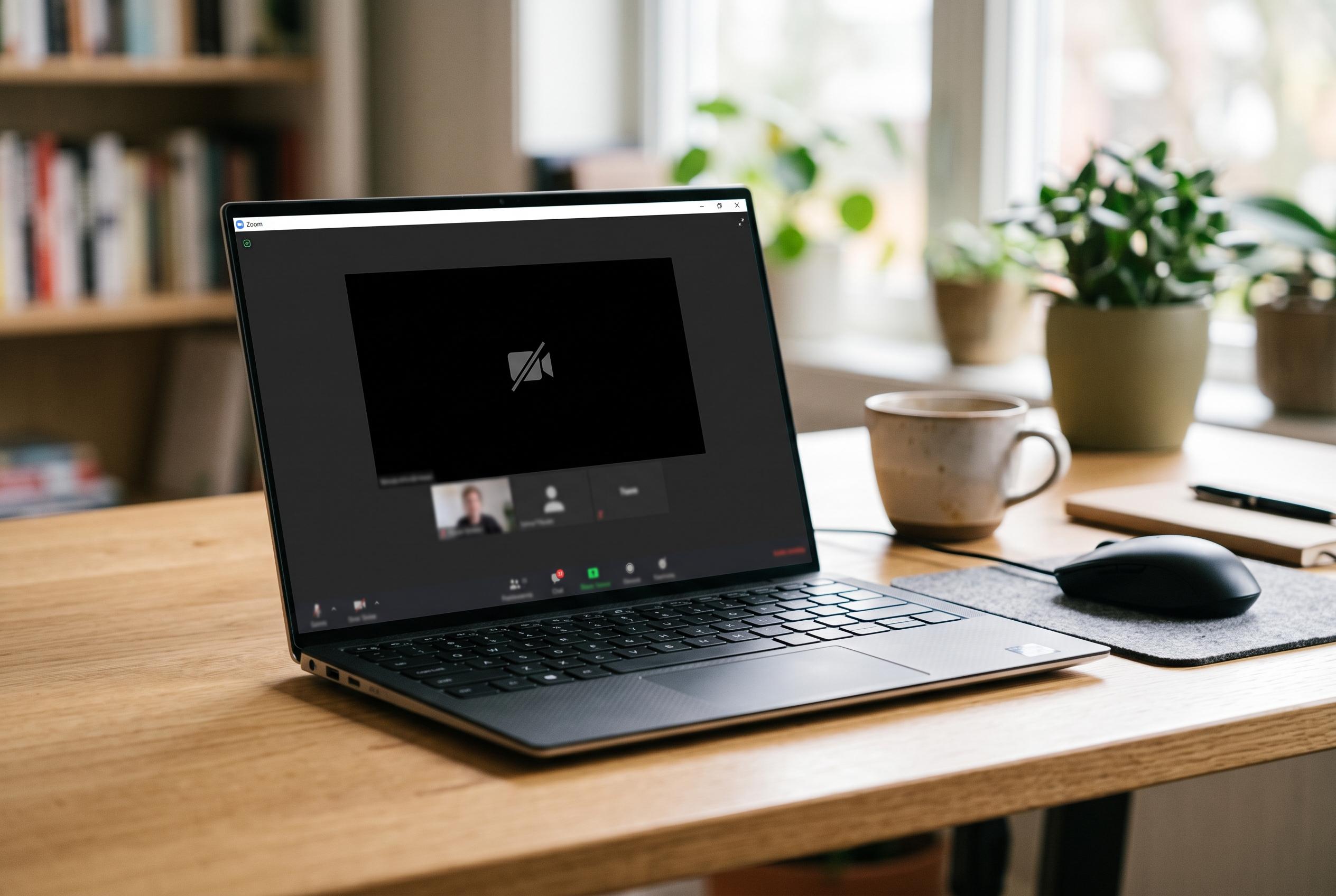

Common causes of Zoom camera failures on Windows devices are often related to permissions, hardware, drivers, or app settings, with simple troubleshooting steps providing effective solutions.
Zoom can fail to see a camera on Windows 10 or 11 for reasons that are usually straightforward rather than serious. According to Microsoft’s support guidance, the most common causes are blocked permissions, disabled hardware, missing or outdated drivers, or another app already using the device. In practice, that means the problem often sits with Windows settings, the camera itself, or Zoom’s own configuration rather than with the software alone.
The first checks are physical and basic. Microsoft says users should confirm that the camera is connected, switched on and not covered by a shutter or privacy slide. On many laptops, a keyboard shortcut or hardware toggle can disable the webcam completely. Microsoft also recommends restarting the PC, which can clear temporary faults that prevent the camera from initialising correctly.
If the camera works elsewhere but not in Zoom, the issue is more likely to be inside the app. The Zoom client should be updated, and the correct camera selected in its video settings. Microsoft Q&A contributors have also advised checking that Windows camera permissions are enabled and that no other conferencing or recording software is already holding the device open. That is a common cause of camera conflicts on Windows.
Driver problems are another frequent trigger. Microsoft advises checking Device Manager and updating the camera driver if Windows identifies an outdated or faulty version. If a local driver update does not help, Windows Update or the device maker’s support site may offer a newer release. Several troubleshooting guides also note that reinstalling Zoom can resolve configuration faults that survive a normal update.
If the desktop app is not the issue, browser-based Zoom sessions add another layer: site permissions. In Chrome and other browsers, camera access must be allowed for Zoom, and the site must not be blocked in privacy settings. Windows’ built-in Camera troubleshooter can also help isolate whether the fault lies with the operating system, the driver stack or the application. If none of those steps work, a more disruptive reset of Windows may be the last resort.
Disclaimer: This content is intended for informational purposes only. Readers are advised to exercise their own judgement, conduct due diligence, or consult a qualified expert before acting on any information provided.