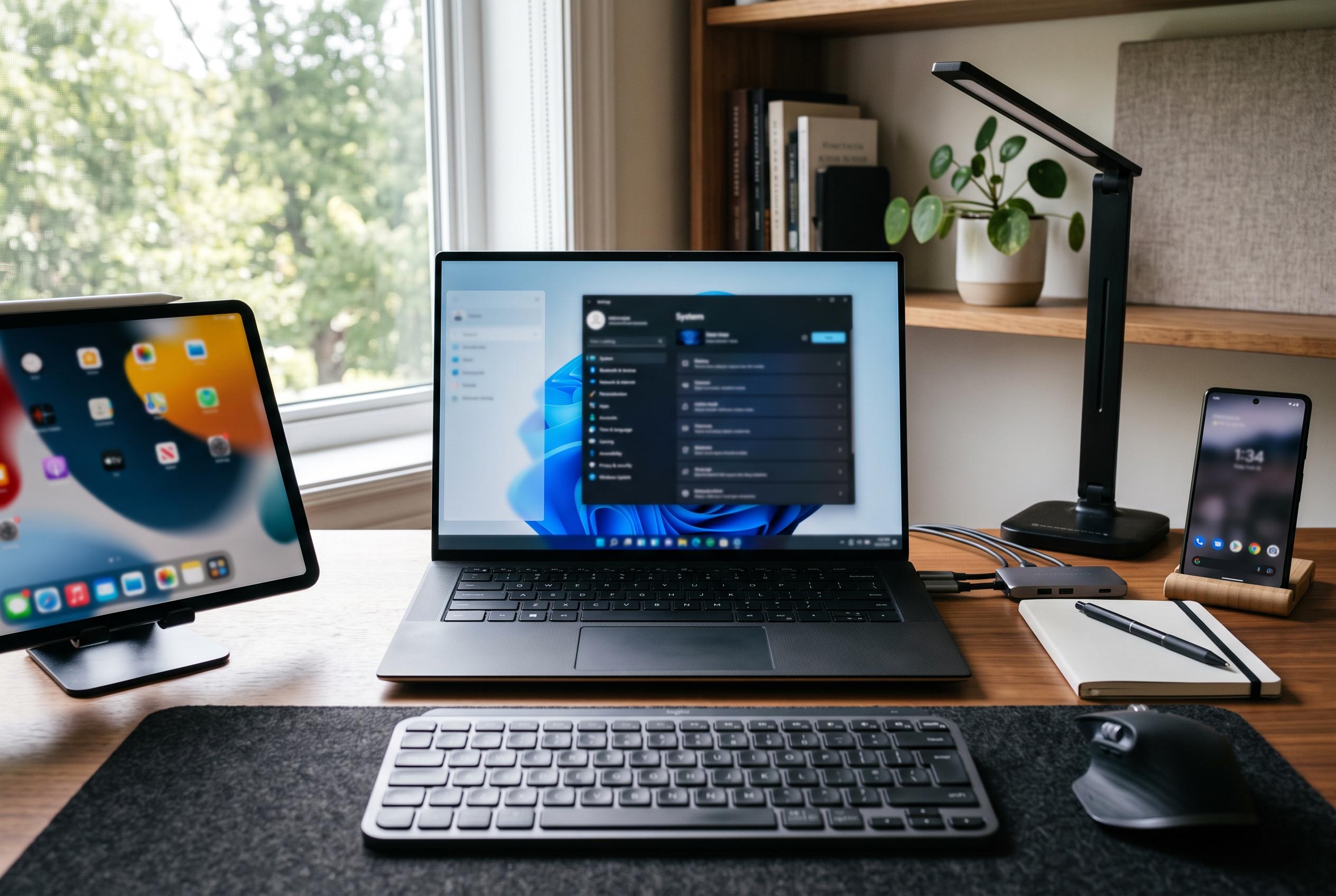

A comprehensive guide reveals that many of Windows 11’s most useful tools, from taskbar tweaks to AI enhancements, are already available but often overlooked, offering users a richer, more customisable experience without waiting for future updates.
Windows 11 has accumulated a dense set of features that are easy to miss because they sit inside Settings, hidden menus or newer bundled apps. PCMag’s guide argues that many of the operating system’s most useful tools are already present, from taskbar tweaks to AI features, and that users do not need to wait for the next Insider build to benefit from them. That is broadly true: the platform now covers productivity, accessibility, security, file management and device integration in ways that are not always obvious at first glance.
Some of the simplest changes are also the most practical. If the centred taskbar feels unfamiliar, Windows 11 still allows the Start button and app icons to be moved back to the left through Taskbar settings, a point also set out in recent step-by-step guides from NirmalTV, Windows Central and Micro Center. Microsoft’s PowerToys package is another example of hidden value, offering extras such as bulk renaming, window management and colour-mode switching that go beyond the default installation. The same category includes startup-app control, clipboard history, pinned Start items and the ability to change default apps more deliberately than in earlier versions of Windows.
The more ambitious additions are those that bring Windows 11 closer to a full productivity hub. Copilot now sits on the taskbar and can handle drafting, summarising and image generation, while Copilot+ PCs add more advanced local features. File Explorer has gained tabs, clearer commands and AI actions, including image background removal and document summarisation. Nearby Sharing offers quick PC-to-PC transfers without cloud storage, Voice Access supports hands-free control, and Live Captions can generate captions locally, with translation on Copilot+ hardware. These changes matter because they reduce reliance on third-party utilities for functions that used to require separate software.
Windows 11 also leans harder into personalisation and device integration. Widgets, Snap Layouts, multiple virtual desktops and custom themes help users organise a busier workspace. Phone Link extends the desktop to a connected phone for messages, calls and cross-device activity, while Windows Backup now makes migration to a new PC less painful by restoring files, settings and credentials through OneDrive. On the hardware side, battery reporting, Bluetooth and audio pairing, enhanced sound modes, better touch gestures and gaming tools such as Game Bar all reflect Microsoft’s attempt to make the system more adaptable across laptops, tablets and desktops.
Taken together, the message is less about secret tricks than about rediscovering a platform that now does far more than open programmes and store files. Many of these features are available only after a small amount of configuration, and several are easy to overlook because Microsoft has spread them across settings pages, taskbar menus and newer apps such as Paint, Photos, Sound Recorder and Media Player. For users willing to spend a few minutes exploring, Windows 11 can be made faster, cleaner, more accessible and less dependent on external software.
Disclaimer: This content is intended for informational purposes only. Readers are advised to exercise their own judgement, conduct due diligence, or consult a qualified expert before acting on any information provided.