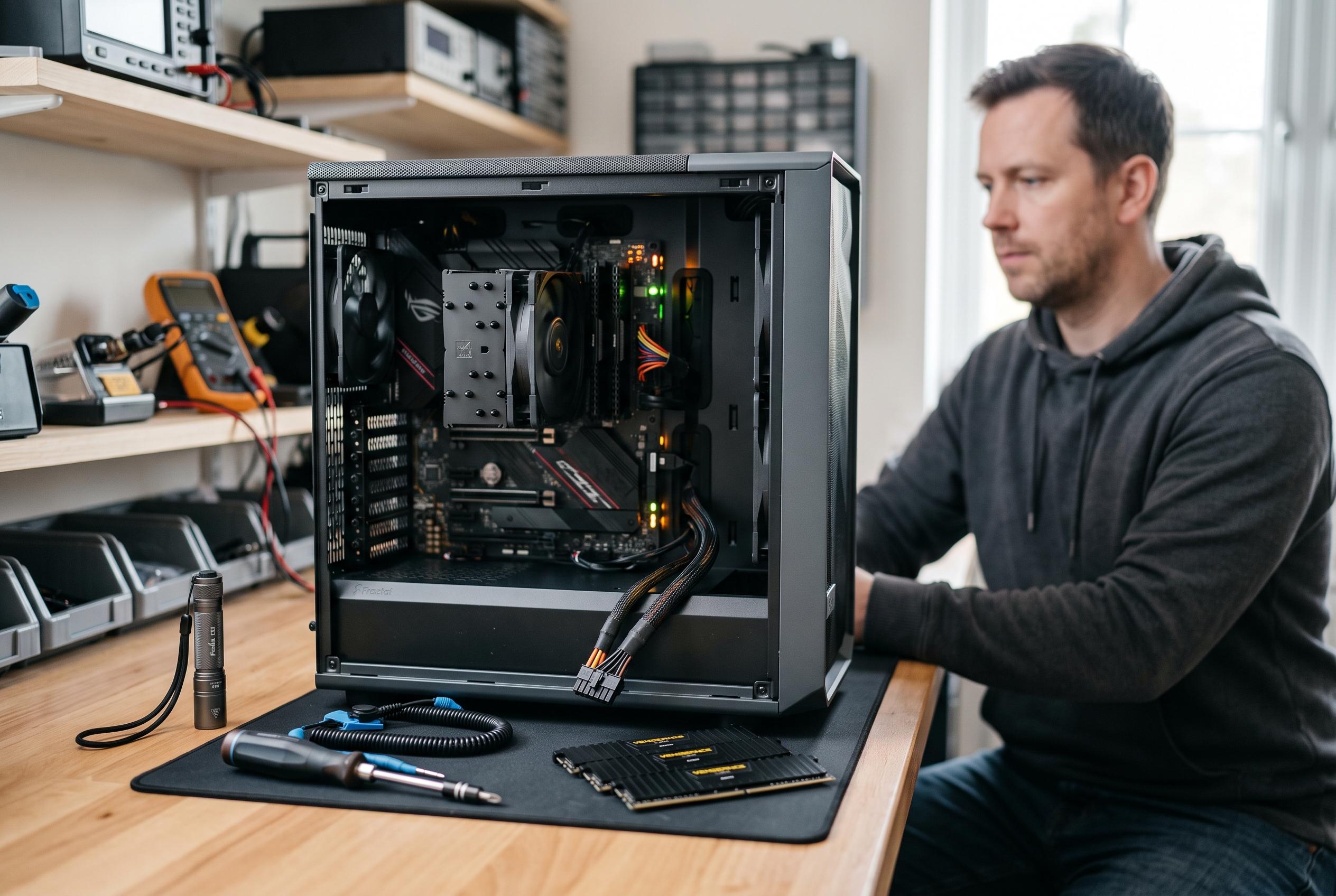

A motherboard light can be both reassuring and misleading for users facing startup problems. Learn how to interpret the LED signals and systematically diagnose hardware faults from power supply to memory modules.
A motherboard light can be reassuring and misleading at the same time. It usually means the board is receiving standby power, but it does not prove that the system can complete startup. Help Desk Geek notes that a PC can still fail before POST, leaving the power button ineffective or causing the fans to twitch once and stop. Intel’s support guidance makes the same distinction, warning that a lit board LED does not confirm that the power path, button wiring, or main rails are functioning correctly.
The most useful first checks are external. Verify the wall socket, bypass any suspect extension lead or UPS, and make sure the PSU rocker switch is set correctly. If the machine was recently moved or lost power suddenly, disconnect it from mains power, hold the case power button for half a minute, then reconnect and try again. That simple reset can clear residual charge and reveal whether the fault is in the outlet, the cable, or the supply itself.
If the board still lights up but the machine will not respond, the case power button becomes the next suspect. Intel recommends using the motherboard’s onboard power switch, if present, or briefly shorting the documented PWR_SW header pins with an insulated tool. The key point is to follow the board manual exactly and avoid guessing at random pins. A bad front-panel switch, a loose connector, or a damaged cable can stop the startup signal from ever reaching the motherboard.
Help Desk Geek and ASUS both advise reseating every critical power connection before replacing parts. That includes the 24-pin ATX lead, the separate CPU EPS connector near the processor socket, and any PCIe power cables feeding a graphics card. Modular PSU users should be especially careful to reuse only the cables supplied for that exact model. A plug can fit physically and still be wired differently, which risks damage.
Once the power path is confirmed, strip the system back to a minimal configuration. Disconnect external devices, remove extra drives and expansion cards, and leave only the motherboard, CPU, cooler, PSU, and one memory module. EaseUS and ASUS both recommend this kind of isolation because a shorted USB device, faulty add-in card, or problematic drive can trigger protection circuits or block POST. If the system starts in this reduced state, the last removed component is the most likely culprit.
Memory is another common cause of a machine that powers on but never posts properly. Help Desk Geek notes that a DRAM debug light, frozen startup, or repeated failed attempts can point to a loose, incompatible, or failed module. ASUS likewise recommends testing sticks one at a time in the board’s preferred slot, and allowing extra time on DDR5 systems, which may pause while memory training completes. If one DIMM fails in every supported slot, that module is suspect; if every known-good stick fails in one slot, the board or CPU socket may be at fault.
A “fans on, no display” fault needs a separate video check. According to Help Desk Geek, the monitor input, display cable, GPU seating, GPU power, and integrated graphics support all matter. If the processor lacks integrated graphics, the motherboard video outputs will stay inactive, so the display cable must go to the graphics card instead. ASUS also advises clearing CMOS after BIOS changes, memory-profile adjustments, or overclocking, because unstable firmware settings can prevent POST even when the hardware is sound.
If the machine still refuses to start, the PSU itself becomes a serious suspect. Help Desk Geek says standby power can be present even when the main rails fail under load, so a lit motherboard LED or a spinning fan proves very little. A dedicated PSU tester or a known-good replacement unit is more reliable than a paperclip test, which only shows that the supply can start, not that it is delivering stable voltage. If a replacement PSU brings the system back to life, the original unit should be replaced. If a known-good PSU still cannot power a minimal build, the motherboard is the leading suspect, with the CPU a less common possibility.
Disclaimer: This content is intended for informational purposes only. Readers are advised to exercise their own judgement, conduct due diligence, or consult a qualified expert before acting on any information provided.