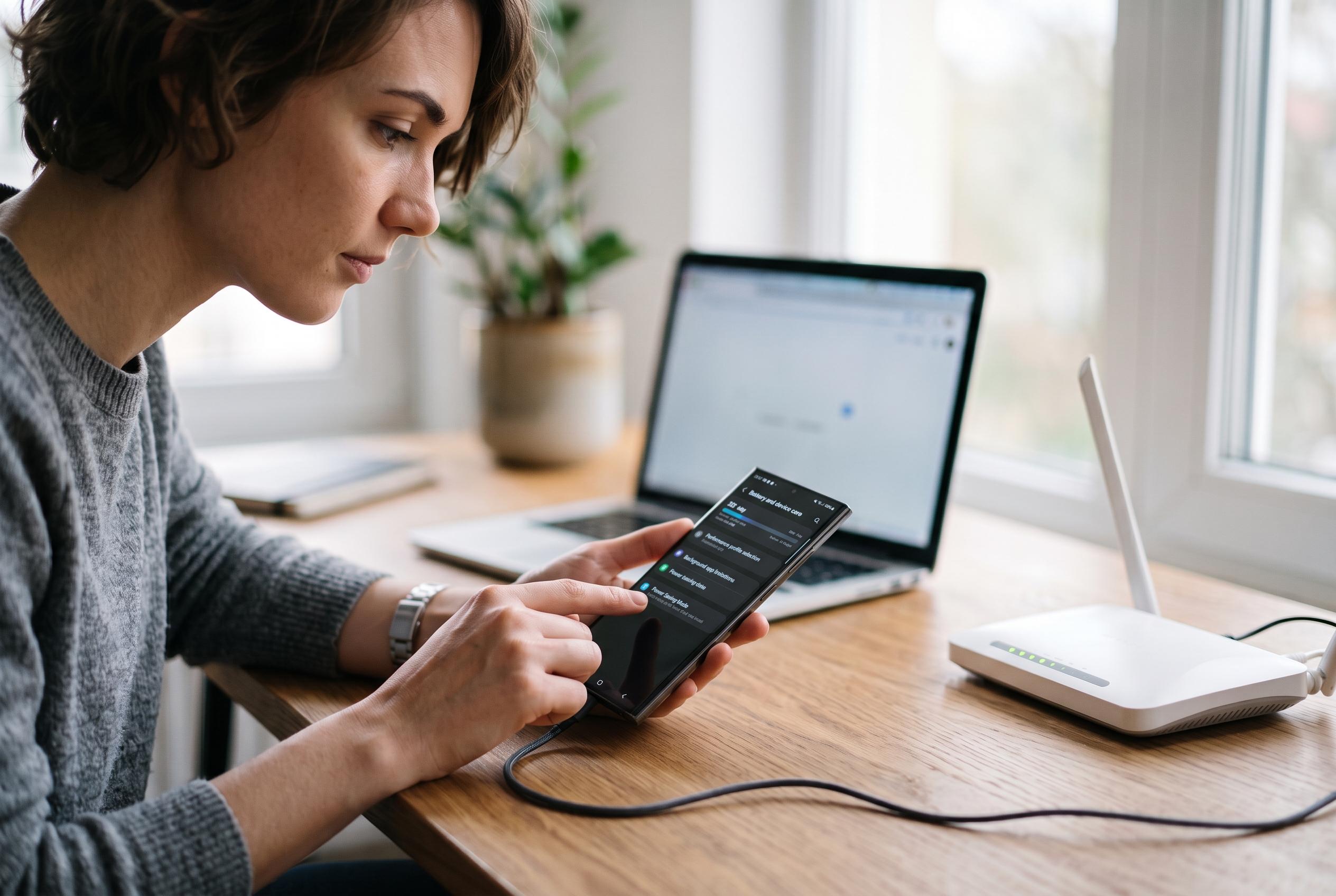

Samsung Galaxy owners seeking to extend their device’s battery life can implement three key adjustments, performance profile, background app limits, and Power Saving Mode, without the need for additional tools, according to official guidance.
Samsung battery life has become a recurring complaint for many users, especially on older devices that no longer feel dependable through a full day. The practical answer is often not a single dramatic tweak, but a set of small adjustments that reduce unnecessary strain. On Galaxy phones, three settings stand out: the performance profile, background app limits and Power Saving Mode. Samsung’s own support guidance says these controls are built into the system and can be used together to extend runtime without installing extra tools.
The first change is to switch from Standard to Light performance mode. Samsung says Standard balances speed, battery life and cooling, while Light shifts the priority towards efficiency and lower heat generation. For everyday tasks such as reading, messaging and casual browsing, the trade-off is usually modest. Samsung also notes that gaming performance is handled separately through Game Booster, so changing the performance profile does not necessarily affect play in the same way.
The second adjustment is to tighten background activity. In Samsung’s battery settings, the Background usage limits menu lets users move rarely used apps into deep sleep, which prevents them from running in the background until they are opened again. Samsung’s guidance says this is useful for apps that do not need constant notifications. That approach is consistent with broader Android battery advice: the biggest savings often come from stopping quiet background processes rather than changing how the phone feels on the surface.
The third setting is Power Saving Mode. Samsung describes Standard mode as a middle ground that limits background network use, syncing and location checks, while offering optional extras such as lower CPU speed, reduced brightness, a lower refresh rate, Dark mode and a shorter screen timeout. Samsung Community guidance says Maximum mode is far stricter, keeping only essential apps and user-approved services active. SamMobile says the lighter mode is suited to day-to-day use, while the more aggressive setting is better reserved for emergencies. Together, those options give Galaxy owners a useful way to choose between convenience and endurance, instead of leaving battery life to chance.
Disclaimer: This content is intended for informational purposes only. Readers are advised to exercise their own judgement, conduct due diligence, or consult a qualified expert before acting on any information provided.