

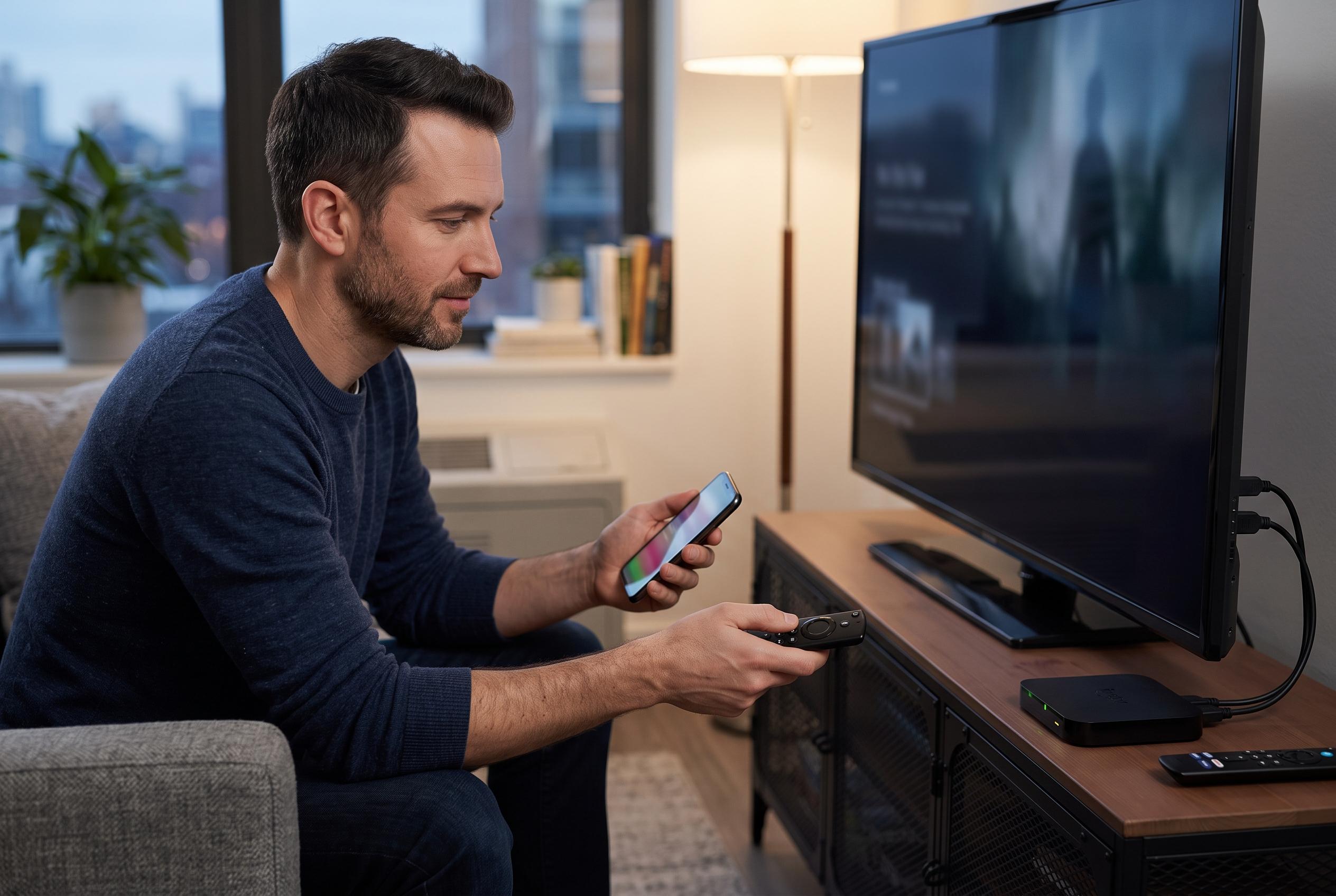

Amazon’s Fire TV devices feature concealed diagnostic menus that provide detailed real-time data on performance, display, and audio output, enabling users to identify and resolve streaming and connection issues more effectively.
Amazon’s Fire TV devices contain a set of hidden diagnostic features that can be useful when playback is sluggish, audio behaves oddly or the picture does not look right. According to How-To Geek, these tools sit inside the Developer Tools Menu and can surface information that is otherwise difficult to obtain from the standard interface. For households using a Fire TV with a soundbar, AV receiver or 4K television, the appeal is simple: the device can show whether the problem lies with the app, the connection, the display or the audio chain.
One of the most informative overlays is System X-Ray, which places live performance data across the top of the screen. As described by How-To Geek, it reports display output, processor load, memory use and network activity in real time, making it easier to see whether stuttering comes from an overloaded app, weak Wi-Fi or the Fire TV hardware itself. The display readout is also useful for checking HDMI resolution, refresh rate and HDCP status, while the CPU and memory bars help identify when the stick is running close to its limits.
Audio troubleshooting is another area where Fire TV’s hidden menus can help. How-To Geek says the Multimedia diagnostic overlay can show whether a stream is being passed through as Dolby Atmos, Dolby Digital Plus or simple stereo PCM, rather than being silently downmixed before it reaches the receiver. That matters because downmixing removes height channels and can flatten spatial audio. Support guidance from SaskTel also points users towards Fire TV’s surround-sound settings, where “Best Available” can be chosen, though the right option still depends on what the connected audio equipment supports.
The same diagnostic menu can also reveal whether the television is cropping the image. How-To Geek points to the Safezone overlay as a way to check for overscan, a legacy behaviour that can still hide the edges of modern HDMI content on some sets. If the red border does not line up with the screen edge, the Fire TV signal is being trimmed somewhere in the chain. The standard fix is to adjust the set’s display calibration until the safe area matches the physical frame, then switch the overlay off again.
For network faults and intermittent audio dropouts, the hidden tools go a step further. How-To Geek notes that Network Advisor can assess Wi-Fi strength, channel congestion, noise and signal-to-noise ratio before suggesting possible corrections. Audio Focus shows which app currently controls sound, which can help explain why a video opens silent or why volume changes unexpectedly. A practical next step, supported by general Fire TV setup guidance from third-party support articles, is to revisit the relevant audio options in Settings and, if an app misbehaves, force stop it from the installed applications list. These tools are not meant to stay on during normal viewing, but they can save considerable time when a Fire TV setup is not performing as expected.
Disclaimer: This content is intended for informational purposes only. Readers are advised to exercise their own judgement, conduct due diligence, or consult a qualified expert before acting on any information provided.



