

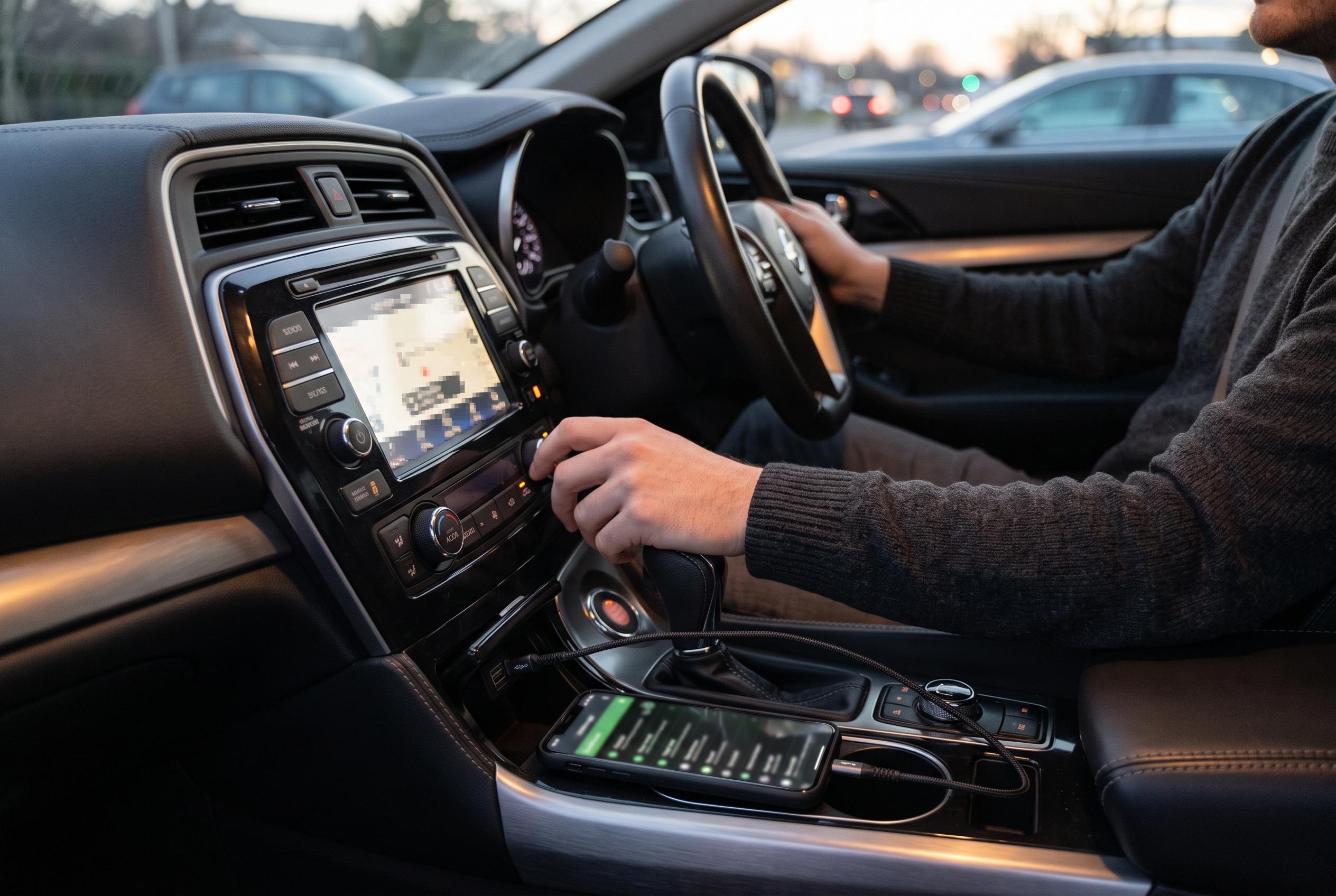

Advanced developer options in Android Auto, accessible through a hidden menu, offer drivers improved connectivity management, display controls, app flexibility, and troubleshooting tools, transforming the driving experience for tech-savvy users.
Android Auto has matured into a more capable platform, but some of its most useful controls remain hidden in the developer menu. According to Android Authority, that menu can be unlocked from the Android Auto settings page on a phone by repeatedly tapping the version number until developer mode is enabled, after which a three-dot menu reveals the extra options. For drivers who are dealing with connection problems, display quirks or the need for broader app support, those buried settings can be more practical than the standard interface suggests.
Among the most useful controls is the wireless Android Auto toggle, which can help when a handset fails to connect reliably to a car’s head unit. The practical value is straightforward: if wireless mode is disabled, re-enabling it may restore a broken link, and if it is already on, switching it off and back on again can sometimes clear a stubborn fault. The same menu also includes video resolution controls, which can be useful when a car display is negotiating a lower-than-expected image quality or, conversely, when a high-resolution stream is creating lag or extra heat on the phone. Android Authority and other technology guides say these settings are especially relevant for users with aftermarket head units, where automatic negotiation can be less consistent.
The most controversial option is “Unknown sources”, which broadens Android Auto beyond Google’s approved app list. Technology publications including Tom’s Guide and Android Central note that this setting can allow compatible apps from outside the Play Store to appear in the car interface, opening the door to niche tools that are not ordinarily supported. That flexibility can be useful for enthusiasts, but it also changes the balance between convenience and control, since sideloaded software is not curated in the same way as Play Store apps. In practical terms, it is best understood as an advanced option for users who know exactly why they need it.
Another lesser-known feature lets users capture screenshots from the Android Auto display itself. Android Authority says the menu offers both a sharing option and a dump function, giving users a way to document glitches, test layouts or send a visible problem to an app developer without relying on a separate camera. That makes the developer menu useful not only for troubleshooting, but also for diagnosing interface issues in a more precise way. Google continues to add mainstream Android Auto features, but these hidden controls remain valuable because some technical fixes and experimental capabilities still sit outside the normal settings screen.
Disclaimer: This content is intended for informational purposes only. Readers are advised to exercise their own judgement, conduct due diligence, or consult a qualified expert before acting on any information provided.



