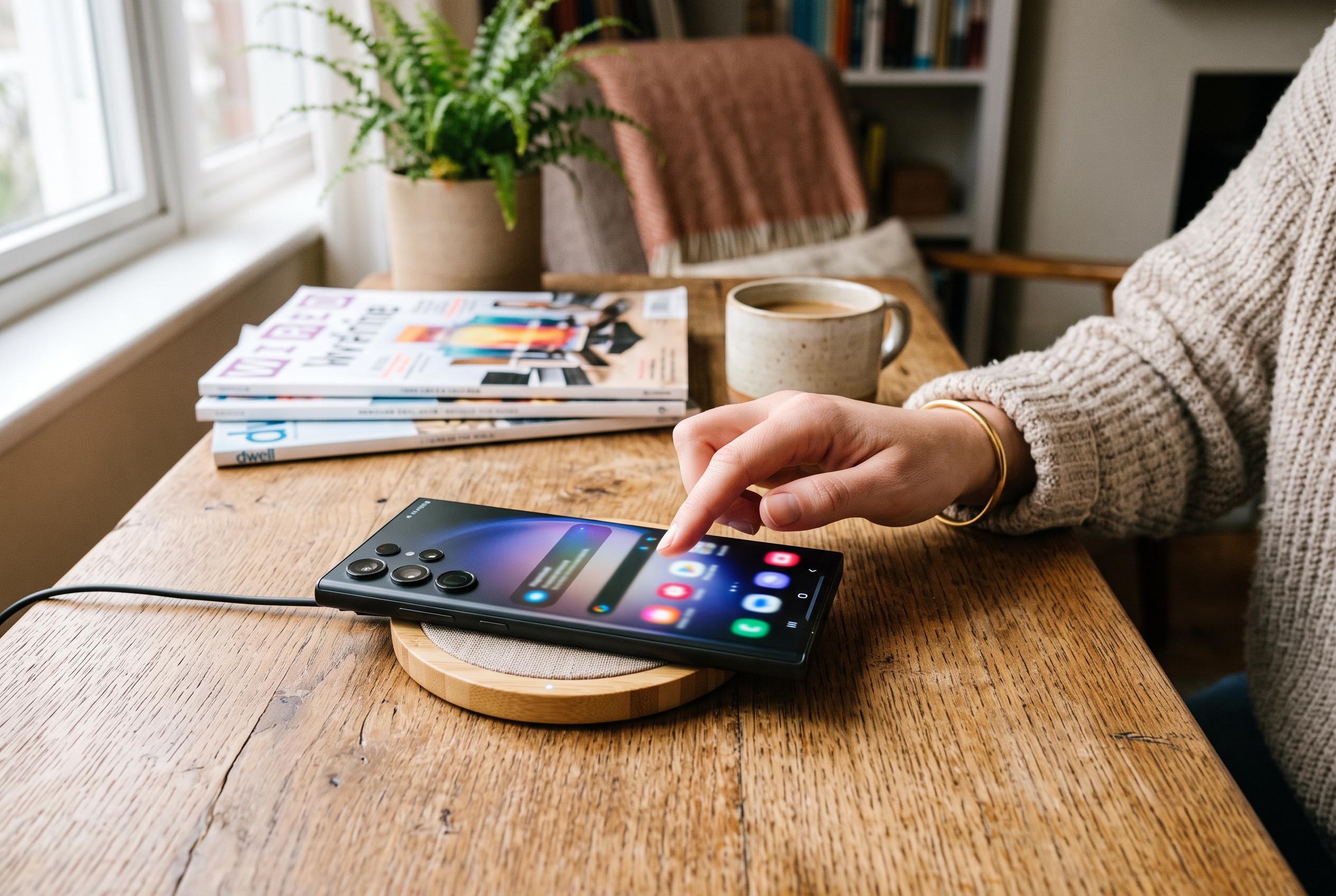

From blocking risky app installs to hiding lock-screen alerts and limiting battery charging, these simple changes can make a new Galaxy safer and easier to use.
Samsung phones arrive with a great deal of flexibility, but many owners find the defaults are not the most practical starting point. Rather than leaving a new Galaxy unchanged, one recurring approach is to go straight into Settings and make a small set of adjustments that improve security, privacy, battery care and day-to-day usability.
The first change many users make is to turn on Auto Blocker. According to Samsung, this feature is designed to reduce risk by preventing app installs from unauthorised sources and blocking suspicious activity, including certain USB-based commands. Samsung says it is particularly useful for people who install apps from more than one source, although the company also notes that it does not replace broader security caution. The setting is found under Security and privacy, then Auto Blocker.
Privacy on the lock screen is another early priority. Samsung provides an option to hide notification content so that message previews and app alerts do not appear in full when the handset is locked. That matters for people who receive frequent banking alerts, work messages or private conversations and do not want them exposed to anyone standing nearby. The relevant control sits under Notifications, then Lock screen notifications.
Battery protection is also worth switching on early, especially for anyone expecting to keep a device for several years. Samsung’s battery-management tools allow a charge cap on supported models, with limits such as 80%, 85%, 90% or 95% depending on the handset. The aim is to reduce long-term battery wear by avoiding constant full charging. It is a trade-off, but one that can help preserve capacity over time. On some Galaxy devices, Samsung says this feature is enabled through Battery, then Battery protection, where Maximum can be selected.
Display behaviour is another area where the defaults may not suit every user. Motion smoothness can be set to Adaptive, which lets the screen raise its refresh rate when fluid scrolling or animations benefit from it, then scale back when full performance is not needed. That makes a noticeable difference on devices used heavily for browsing, reading and social media. Samsung notes that some models may already use this setting by default, so it is sensible to check before changing it.
A final tweak many Galaxy owners value is assigning the side button to launch the camera with a double press. Samsung includes this under Advanced features, then Side button, then Double press, where Camera can be chosen. For people who regularly take photos, it shortens the path from seeing a moment to capturing it, which can matter when every second counts.
Taken together, these changes reflect a practical view of phone setup. They do not alter the core experience of a Galaxy device, but they can make it safer, more private and easier to use from the first day. For many users, that is a better starting point than accepting the factory configuration and adjusting later.
Disclaimer: This content is intended for informational purposes only. Readers are advised to exercise their own judgement, conduct due diligence, or consult a qualified expert before acting on any information provided.