

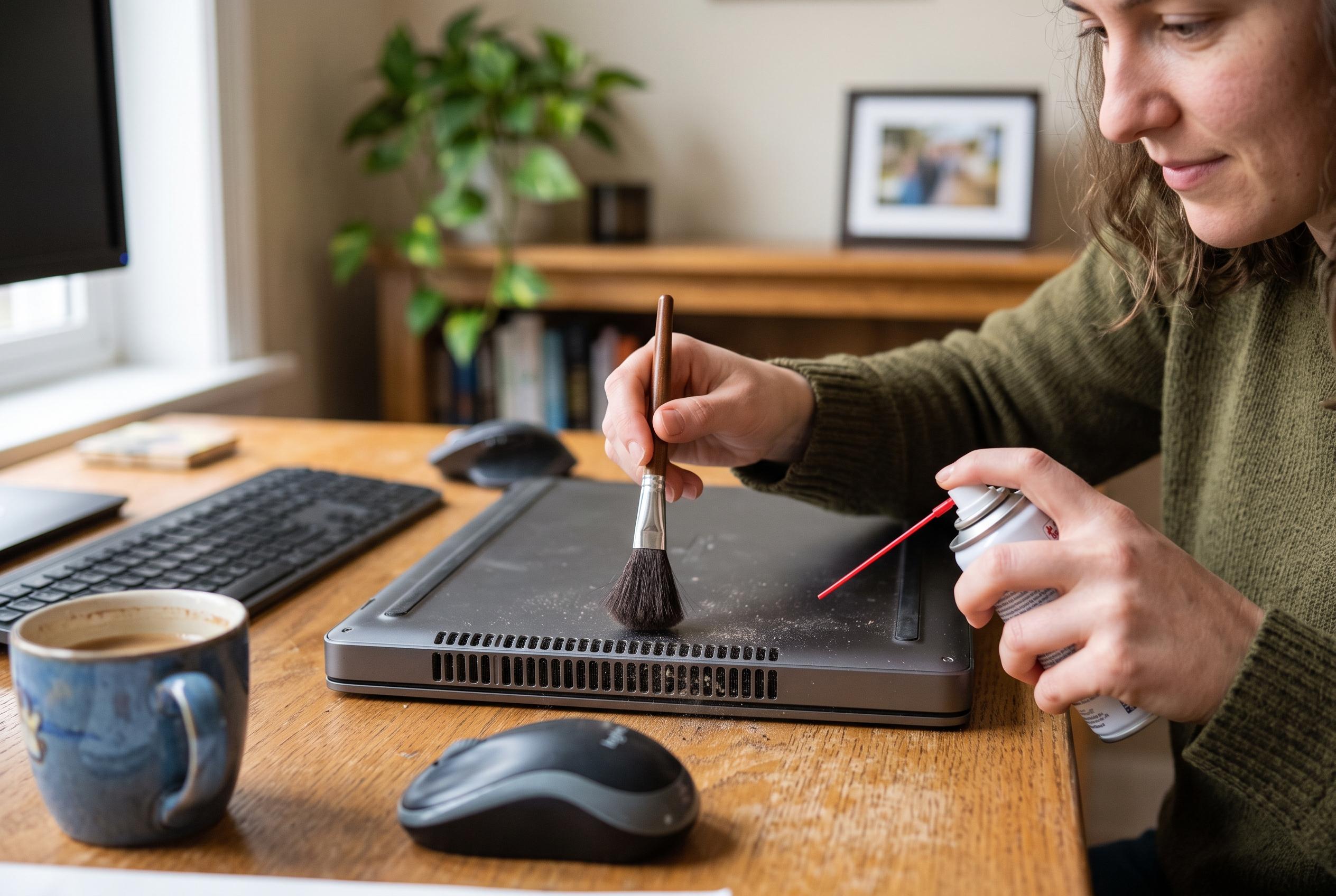

Rising fan noise, heat and sluggish performance can point to blocked vents rather than an ageing laptop. Careful external cleaning may restore cooling without dismantling the machine.
A laptop that runs hotter than usual, sounds louder than normal and seems to slow down under load is not necessarily showing its age. In many cases, the problem is dust. As Engadget explains, debris can collect in the cooling path over time, blocking vents and clogging the heatsink so that the processor cannot shed heat efficiently. When temperatures rise too far, the machine may trigger thermal throttling, cutting performance to protect the hardware.
The practical first step is usually the simplest one: clean the outside vents without opening the device. Dell advises switching the laptop off completely, disconnecting the charger and removing any peripherals before working on the cooling system. If the battery can be taken out easily, that is sensible as well. The aim is to reach every grille, since intake and exhaust openings are not always located in the same place; on many models they sit on the base, along the sides or near the hinge line.
Loose dust can be lifted with a lint-free cloth or an anti-static brush, but care is needed. Tech Advisor warns against pushing tools deep into the casing, where they could damage delicate parts. Dell and other hardware guides recommend short bursts of compressed air made for electronics, held at a safe distance and used carefully so the fan does not spin uncontrollably. A soft anti-static brush or a hand blower can also help. Household vacuum cleaners are best avoided because they can create static electricity, while products such as WD-40 are not suitable for this job.
How often this should be done depends on the environment, but Lenovo recommends routine cleaning roughly every three to six months. Machines used in dusty rooms, on carpets or in busy workspaces may need attention more frequently. Regular maintenance does more than reduce noise. According to Dell and Tech Advisor, it can also limit overheating, reduce the chance of throttling and help the laptop maintain performance for longer.
If outside cleaning does not solve the problem, the dust may be deeper inside the cooling assembly. Good Housekeeping notes that debris can collect behind the grille and on the blades themselves, while some laptops also trap dirt between the fins of the heatsink, where airflow is hardest to restore. In those cases, opening the back panel may be necessary, but there is no single procedure that fits every model. Dell’s guidance on the Alienware m16 R2 shows how quickly the task can become more complex, with separate fan assemblies and multiple screws to remove before the cooling unit can be taken out.
That is why many manufacturers recommend leaving more advanced work to a qualified technician, especially when the heatsink or vapour chamber must be detached from the processor or graphics chip. Reassembly can require fresh thermal paste or thermal pads, and a poor fit can make cooling worse rather than better. The safest approach is to start with external cleaning, then consult the service manual for the specific model if overheating continues.
Disclaimer: This content is intended for informational purposes only. Readers are advised to exercise their own judgement, conduct due diligence, or consult a qualified expert before acting on any information provided.



