

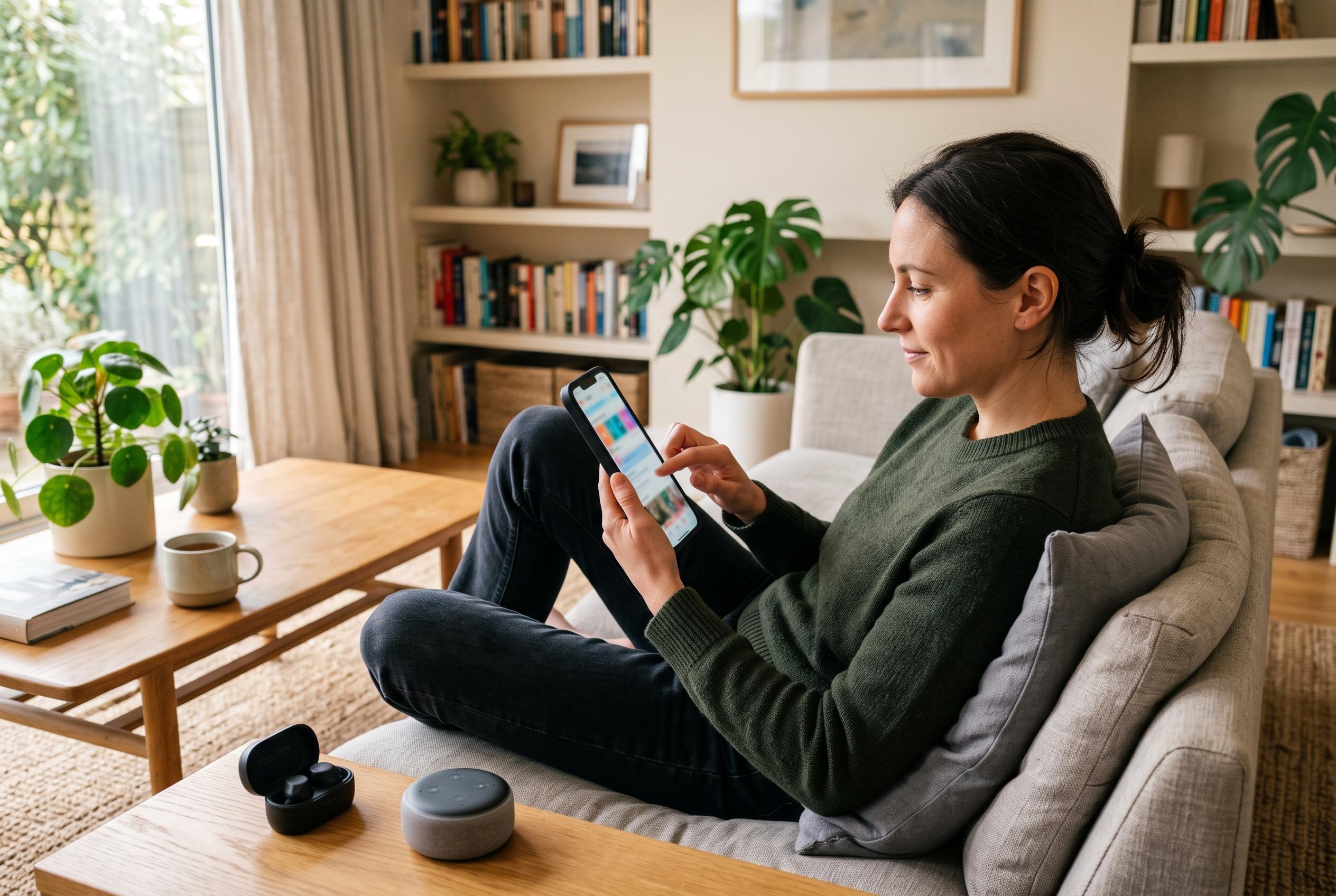

Home screen changes, widgets, voice input, the one-handed keyboard and Reachability can make large iPhone models far easier to operate with one hand.
Using a large iPhone does not mean surrendering one-handed use. On the contrary, a few small changes to layout and input settings can make a Pro Max or Plus model far easier to manage when only one hand is free. The most effective approach is not a single “magic” setting, but a combination of home screen organisation, quicker access methods and built-in accessibility tools that reduce unnecessary reaching.
The simplest adjustment is to place the apps you use most often in the lower part of the Home Screen, and ideally on the side that matches your dominant hand. That reduces the distance your thumb has to travel and limits the need to shift your grip. The same logic applies to Control Centre: if the controls you use most are grouped sensibly, you can reach them faster without stretching to the top edge of the display. A cleaner layout also makes the phone less awkward to operate briefly with one hand.
Widgets can also reduce the number of times you need to open an app at all. Reminders is the clearest example, because an interactive widget lets you check off tasks without leaving the Home Screen. The same principle works for other glanceable information, where a widget is often enough and a full app launch is unnecessary. In practice, that means fewer taps and less movement across a larger screen.
Spotlight is another underused tool that becomes more valuable on bigger devices. Instead of hunting through app pages, you can pull up search and launch apps directly, start simple calculations, or find content with a few characters. For many tasks, that is faster and more stable than moving across the interface with one hand. It also avoids repeated reaching to fixed locations on the screen.
For text entry, iPhone offers two practical options. One is voice input: Siri can still handle simple actions such as sending a message, setting an alarm or creating a reminder, while the microphone on the keyboard lets you dictate notes, emails and messages. The other is the one-handed keyboard, which shifts the keys to the left or right side of the screen so your thumb has less ground to cover. Guides from Tom’s Guide, Cult of Mac, iDownloadBlog and MacObserver all note that this feature is especially useful on larger iPhones and is easy to toggle back to the standard layout when needed.
Finally, Reachability remains one of the most useful accessibility settings for one-handed use. Once enabled in Settings under Accessibility and Touch, a downward swipe near the bottom of the screen pulls the upper content lower, making items at the top much easier to reach. It is not permanent and it does not change the interface structure; it simply brings distant controls closer for a moment. For anyone who often uses a larger iPhone with one hand, that short-range adjustment can make the difference between a clumsy stretch and a comfortable tap.
Disclaimer: This content is intended for informational purposes only. Readers are advised to exercise their own judgement, conduct due diligence, or consult a qualified expert before acting on any information provided.



