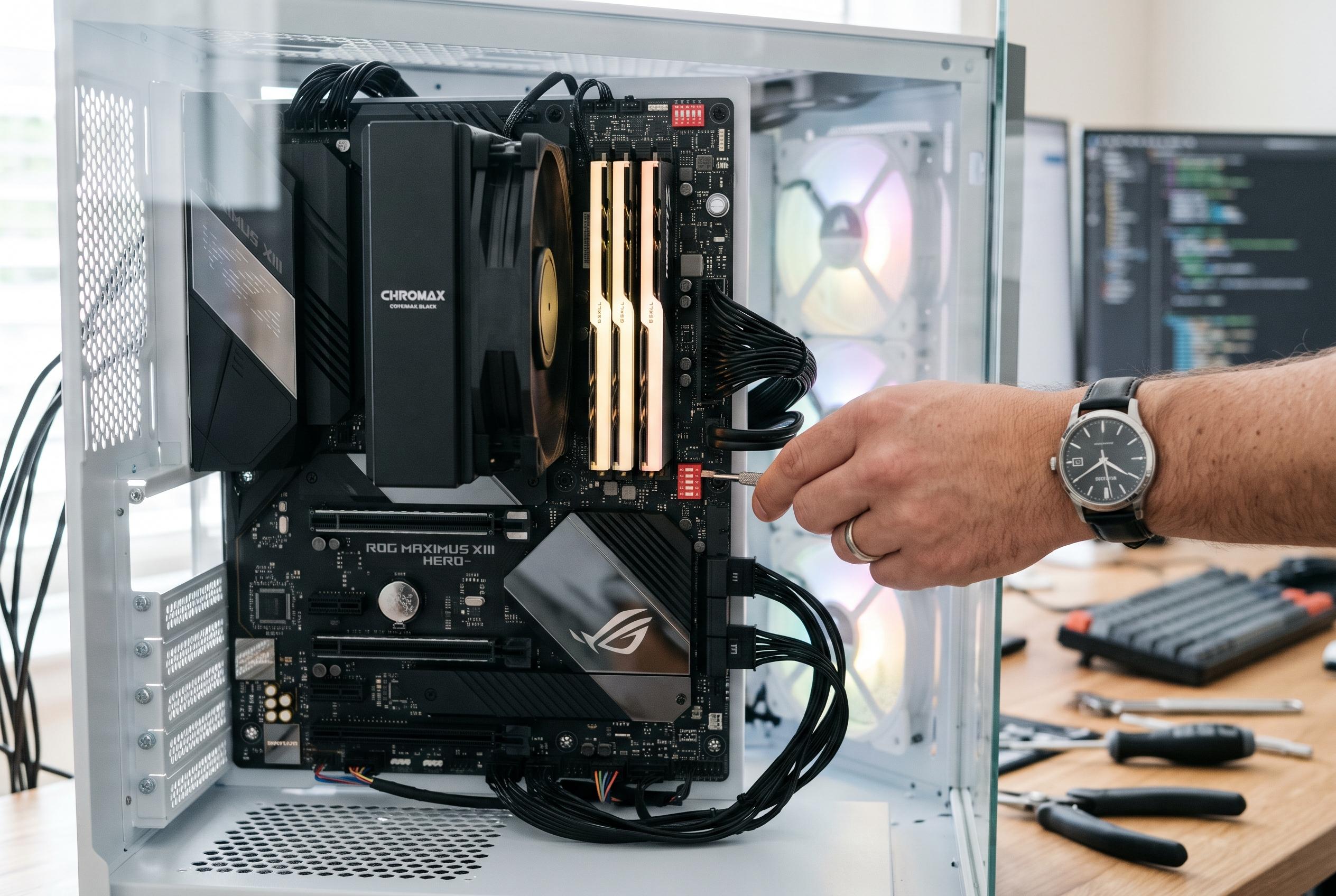

Enabling memory profiles, tuning fan curves and switching to modern UEFI security settings can improve speed, cooling and boot times without new hardware.
Many users avoid BIOS and UEFI settings because the menus look technical and cluttered. Yet these firmware screens still govern the most important low-level behaviour in a PC, from memory speed to boot security. In practice, a few careful changes can bring a system closer to the performance the hardware was built to deliver, without spending more money or relying on extra software.
One of the simplest and most effective changes is to enable XMP on Intel systems or EXPO on AMD systems. These are preconfigured memory profiles stored on the RAM itself, and they let the motherboard run the modules at their advertised speed rather than the slower default settings used for first boot. Hardware guides on XMP and EXPO describe the process as a single BIOS toggle, usually by selecting Profile 1, with the main benefit being that the memory operates at its intended clock rate, timings and voltage. For most users, this is a safe way to reclaim performance that would otherwise be left unused.
Resizable BAR is another setting worth checking, especially for gaming systems. According to ASUS and Intel, the feature allows the processor to address the full graphics memory buffer rather than working with it in smaller chunks, which can reduce bottlenecks in some games and workloads. Intel notes that it usually needs supporting firmware features such as Above 4G Decoding, Re-Size BAR Support and UEFI boot mode, while legacy CSM or Compatibility Support Module mode must be disabled first. The effect is not universal, but on supported hardware it can produce a modest improvement in frame rates and responsiveness.
Fan control is less dramatic, but often more immediately noticeable in day-to-day use. Most modern boards include BIOS-based tools such as Q-Fan or Smart Fan Control, which let users define how quickly case and CPU fans respond to rising temperatures. Setting a sensible fan curve can keep a gaming or workstation machine cool under load while avoiding unnecessary noise during light use. A steeper curve suits performance-focused systems, while a flatter profile is usually better for office machines where silence matters more than peak cooling.
It is also sensible to use the processor’s own boost features rather than relying on aggressive board-level overclocking presets. The article notes that vendor automatic boost modes can sometimes apply more voltage than necessary, which raises temperatures and may cause throttling or instability. By contrast, AMD’s Precision Boost Overdrive and Intel Turbo Boost are built into the chip’s own power-management logic and are designed to stay within the manufacturer’s safety limits. For users who want extra thermal headroom, a stronger cooler, such as an all-in-one liquid unit, can help the processor sustain higher boost clocks for longer.
The final set of changes is aimed at both boot speed and platform security. On AMD systems using DDR5, Memory Context Restore can preserve memory-training data between reboots, which can significantly shorten start-up times. At the same time, moving away from Legacy Boot and CSM to a modern UEFI setup avoids compatibility problems with features such as Resizable BAR. Enabling TPM 2.0 and Secure Boot is also important, as both are required for a standard Windows 11 installation. For users who need to work around compatibility checks, tools such as CTT Windows Utility can help create customised installation media, although the most robust approach is still to run the system in full UEFI mode with the security features enabled.
Disclaimer: This content is intended for informational purposes only. Readers are advised to exercise their own judgement, conduct due diligence, or consult a qualified expert before acting on any information provided.