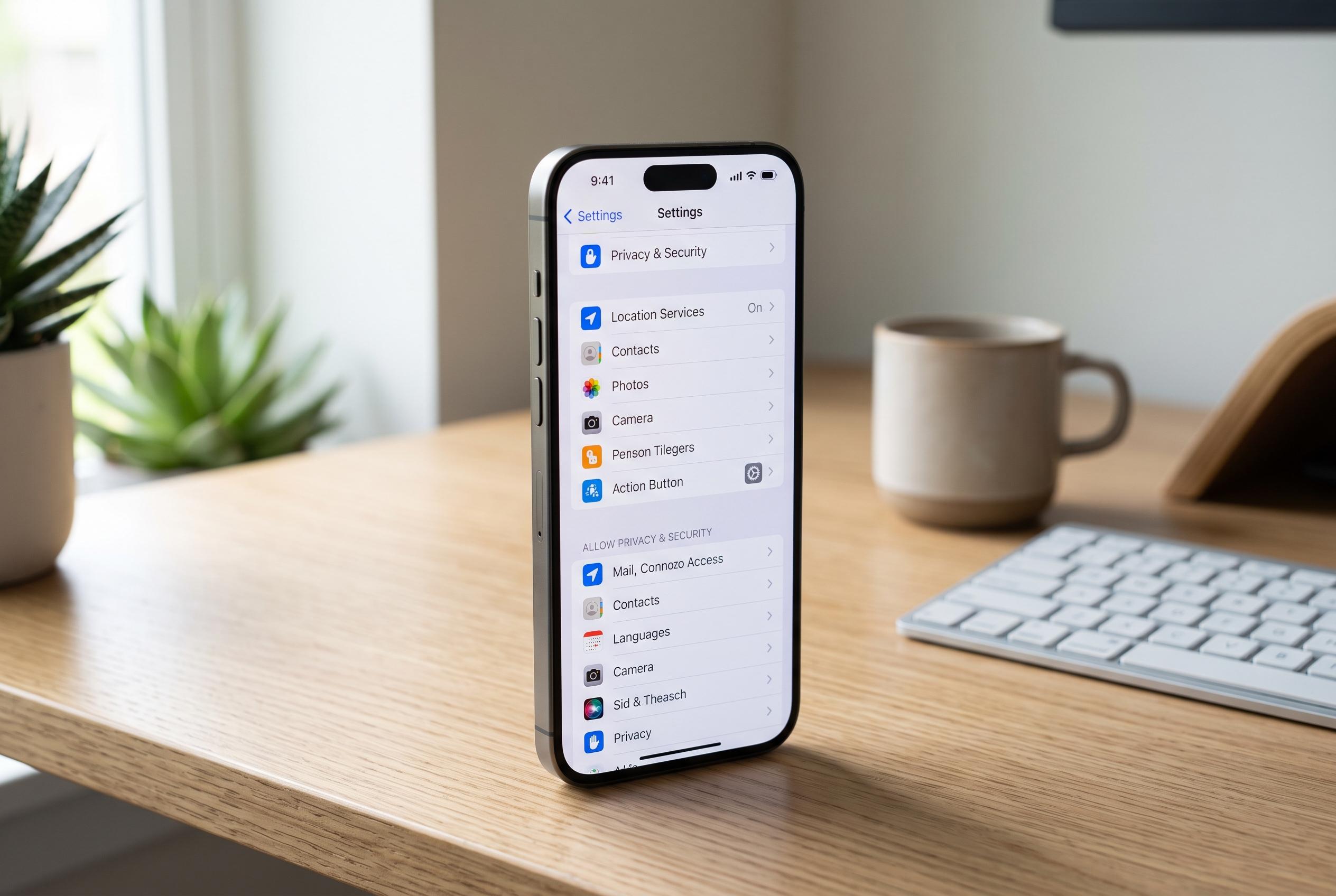

Experts suggest new iPhone owners review key settings during initial setup, including security features, personalised action buttons, default apps and privacy controls, to optimise their device’s performance and privacy from the outset.
New iPhone owners are often advised to spend a few minutes on set-up before they start using the device in earnest, and that advice goes well beyond moving over photos and contacts. A number of important iOS settings are either off by default or not configured for everyday convenience, and SlashGear says taking control of them early can improve both privacy and usability.
One of the most important steps is turning on Stolen Device Protection, a feature Apple introduced in iOS 17. It is designed to make it harder for a thief who has seen your passcode to change Apple Account details, reset the device or access saved passwords without Face ID or Touch ID. Apple also allows users to keep the extra protection active all the time, rather than only when the phone is away from familiar locations.
Owners of iPhone 15 Pro models should also look at the Action button, which replaced the traditional silent switch. Apple’s support material and third-party setup guides show that it can be assigned to tasks such as opening the camera, switching on the torch, recording a voice memo, launching Translate or running a Shortcut. In practice, that means a single press can be tailored to whichever function matters most in daily use.
iOS now gives users more freedom to choose default apps as well. That means people who prefer Google’s ecosystem or third-party tools can switch the default browser, mail app, password manager and some calling or messaging services rather than being pushed towards Apple’s own software. For users who rely on specific apps every day, that can make the phone feel far more personal from the outset.
Privacy settings are another area worth reviewing straight after set-up. Apple lets users reduce analytics sharing, limit ad personalisation and restrict certain search-related data collection. None of those changes should affect performance, but they do cut down on the amount of information the phone sends back to Apple and app developers.
Finally, the Accessibility section contains features that are useful well beyond their original audience. Back Tap can be set to trigger actions such as taking a screenshot or opening an app with a double or triple tap on the rear of the phone, while Sound Recognition can alert the user to things such as a door knock, smoke alarm or baby crying. Voice Control adds another layer of hands-free operation, making the iPhone easier to adapt to individual habits.
Disclaimer: This content is intended for informational purposes only. Readers are advised to exercise their own judgement, conduct due diligence, or consult a qualified expert before acting on any information provided.