

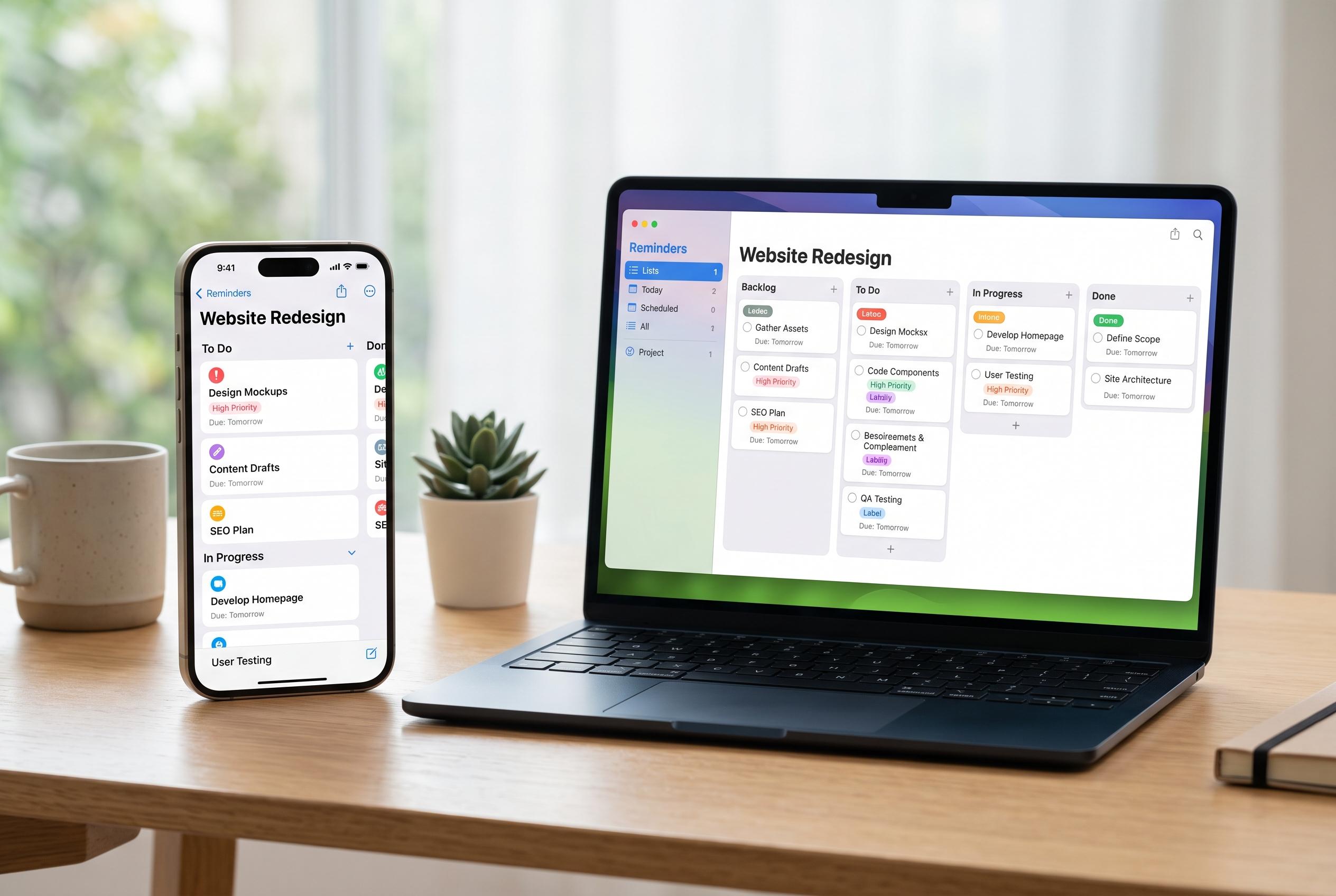

Apple has layered a Kanban board view into its Reminders app, transforming traditional task lists into a flexible project management tool that seamlessly integrates with existing features, appealing to both casual users and small teams.
Apple Reminders has long been best known as a quick capture tool: a place to dump errands, due dates and one-off prompts, then move on. That is still its strongest use case. But with iOS 17 and macOS Sonoma, Apple added a section-based column view that turns a single reminder list into something much closer to a Kanban board, giving the app far more structure for project work than many users realise. Apple’s own guide says sections in a list appear as separate columns in this view, while updated iCloud reminders are needed for the full feature set.
The appeal of the format is straightforward. A Kanban board breaks work into stages rather than leaving everything in one long queue, so tasks can move from one column to the next as they progress. In Reminders, that means a list can be organised into labelled sections such as idea, research, drafting and editing, with each section displayed as its own column. MacMost, MacRumors and other guides describe this as a simple way to make work visible at a glance without leaving the familiar Reminders interface.
On a Mac, the process begins by creating a new list, adding sections and then switching the list into Columns view from the menu. Apple says sections can be shown side by side in column form, and third-party tutorials note that the same list can be rearranged by dragging reminders between columns as work advances. The setup is especially practical on larger screens, where the board layout is easier to scan than a dense checklist.
The same idea works on iPhone and iPad, though the controls are tucked inside the list’s menu rather than the desktop menus. Once a board is created on one device, it syncs through iCloud Reminders and appears on the others. Guides from AllThingsHow and Beebom note that users can add sections, switch to View as Columns and move reminders between stages with a press and drag gesture.
Importantly, the column layout does not strip away Reminders’ other useful features. Apple’s documentation and independent tutorials both show that due dates, notes, images and subtasks remain available inside each reminder, so the board format adds structure without sacrificing detail. That makes the feature more flexible than a basic task list, even if it stops short of a full project management suite.
For individual users, that may be enough. The column view will not replace heavyweight tools such as OmniFocus or Things 3 for large teams, advanced dependencies or automation. But for people who want a lighter system that still shows work in motion, Apple’s hidden board mode offers a practical middle ground. It is built into an app many people already use every day, and for recurring personal or editorial workflows, that may be the feature that finally makes Reminders feel like a proper project tool.
Disclaimer: This content is intended for informational purposes only. Readers are advised to exercise their own judgement, conduct due diligence, or consult a qualified expert before acting on any information provided.



