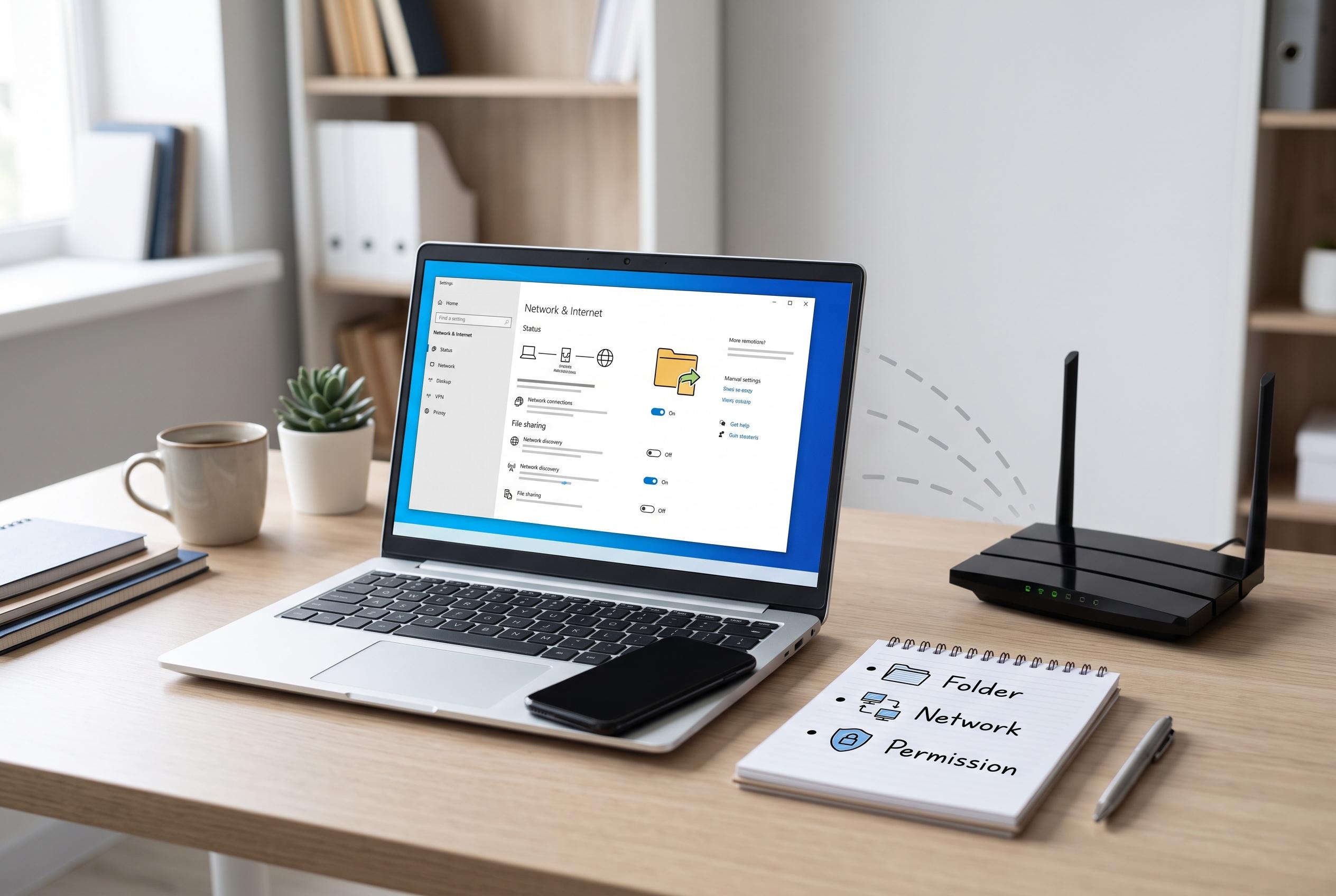

Many Windows users encounter persistent file sharing problems at home due to settings, permissions, or security software. This guide highlights the key troubleshooting steps to restore seamless network file access.
Sharing files over a home network should be simple, but in Windows environments it often breaks down at the most basic stage: the computers cannot see each other, or they can see a shared folder but cannot open it without a password prompt. That usually means the problem is not the file itself but the network profile, discovery settings, permissions or security software blocking local traffic. Microsoft’s own support material on file sharing and folder access makes clear that these issues are usually fixable once the right settings are aligned.
The first check is whether the devices are actually on the same local network. Dell’s support guidance on wired networking and Microsoft’s troubleshooting advice both point to the value of checking the IP address range and testing connectivity directly. If two PCs are on different subnets, or if one is on a guest or isolated Wi-Fi band, they may be physically close but logically separated. A simple ping test can quickly show whether the path is open.
Windows network discovery and sharing settings are often the next obstacle. Microsoft explains that a private network profile is generally required for local file sharing at home, while a public profile is designed to keep the machine hidden on untrusted networks. If discovery is disabled, the shared computer may not appear in File Explorer at all. In many cases, the fix is to switch the connection to a private network and ensure that network discovery and file sharing are enabled.
Permissions are another common source of confusion. Microsoft’s documentation on shared folders notes that sharing settings and security permissions both matter, which means a folder may be visible but still not writable. If a user can open a shared folder but cannot copy files into it, the share permissions and the folder’s security tab both need to allow access. This is why a share can appear to be set up correctly while still rejecting normal use.
Password-protected sharing can also create unnecessary friction in a home setup. Microsoft’s guidance on file sharing describes how credential prompts are part of the normal access model in Windows, but they can become a problem when the network is trusted and all users should have straightforward access. In those cases, disabling password-protected sharing may restore easier access, though it should be used only on networks that are genuinely private and controlled.
If the problem persists, Windows services responsible for network discovery may have stopped or been left on manual start. That can make the network tab look empty even when the physical connection is working. Microsoft’s troubleshooting advice for inaccessible shared folders also points to broader causes such as firewall rules, name-resolution issues and legacy protocol settings. On older network-attached storage devices, SMB compatibility can still matter, while security software may block local file-sharing ports such as 445. For wired connections, Microsoft and Dell both advise checking the cable, adapter status and link stability before assuming the fault is in Windows itself.
The practical lesson is that local file sharing is rarely broken in only one place. It is usually a chain of settings, from the router and network profile to discovery services, permissions and security tools. The most reliable workaround is often the least glamorous one: connect by IP address rather than by browsing the network tree. That approach avoids many of the visibility issues that make Windows file sharing feel unreliable in the first place.
Disclaimer: This content is intended for informational purposes only. Readers are advised to exercise their own judgement, conduct due diligence, or consult a qualified expert before acting on any information provided.