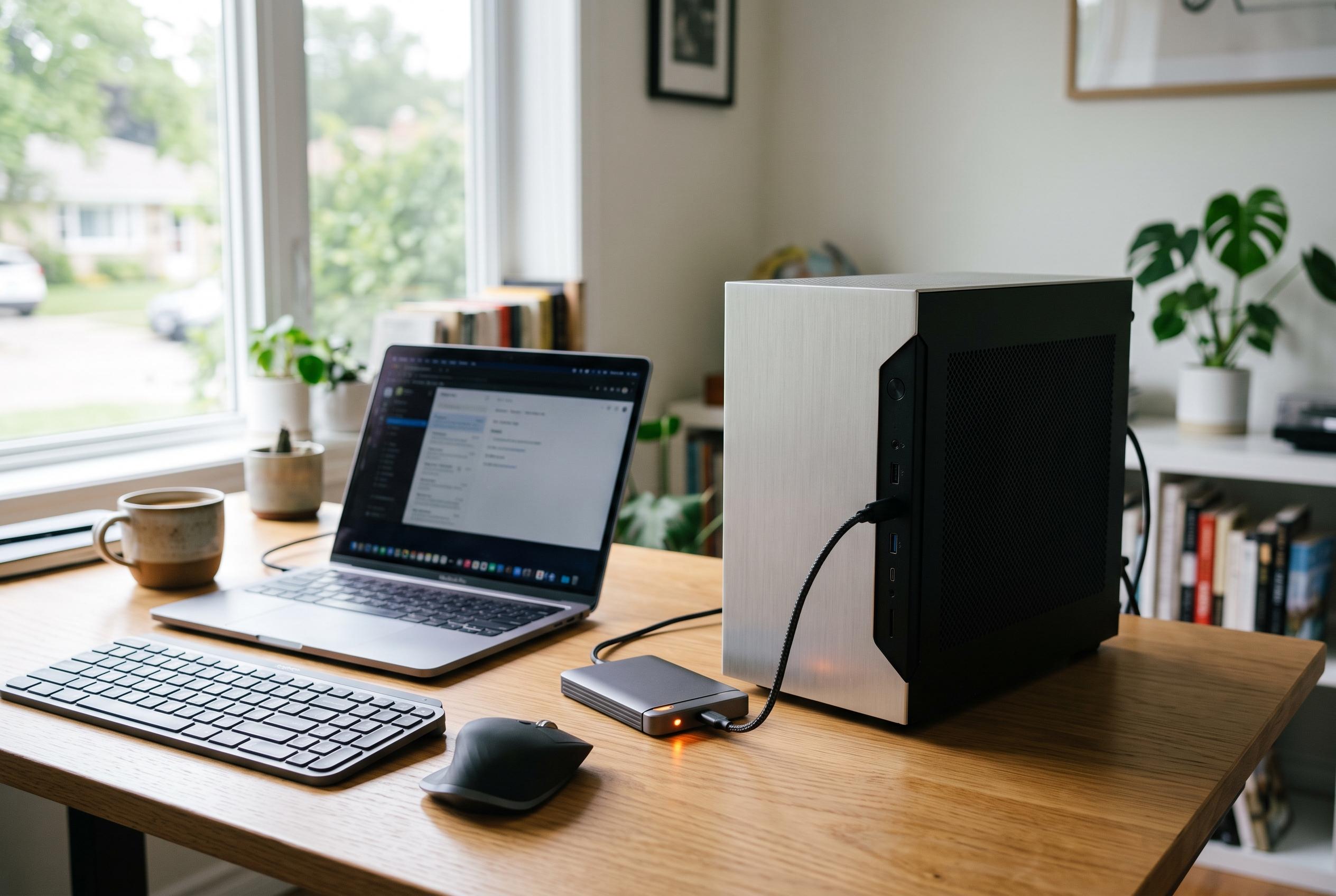

Experts emphasise the importance of early diagnosis and backing up data when signs of storage trouble emerge, highlighting differences between HDDs and SSDs, and cautioning against risky tests on failing drives.
A computer that stalls at startup, freezes when opening files, or shows a disk error is often signalling storage trouble rather than a simple slowdown. TN Computer Medics says the first priority is to protect any important data before running checks, because a scan can expose faults but cannot guarantee the drive will survive long enough to recover everything afterwards. That caution is widely echoed by Tom’s Guide, CDW and PCWorld, which all stress that early backup is the safest first step when storage health is in doubt.
The risk is different for hard disk drives and solid-state drives, but both can fail. Traditional hard disk drives rely on spinning platters and a moving read/write head, so age, heat, shock and ordinary wear can all cause damage. SSDs have no moving parts, yet they can still develop errors or reach the end of their write life. In practice, any drive that is slow, noisy, intermittently missing or producing corrupted files deserves attention.
There are also physical warning signs that should not be ignored. TN Computer Medics advises acting quickly if an HDD begins clicking, scraping or repeatedly spinning up and down, or if files become inaccessible, folders take far too long to open, or Windows starts asking for repair scans. On SSDs, the signs are often different: sudden read-only behaviour, unexplained file errors, missing partitions or repeated system crashes. A slow machine is not proof of a failing drive, but these patterns are strong enough to justify testing.
Windows offers several built-in checks, beginning with SMART status. SMART, or Self-Monitoring, Analysis and Reporting Technology, tracks indicators such as error counts, temperature and power-on hours. TN Computer Medics notes the basic command wmic diskdrive get model,status, which can quickly show whether the system reports a drive as OK or as failing. Tom’s Guide, CDW and AVG all point to SMART as the first quick screen, while also warning that a passing result does not rule out a developing fault.
Windows Error Checking and CHKDSK can then help separate file-system problems from deeper hardware trouble. TN Computer Medics recommends using File Explorer’s built-in error checking tool for logical corruption, then moving to chkdsk C: /scan from an elevated Command Prompt or Terminal if the system remains stable enough. Dell’s guidance aligns with that approach, and notes that CHKDSK can also be used to identify bad sectors and recover readable data. Still, a surface scan is not a cure-all: on a drive that is clicking or dropping out, heavy testing may make matters worse.
Mac users can perform a similar review through Disk Utility. TN Computer Medics says to open the utility, choose the disk and run First Aid, which checks the disk structure and attempts repairs where appropriate. Dell’s instructions follow the same path. If the tool reports hardware trouble, repeatedly fails, or cannot mount the drive, the safest course is to stop relying on that disk for everyday work and prioritise recovery.
Manufacturer diagnostics are often more informative than a quick operating system check. Tom’s Guide notes that vendors such as Western Digital and Seagate provide their own utilities, which can run short and extended tests, and sometimes firmware checks. TN Computer Medics makes the same distinction, saying that short tests are a useful first pass, while longer scans can reveal defects that a quick check misses. But a passed test does not override real-world symptoms, and a failed test usually means replacement is the safer option. If the drive is external, TN Computer Medics also recommends ruling out a bad cable, port or enclosure before blaming the disk itself.
At some point, further testing carries more risk than benefit. TN Computer Medics says to stop if the drive is making mechanical noise, is no longer consistently detected, triggers repeated blue screens or contains data that has not been backed up. Do not defragment an SSD, and do not keep restarting a suspect HDD. For business systems, RAID can reduce the impact of one failed disk, but it is not a backup. The practical lesson from all of the guides is the same: check the drive early, back up first, and replace questionable hardware before it takes the data with it.
Disclaimer: This content is intended for informational purposes only. Readers are advised to exercise their own judgement, conduct due diligence, or consult a qualified expert before acting on any information provided.