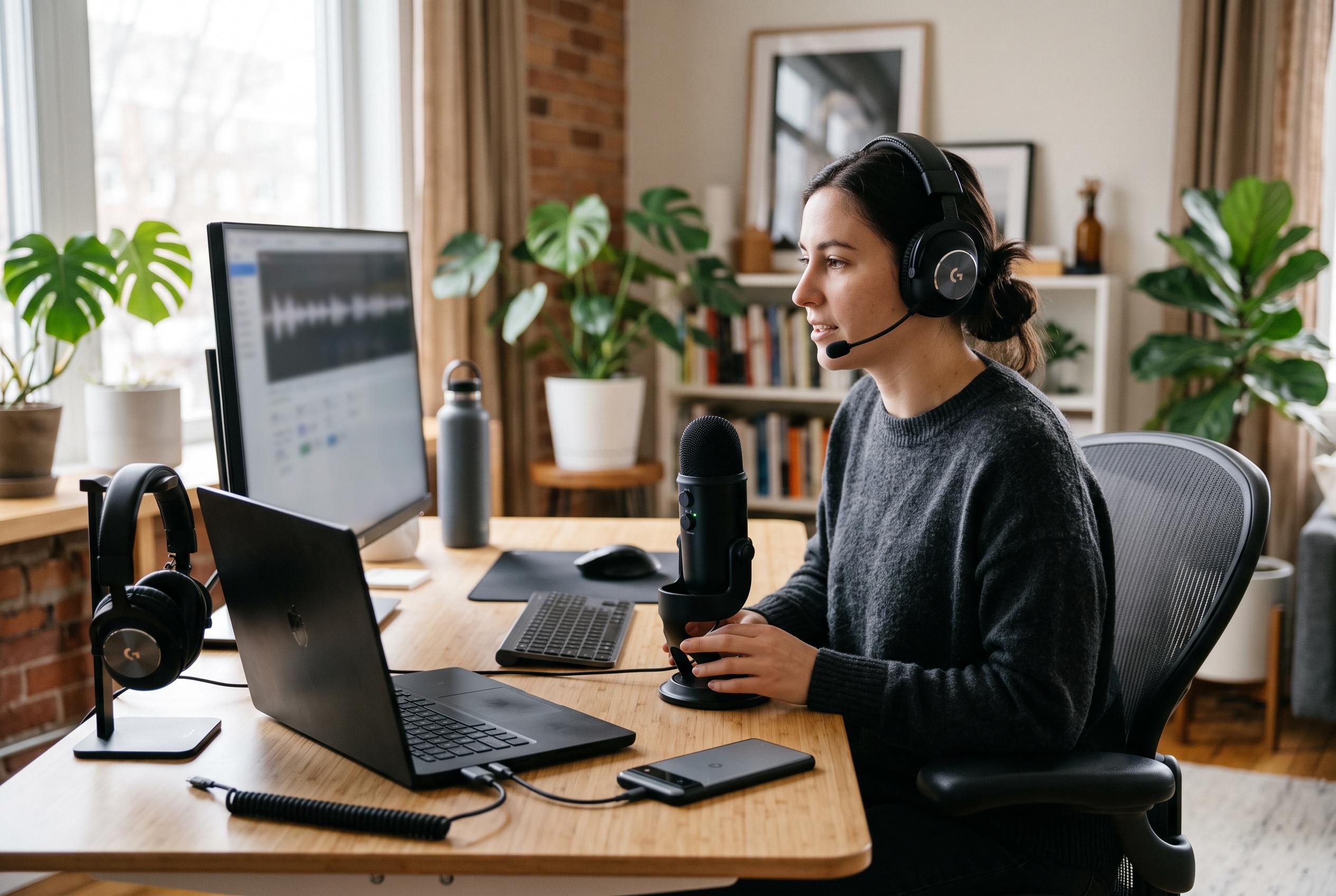

A missing control, silent microphone, failed playback and interrupted camera session each point to different causes. A short voice-only test can help users identify the problem before changing multiple settings.
The first step when Gemini Live appears to fail is to identify what is actually broken. A missing Live control, a silent microphone, no audio reply, or a camera session that stops part-way through are different faults and need different fixes. Google’s own guidance for the Gemini mobile app points users towards a brief voice-only test, with camera and screen sharing left off until basic voice input and playback are working. That narrow test is more informative than changing several settings at once.
If the Live button does not appear, the problem may be account access, app availability or the wrong entry point. Google’s Android guidance directs users to the Live control inside the Gemini app, rather than a browser shortcut or another voice input tool, and notes that some features roll out gradually. The company also says Live is not available in Android Work Profile and that Android Go is unsupported. Eligibility matters too: Google says access depends on the account type, the user’s age and, in some cases, whether a school or workplace administrator has enabled Gemini Apps access.
When Gemini opens but cannot hear the user, the simplest checks are mute state and microphone permissions. Google recommends resuming from Hold or unmuting before speaking, then trying a short sentence in a quiet room. On Android, the microphone permission should be checked in the app settings and device-wide access controls should also be reviewed. On iPhone, Apple advises checking Privacy & Security settings and using Voice Memos as a basic recording test. If ordinary recordings work but Gemini does not, the fault is more likely in the app than in the handset itself.
A silent reply points to playback rather than input. In that case, the phone’s volume should be raised while the Live session is expected to speak, and any earbuds, car system or other audio accessory should be disconnected for one test. If the response is heard through the device speaker, the accessory chain is the likely cause. Google’s instructions also distinguish between leaving the app, locking the screen and explicitly stopping sharing, which matters when a session seems to drop audio or video unexpectedly.
Camera and screen sharing failures usually need a separate check from voice. Apple’s privacy controls and Google’s Android permissions both allow camera access to be reviewed independently, and a normal Camera app test can show whether the device itself is working. Google says that on iPhone and iPad, leaving the app or locking the screen turns the camera off, and it does not restart automatically when the user returns. On Android, background use also depends on notifications and foreground behaviour, so a session that works only while the app remains open is not unusual.
Network behaviour matters as well. Several troubleshooting guides recommend comparing a fresh text prompt, a voice-only session on mobile data and the same test on trusted Wi-Fi, because a fault that appears only on one connection may reflect local network rules rather than a Gemini defect. If the problem persists, update the Gemini app from the official store, update the Google app on Android, restart the phone and repeat the same short test. Independent reports from users show that even clearing cache, reinstalling the app and switching devices does not always resolve the issue, which is why a clear record of the device model, software version, account type and exact error can be more useful than broad resets.
Disclaimer: This content is intended for informational purposes only. Readers are advised to exercise their own judgement, conduct due diligence, or consult a qualified expert before acting on any information provided.