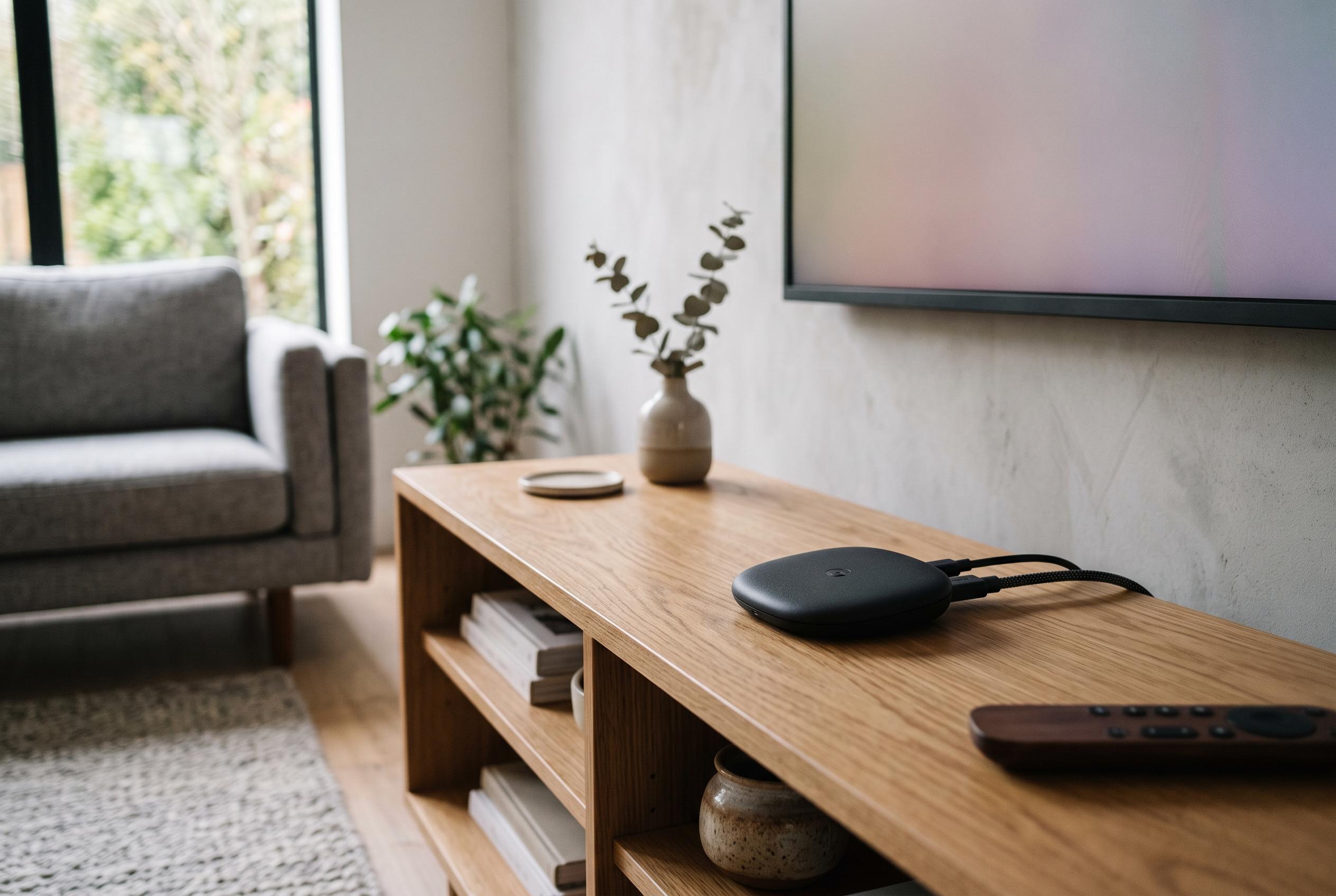

A common performance issue on the Google TV Streamer 4K can be mitigated by disabling dynamic content and managing background activity, as users report improved stability following a simple setting adjustment.
For weeks, the Google TV Streamer 4K behaved like a polished but imperfect living-room box: quick at first, then increasingly prone to hesitation, app launches that stalled, and a home screen that sometimes failed to resume content cleanly. Android Police found the issue was not the network, as a Fire TV 4K Max on the same connection did not show the same behaviour, pointing instead to the streamer itself. Google’s own support material for Google TV devices says users should start with basic performance checks such as restarting the device, closing background apps, and keeping software current.
The most likely cause is familiar to anyone who has used a modestly specified streaming box with a feature-heavy interface: too much background activity competing for limited memory and storage. Google TV’s home experience pushes recommendations, autoplay previews and other dynamic content, all of which can add overhead. Google’s support documentation also recommends checking the network and router settings when playback or responsiveness becomes unreliable, but in this case the symptoms were tied more closely to the interface and local device load than to Wi-Fi.
The simplest fix was buried in the device settings. Under Quick Settings, then Settings, then Accounts & Profile, users can switch on Apps only mode for their profile. That strips away most of the content-led home page, leaving a grid of installed apps and removing much of the recommendation layer that can make Google TV feel heavier than it should. Google’s help material does not present this as a universal cure, but it does offer a similar theme across its guidance: reduce unnecessary background work and keep the device as lean as possible.
In practice, the change also disables search and voice search, which makes the interface less convenient, but it can be a fair trade-off if the priority is stability. The same settings page also allows users to turn off autoplay video, which removes another source of constant background activity. That matters on a device where even small delays are noticeable, especially when moving from boot to the home screen or opening demanding apps such as Prime Video.
If sluggishness continues, clearing the app cache is a sensible backup step. Google’s support pages and community reports both point to cache-related problems on Google TV devices, with some users saying apps misbehave until temporary data is removed. The cache can be cleared through Settings, System and Storage, then Free up storage, which can recover space without deleting sign-in details or saved passwords. For users running a crowded streaming setup, that may be enough to restore the device to something close to its original responsiveness.
Disclaimer: This content is intended for informational purposes only. Readers are advised to exercise their own judgement, conduct due diligence, or consult a qualified expert before acting on any information provided.