

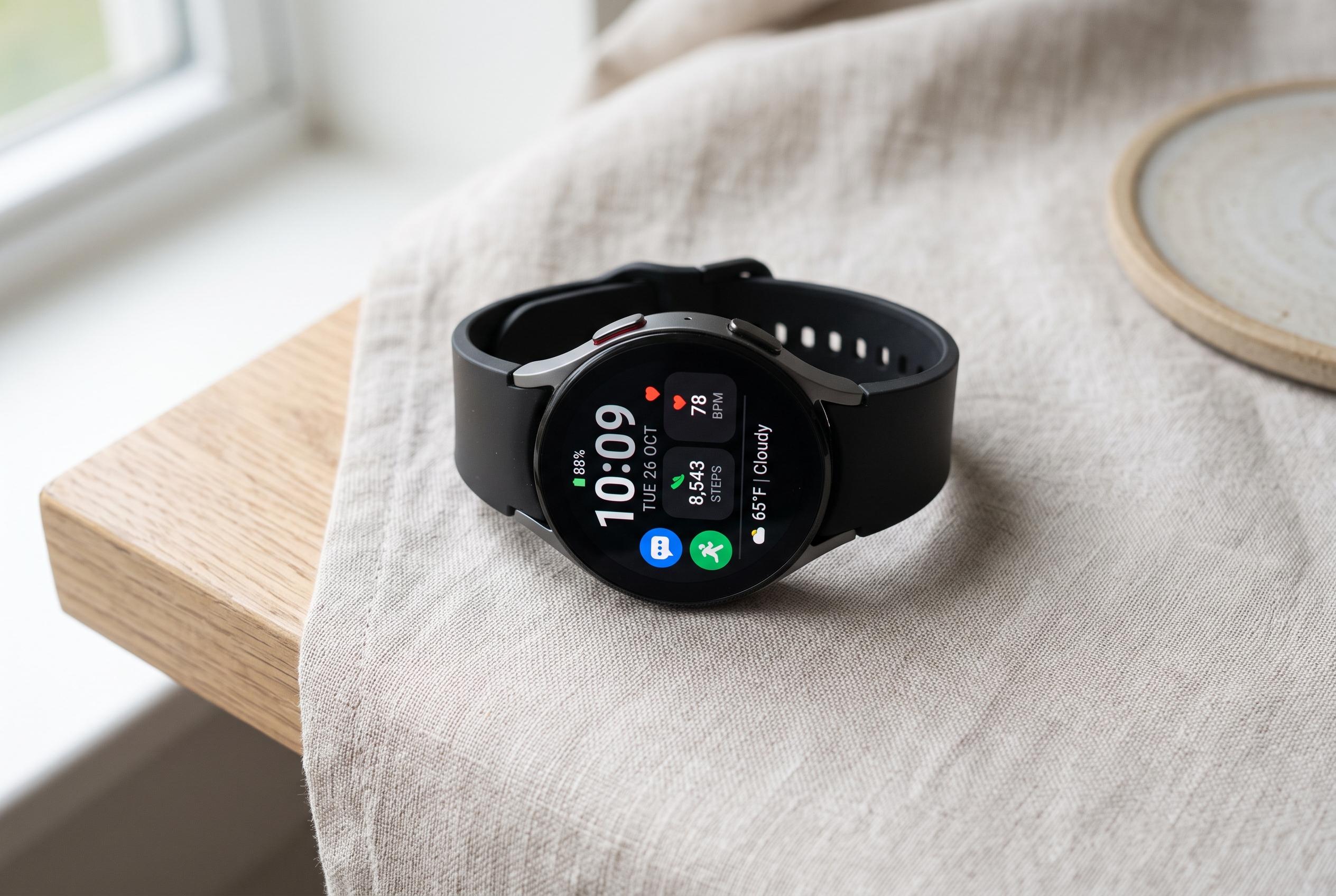

Samsung Galaxy Watch owners often overlook key functionalities that can be customised for better usability. Exploring hidden settings like automatic watch-face switching, Universal Gestures, and Developer Options can significantly improve the device’s responsiveness and accessibility, making it more adaptable to daily routines.
Many Samsung Galaxy Watch owners use the device for alerts, fitness tracking and little else. That leaves several useful functions overlooked, largely because Samsung buries them in menus spread across the watch, the phone app and system settings. A closer look at the software shows that some of the most practical tools are the least visible, especially when paired with a Galaxy phone.
One of the more useful options is automatic watch-face switching. Samsung’s own support material shows that watch faces can be changed from the watch or the Galaxy Wearable app, but the deeper trick is using Modes and Routines on a paired Galaxy phone to make the face change with context. That means a simpler display can appear during the day, a denser one can switch on for exercise and a different layout can be tied to work, home or other routines. It is a small adjustment, but it makes the watch easier to read in different settings and reduces the need to keep changing faces manually.
Another overlooked feature is Universal Gestures, a hands-free control system designed for accessibility but useful far beyond that. Samsung says the feature allows the watch to be operated with simple hand movements after it is enabled in Accessibility settings. The controls include pinch and fist gestures for moving between items, selecting options and opening shortcuts, while a double fist gesture brings up a context-sensitive toolbox. Samsung’s support pages and accessibility materials show that the same gesture system is also being extended to other devices such as compatible smart TVs, underlining that it is part of a broader push towards touch-free control rather than a one-off trick.
A third hidden setting comes from the Galaxy Watch’s Developer Options menu, which can be unlocked from the software information screen. Among the options, “Stay awake while charging” is particularly practical. It keeps the display active while the watch is docked, turning it into a bedside clock or desk display. For users who remove the watch during work or overnight, that turns an ordinary charger into a more useful information screen for time, weather and notifications.
Taken together, these features suggest that Samsung’s watch software is more capable than its everyday health and notification use cases imply. The challenge is not that the functions are absent, but that they are scattered and easy to miss. For owners willing to explore a little, the Galaxy Watch can be made more responsive, more accessible and more adaptable to daily routines.
Disclaimer: This content is intended for informational purposes only. Readers are advised to exercise their own judgement, conduct due diligence, or consult a qualified expert before acting on any information provided.



