

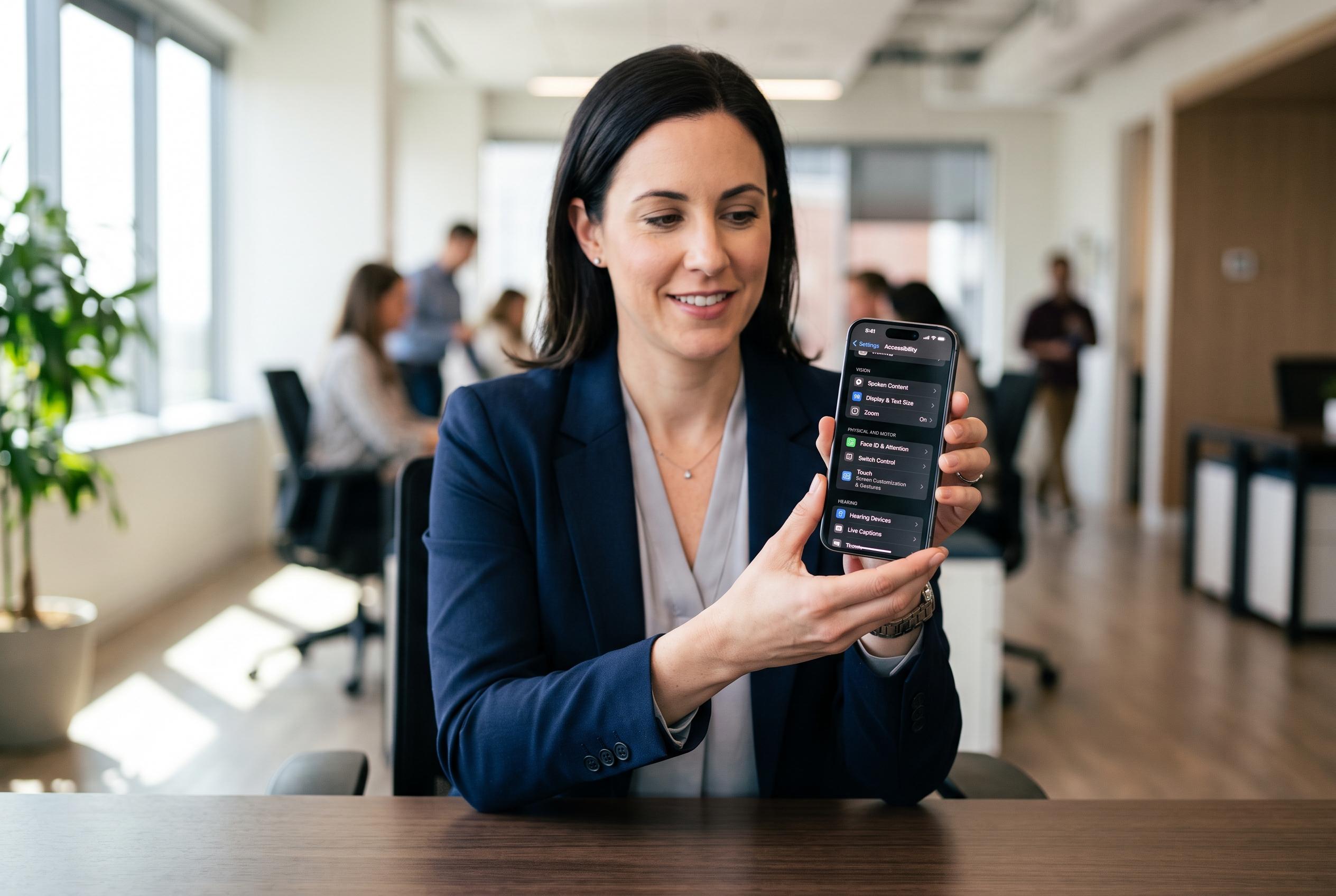

Discover lesser-known iPhone settings within Accessibility that enhance control, readability, and daily convenience, from Face ID tweaks to screen customisation and gesture shortcuts.
A set of lesser-known iPhone settings can make the handset easier to control, more readable and quicker to use in daily life. Many of the most useful options sit inside Accessibility, a section Apple originally designed for people with specific needs but which is available to any iPhone owner. Apple’s own Accessibility pages highlight tools such as visual alerts, Background Sounds, Back Tap and other controls that change how the device behaves without requiring third-party apps.
One of the most practical adjustments affects Face ID. The iPhone can be set to unlock only when it detects that the user is actually looking at the screen, adding an extra layer of confirmation. Apple also supports haptic feedback for successful Face ID recognition and Apple Pay approval, which can be useful when a user wants a physical signal rather than a sound. For missed calls, messages and other alerts, Apple’s support documentation says users can enable screen flashes or the camera flash as visual notifications, a helpful option in noisy settings or when the phone is muted.
Apple has also expanded display customisation in ways that can improve readability. Reports on the Liquid Glass interface in iOS 26 note that while the effect cannot be fully switched off, users can reduce its translucency by choosing a more tinted appearance, which makes controls stand out more clearly against the background. Other settings let users keep the volume slider visible and add clearer on-off labels to switches, reducing the need to guess whether a function is enabled.
Several of the most useful tools are designed around convenience rather than accessibility alone. Back Tap, which Apple documents on its Accessibility pages, lets users assign actions to a double or triple tap on the back of the phone, such as taking a screenshot without pressing buttons. Siri can also be configured to respond even when the iPhone is face down or covered. Apple’s Background Sounds feature adds built-in audio such as rain, ocean or fire and can play without an internet connection, with a timer available for automatic shut-off.
For users of larger iPhone models, Reachability remains one of the simplest ways to make one-handed use less awkward. It shifts the top portion of the interface downward so controls are easier to reach. Apple and accessibility-focused guides also point to related options such as Touch Accommodations, AssistiveTouch, Eye Tracking and Per-App Settings, which show how deeply the iPhone can be adapted to different habits and physical needs. In practice, these hidden controls can make the device more responsive, more legible and less dependent on the default touchscreen layout.
Disclaimer: This content is intended for informational purposes only. Readers are advised to exercise their own judgement, conduct due diligence, or consult a qualified expert before acting on any information provided.



