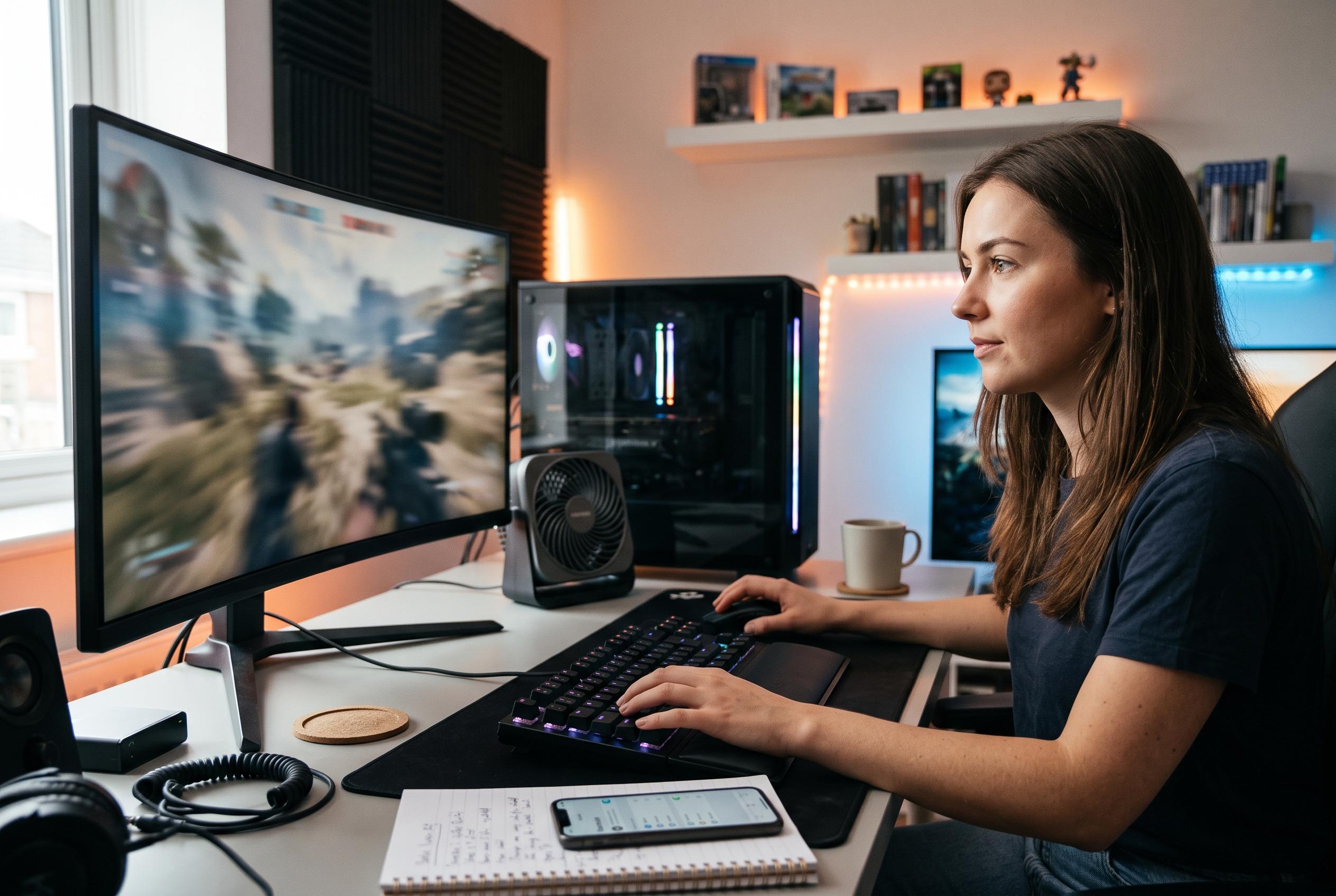

A comprehensive guide reveals how reducing graphical load, software tweaks, and Windows settings can significantly enhance gaming frame rates without investing in new hardware, highlighting practical steps for smoother gameplay.
Improving frame rates does not always require new hardware. Engadget’s guide argues that the quickest gains usually come from reducing the load on the graphics card, starting with the most demanding in-game options. Texture quality, shadows and effects such as ambient occlusion can all depress performance if they are set too high, so moving them to medium or low is often the most effective first step for players trying to hold a steady frame rate. Disabling motion blur and in-game V-sync can also reduce latency, while frame-rate caps set through NVIDIA Control Panel or AMD Radeon software may help prevent screen tearing.
The same guide notes that there is often only a modest visual penalty for lower settings in many modern games, particularly in fast-paced titles where responsiveness matters more than image fidelity. That trade-off is why many players accept a less demanding preset when they are aiming for a locked 60fps. It also points out that automatic detection tools now bundled with many games can choose a sensible baseline by reading the system’s hardware, cutting down on manual tuning. Engadget says that this approach tends to work well in titles such as Forza Horizon 6 and GTA V: Enhanced Edition.
Beyond the graphics menu, there are several software-side changes that can help. Closing recording tools, including features built into the NVIDIA app and Xbox Game Bar, may free up a little overhead. Regular driver updates are also important, with Intel, NVIDIA and AMD all recommending that graphics drivers and game software stay current to avoid compatibility and performance problems. If a new driver causes trouble, rolling it back remains a sensible troubleshooting step. Other guides on gaming performance, including advice from Intel and several optimisation checklists, add that lowering resolution and render scale, using upscaling technologies such as DLSS or FSR, and running games in exclusive full-screen mode can produce additional gains where the game supports them.
Windows itself can also get in the way if it is not configured properly for gaming. Engadget recommends switching Windows 11’s power mode to Best performance, especially on gaming laptops where the default settings may favour battery life over speed. It also advises turning on Game Mode, which asks Windows to reduce the priority of background activity while a game is running. Across the broader field of PC gaming optimisation, the common thread is consistent: stabilise power delivery, cut background load, keep drivers up to date and trim the most expensive graphical effects before considering any hardware upgrade.
Disclaimer: This content is intended for informational purposes only. Readers are advised to exercise their own judgement, conduct due diligence, or consult a qualified expert before acting on any information provided.