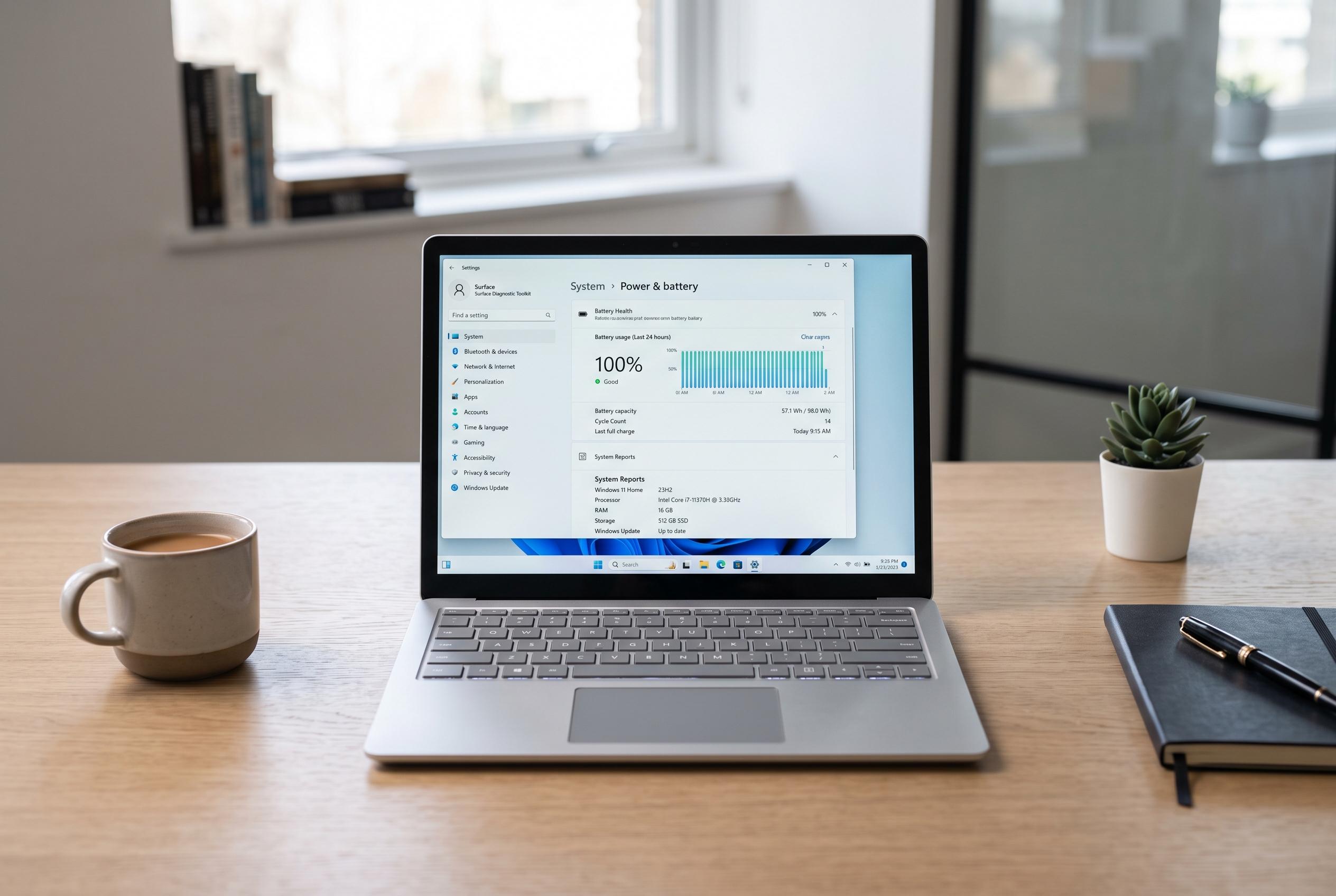

Learn how to evaluate your laptop’s battery health effectively using Windows’s built-in reports, lightweight third-party tools, and manufacturer-specific diagnostics for a comprehensive view of wear and potential failure.
For most Windows users, the simplest battery health check is still the one built into the operating system. Microsoft says the powercfg /batteryreport command creates an HTML report showing design capacity, full-charge capacity, recent use and capacity history, giving a practical baseline without installing extra software. Dell’s support guidance uses the same route for troubleshooting batteries that are no longer holding charge as expected. According to Microsoft and Dell, this is the best first step when you want a quick, broadly useful reading rather than a specialist diagnostic.
The key number in that report is the gap between design capacity and full-charge capacity. Design capacity is the battery’s original intended capacity, while full-charge capacity is what Windows currently believes the battery can hold when topped up. That comparison gives an estimate of wear, but it is not a laboratory-grade test. Microsoft also recommends habits that slow degradation, including keeping charge between 20% and 80% where practical and avoiding heat.
When a faster snapshot is needed, BatteryInfoView is a strong lightweight option. Its own documentation says it can show manufacturer details, serial number, voltage, charge and discharge rate, design capacity and full-charge capacity, and that it can log power-state changes over time without requiring installation. That makes it useful for a portable check on a machine that may not belong to you, although it can only display data the firmware actually exposes. A missing cycle count or similar field is therefore not proof that the battery is healthy.
For readers who need trend data rather than a single report, monitoring tools are more useful than simple health-check utilities. BatteryInfoView can log changes, and Dell’s advice shows why the Windows report is often paired with other checks when runtime problems need tracing. The supplied material also points to manufacturer utilities and broader hardware suites as better choices when the aim is to watch charging behaviour, not just assess wear. In practice, that means using Windows for the baseline and a monitor for pattern-finding.
Manufacturer diagnostics matter when the question is whether the battery has actually failed. Dell recommends its own support tools alongside Windows reporting, while Microsoft’s battery guidance focuses on capacity and maintenance rather than a hard pass-or-fail verdict. For HP, Dell and similar systems, an OEM diagnostic can be more relevant than a generic utility because it links the result to the model’s support path, charging controls and firmware checks. That distinction is important for used-laptop buyers, where a report is evidence, not a guarantee.
The most sensible approach is to treat battery software as a hierarchy, not a contest. Start with powercfg /batteryreport, use BatteryInfoView when you need a portable snapshot, and turn to the laptop maker’s own tools when you need a failure result. If a battery is swollen, shuts down unexpectedly or fails an OEM test, software will not repair it; the correct next step is manufacturer or authorised service support.
Disclaimer: This content is intended for informational purposes only. Readers are advised to exercise their own judgement, conduct due diligence, or consult a qualified expert before acting on any information provided.