

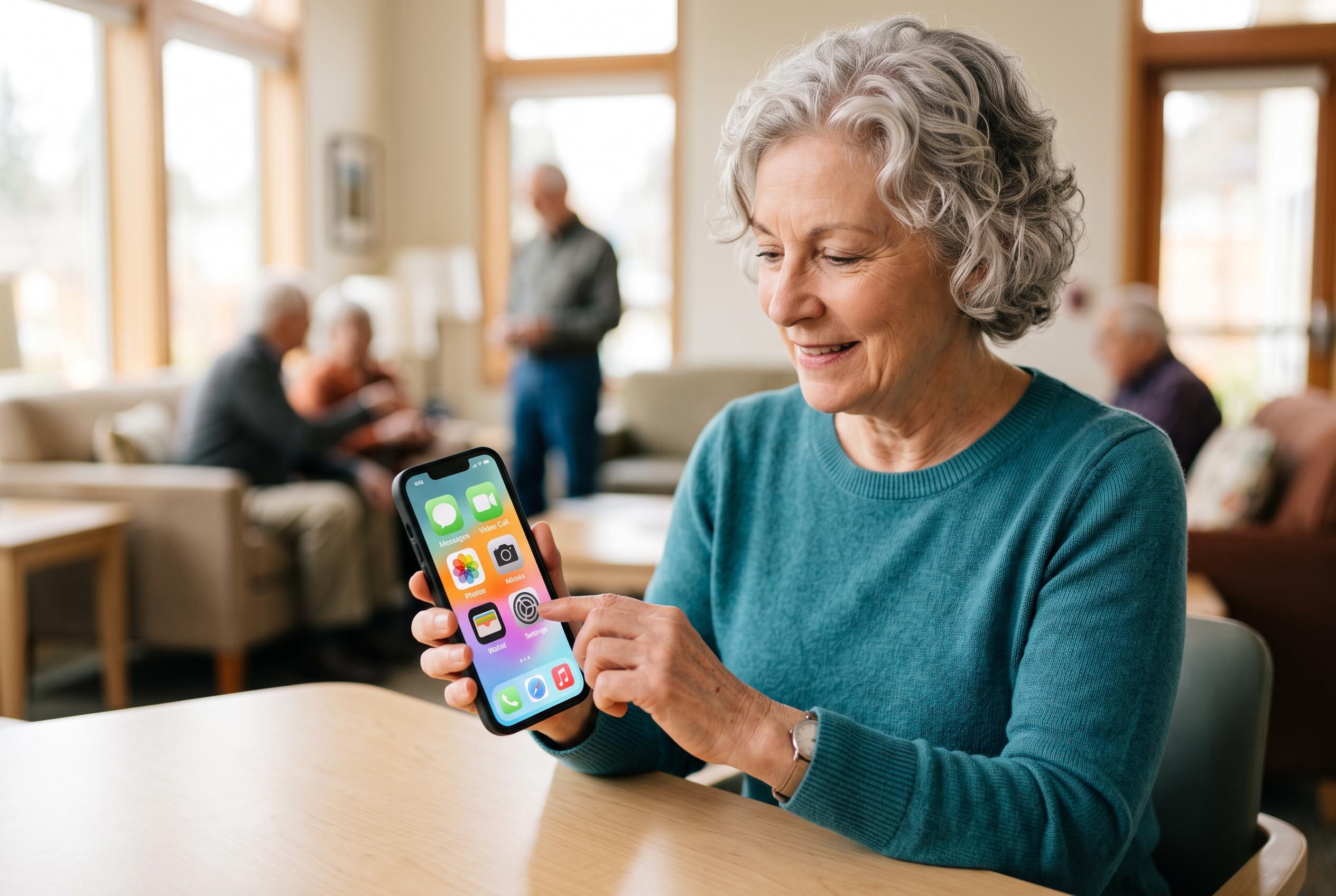

Leading tech giants like Apple, Google and Samsung are rolling out new tools and simplified interfaces to help older adults transition smoothly from flip phones to smartphones, reducing frustration and boosting confidence.
For an older adult moving from a flip phone to a smartphone, the biggest barrier is often not the device itself but the interface. Small icons, gesture controls and crowded menus can make even basic tasks feel awkward at first. The good news is that Apple, Google and Samsung all build in accessibility features that can reduce that complexity and make the phone more manageable.
On an iPhone, the most useful starting point is the Display and Brightness menu, where text can be enlarged, bold type can be enabled and Display Zoom can make icons and buttons easier to read and tap. Apple’s accessibility guide also points to VoiceOver, Zoom and Voice Control, which can read content aloud, magnify the screen and let users operate the phone by speaking. For users who need a simpler layout, Assistive Access creates a stripped-down home screen with large controls and fewer apps. Apple’s own support material also notes mobility tools such as Eye Tracking, Head Tracking and external device support for users who need alternative ways to navigate the phone.
Google Pixel phones offer a similar set of tools through Android accessibility settings. Users can increase display size and text, improve contrast and switch from gesture navigation to the familiar three-button layout, which may be easier for someone new to smartphones. Google’s accessibility documentation also highlights TalkBack, the screen reader, along with Magnification, Live Caption, Sound Amplifier and Voice Access. Android Central has also reported on Pixel’s Simple View approach, which enlarges the interface and simplifies the app grid for easier day-to-day use.
Samsung Galaxy phones include Easy Mode, which is designed specifically to reduce complexity. It enlarges text and icons, simplifies the home screen and helps prevent accidental taps. Samsung users can also adjust font size, screen zoom and navigation style, while accessibility settings add features such as captions, contrast controls and voice operation. SamMobile has noted that Samsung’s wider accessibility approach also includes high-contrast display options and hearing aid support.
Beyond the built-in settings, a few practical changes can make a major difference. Removing unused apps, placing Phone, Messages and Photos on the first screen, choosing a plain wallpaper and increasing ringtone volume can all reduce confusion. Adding favourite contacts for one-touch calling and extending the screen timeout so the display stays on longer can also help. For many older users, the aim is not mastery of every function. It is simply to make calling, texting and taking photos feel familiar enough to use without frustration.
Disclaimer: This content is intended for informational purposes only. Readers are advised to exercise their own judgement, conduct due diligence, or consult a qualified expert before acting on any information provided.



