

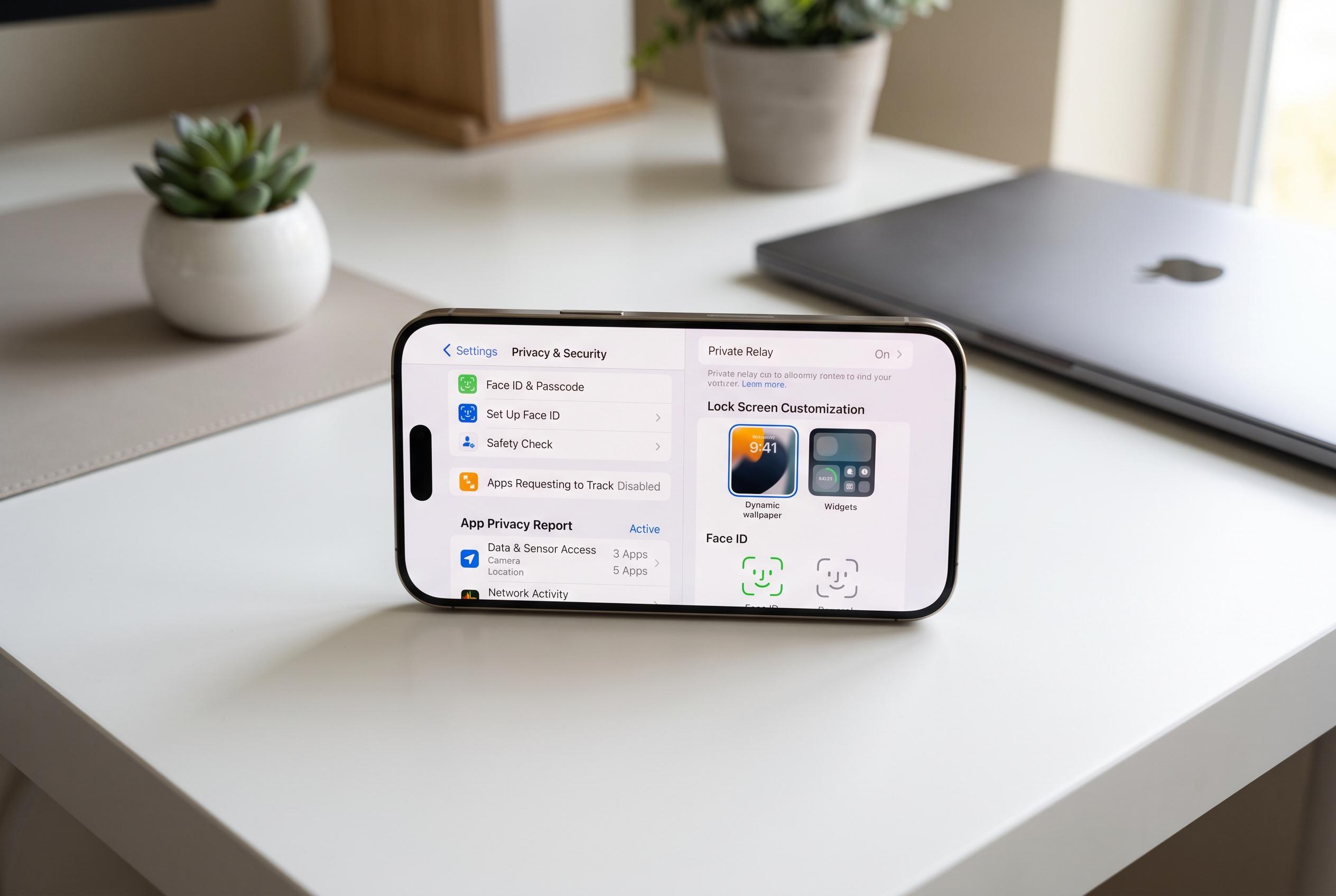

A few simple initial checks when setting up a new iPhone can significantly improve security, personalise user experience, and optimise everyday usability, according to Apple’s official guidance and tech site tips.
Setting up a new iPhone should involve more than moving data and signing in to apps. Apple’s own support material, along with feature guides from technology sites, shows that a few early checks can improve security, reduce friction and make the device fit everyday use more closely.
One of the first settings worth reviewing is Stolen Device Protection. Apple says the feature adds a stronger layer of defence for sensitive actions, especially if a thief already knows the passcode. In supported situations, the phone requires biometric verification with Face ID for tasks such as viewing passwords or erasing the device, and it can also impose a delay for major security changes, including an Apple account password update.
For users with a supported model, the Action button is another useful place to start. Apple allows the button to be assigned to different tasks through Settings, including the camera, flashlight or a Shortcut. Independent guides from iDownloadBlog and MacRumors note that the feature replaces the old Ring/Silent switch on recent Pro models and is designed to reduce the number of taps needed for common actions.
It is also sensible to check which apps the phone will use by default. Recent iPhone software lets users change some system defaults, including web browsers, email, calling, messaging, passwords and translation tools. Apple’s settings vary by country and region, and users in some markets, including the European Union, can see extra choices tied to app stores, payments and maps.
Privacy settings deserve a close look as well. Apple provides controls for analytics, improvements and advertising, allowing users to limit some data-sharing options if they prefer. That does not mean every form of data collection is unnecessary; Apple says some diagnostic sharing can help identify software faults and improve features, particularly when testing beta software or reporting a technical problem.
Accessibility menus can also improve everyday use, even for people who do not need assistive technology. Back Tap lets users trigger actions with a double or triple tap on the rear of the device, while Sound Recognition can listen for selected sounds such as a doorbell. Apple also offers Vocal Shortcuts, which lets the phone respond to a chosen phrase and run a preset action.
The broader point is simple: a new iPhone is usually at its best after a short round of customisation. Reviewing security, default apps, privacy controls and accessibility features takes only a few minutes, but it can make the device safer, faster to use and better aligned with the owner’s habits.
Disclaimer: This content is intended for informational purposes only. Readers are advised to exercise their own judgement, conduct due diligence, or consult a qualified expert before acting on any information provided.



