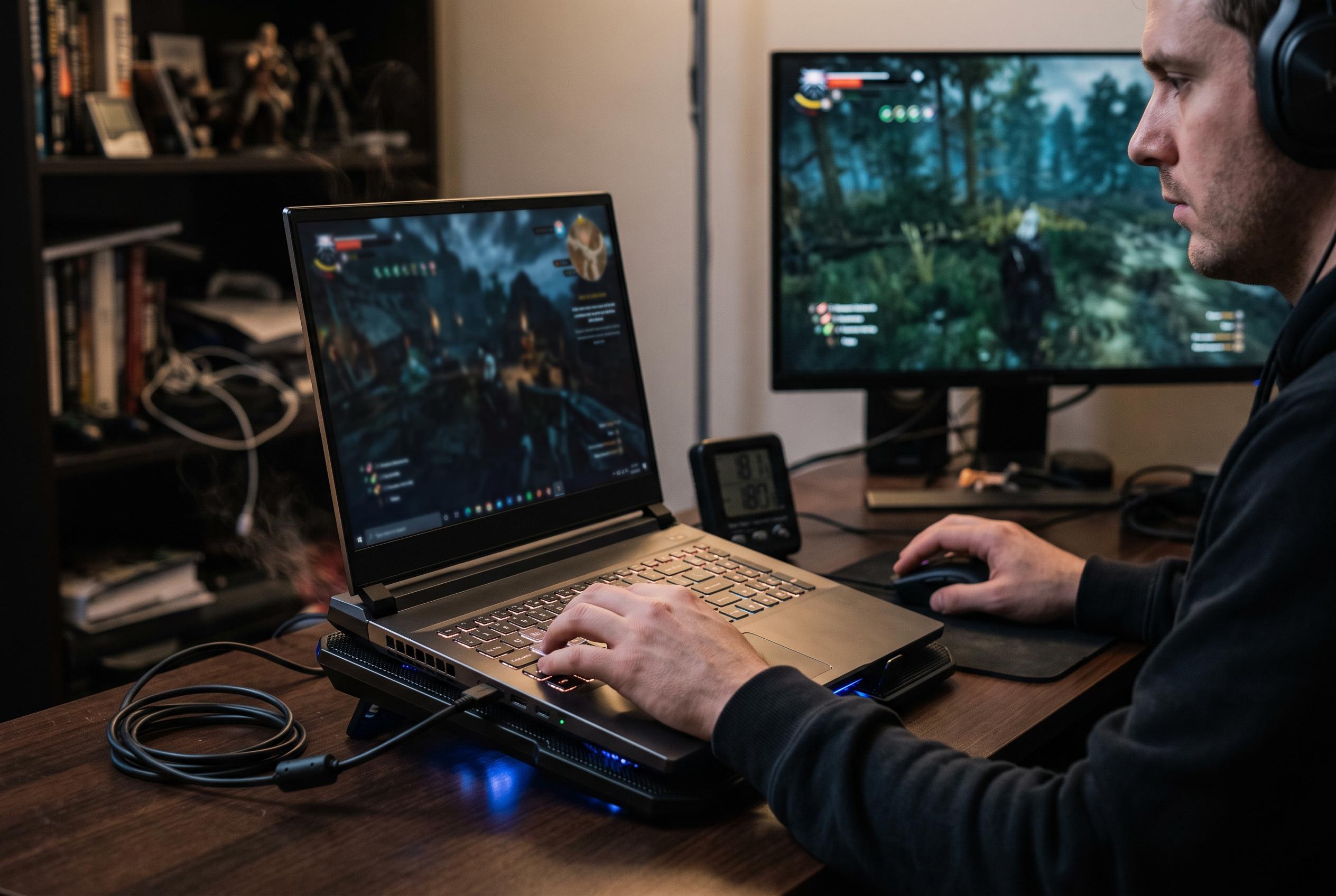

A step-by-step guide for gamers to enhance Warframe’s performance on laptops by adjusting GPU settings, managing heat, and fine-tuning display options for smoother gameplay.
Warframe on a laptop usually performs badly for one of three reasons: the game is running on the wrong graphics chip, the machine is on battery, or the system is slowing itself down because of heat. The practical order is to correct the launcher’s GPU setting, force the game onto the dedicated graphics processor in Windows, and then change the power mode. Once the discrete GPU is doing the work, the remaining performance tweaks become more predictable, especially frame-rate limits and the standard graphics options.
The launcher should be checked first. Digital Extremes’ own guidance, as reflected in the current Settings menu, points players to the launcher’s GPU preference and recommends High Performance. After that, Windows should be opened to System, Display, Graphics, where Warframe.x64.exe can be added as a custom app and set to High performance. On NVIDIA hardware, the Control Panel can also be used to assign Warframe to the high-performance processor. The key point is that these settings should agree with one another rather than conflict.
A quick way to confirm the fix is to open Task Manager and look at the GPU and GPU engine columns while the game is running. If Warframe is still sitting on the integrated chip, the laptop is not using its best hardware. It is also worth starting the game while plugged in, then setting Windows to Best performance for both plugged-in and on-battery modes. Many laptop makers expose a separate GPU mode in their own utility, and the safer choice while gaming is the setting that keeps the dedicated card active rather than Eco or battery-saving modes.
Thermal limits matter just as much as GPU selection. A busy mission should be tested with monitoring software such as Core Temp or HWMonitor open. If clock speeds fall as temperatures rise, the machine is throttling and the cooling path needs attention. Cleaning dust from vents, lifting the rear of the laptop and avoiding soft surfaces such as beds or sofas can all help. Warframe.Today also recommends checking RAM configuration with CPU-Z; if the Memory tab shows single-channel operation, a second matching stick can improve overall responsiveness, although the gain is usually more noticeable on integrated graphics than on a laptop already using a discrete GPU.
Display settings are the next place to look. The panel should run at its highest refresh rate in Windows, and Warframe’s Max Framerate should be set to the same value. The site also advises turning Vertical Sync off and enabling Reduce Frame Latency. That approach keeps pacing steady and avoids wasting performance on frames the panel cannot show. It also matches the broader advice in Warframe’s performance guides, which emphasise matching frame caps to the display rather than leaving the game uncapped by default.
If the GPU is idle but frame times still spike, the limitation is more likely to be the CPU. A separate guide from launch-fix.com says low GPU usage in Warframe often points to a processor bottleneck, especially when background tasks are competing for CPU time. Warframe.Today makes the same basic distinction and argues that its CPUCores tool can help by moving Windows and other background processes away from the cores the game is using. The benefit is most relevant on four-core and six-core systems with several applications open, and it will not solve a graphics or network problem. The site also warns that running Warframe on battery can trigger vendor-specific frame limits, including NVIDIA BatteryBoost, and that some variable refresh rate features only work properly with panels supporting at least 120 Hz.
Disclaimer: This content is intended for informational purposes only. Readers are advised to exercise their own judgement, conduct due diligence, or consult a qualified expert before acting on any information provided.