

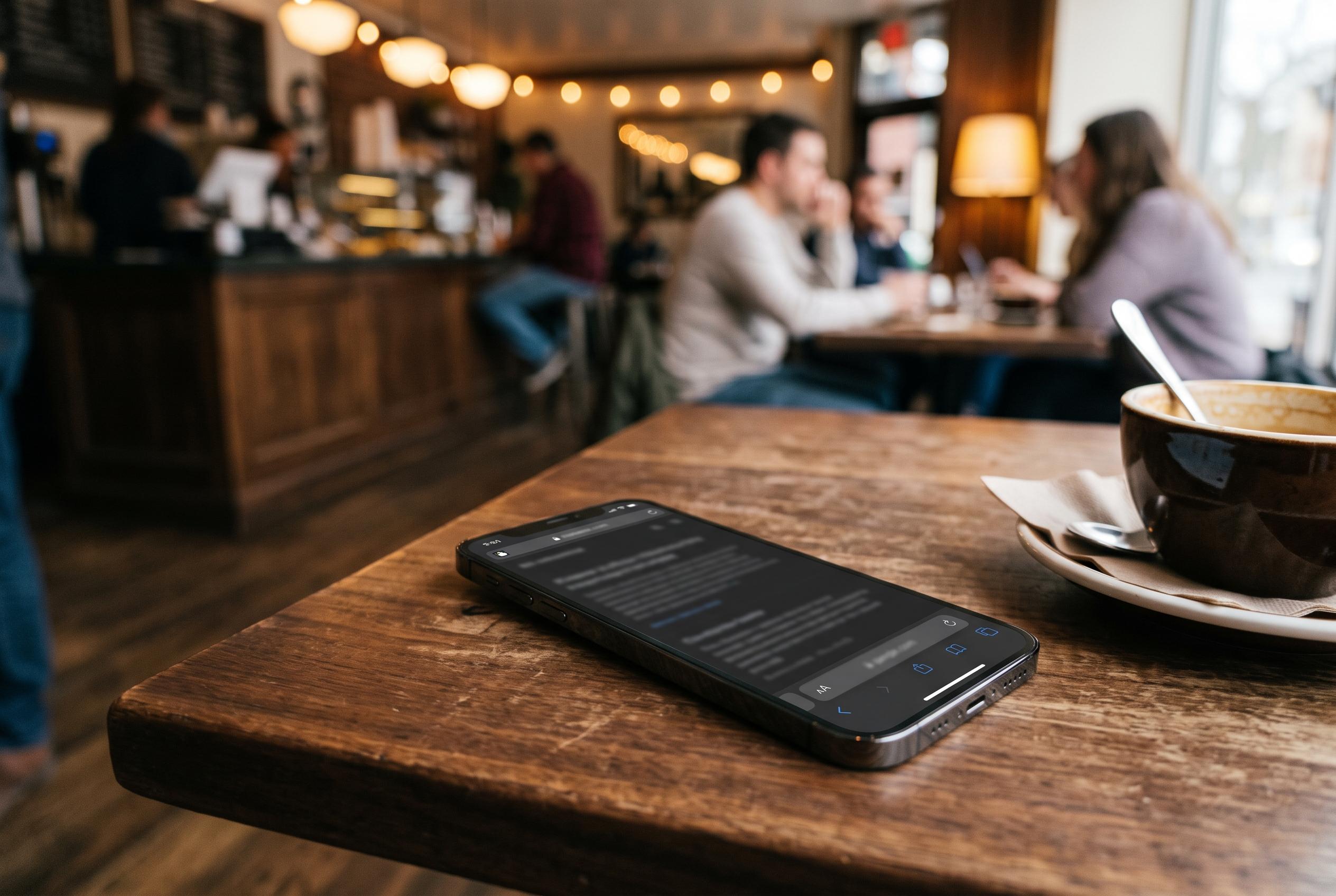

Public Wi-Fi networks can be convenient but pose significant security risks. Experts recommend verifying networks, disabling auto-join, using VPNs, and activating two-factor authentication to protect sensitive information from cyber threats on the go.
Public Wi-Fi is fine for light browsing, but it becomes far less forgiving once you enter passwords, bank details or card numbers. The safer approach is to prepare before you connect: verify the network, stop devices from joining automatically, switch on a VPN first, and make sure your accounts are protected with two-factor authentication. The Federal Trade Commission says encrypted sites remain important, but that does not remove the broader risks of open networks.
The first safeguard is simple: ask staff for the exact network name before joining. That matters because fraudulent “evil twin” hotspots are designed to imitate legitimate ones, and a near-identical name is often the only clue. Security guides from Certo Software and PanicVault both stress that users should not trust the strongest signal in the room, but the network that has been verified by an employee or a posted sign.
Next, disable auto-join on every device you carry. On an iPhone, that means opening Wi-Fi settings and turning off Auto-Join for the chosen network, while Android devices usually offer a “Connect automatically” option, though the wording varies by maker. Windows and Mac laptops also allow automatic reconnection to be switched off. This reduces the chance that your phone or laptop quietly reconnects to a spoofed hotspot later.
A VPN should be active before you open a browser or email app, not after. Verizon says a reputable VPN helps encrypt traffic and reduce exposure to man-in-the-middle interception, while Certo and PanicVault both describe it as a basic layer for public-network use. The same guidance is echoed by the FTC, which pairs software updates with stronger passwords and two-factor authentication as essential protections. If possible, choose a VPN with a kill switch so traffic does not slip through if the tunnel drops.
On laptops, it is also wise to turn off file sharing and set the network to Public rather than Private or Home. That limits device discovery on the local network and makes it harder for other connected devices to inspect shared folders or browse your machine. Security advice from LegalClarity and the National Cybersecurity Alliance also warns against storing credentials or sensitive data on systems that may be visible to others on the same connection.
A padlock icon still matters, but it is not proof that a site is genuine. The FTC notes that fraudulent pages can also use encryption, so the address bar must be checked carefully for spelling mistakes and lookalike domains. That same caution applies to unexpected log-in prompts or requests for card details, which can be signs of a fake page inserted into the connection.
Two-factor authentication remains one of the most effective defences if a password is exposed. The FTC recommends it, and Verizon goes further by advising stronger methods such as passkeys or hardware keys rather than SMS codes alone. Keeping operating systems and security software updated is equally important, because many attacks on public Wi-Fi exploit flaws that have already been patched.
Even with those precautions, public Wi-Fi is not risk-free. A VPN does not stop phishing, does not remove malware already on a device, and does not protect the captive portal pages that airports and hotels often require before full access is granted. Used together, though, these checks close most of the gap between casual browsing and risky log-ins, which is where public networks become far more dangerous.
Disclaimer: This content is intended for informational purposes only. Readers are advised to exercise their own judgement, conduct due diligence, or consult a qualified expert before acting on any information provided.



