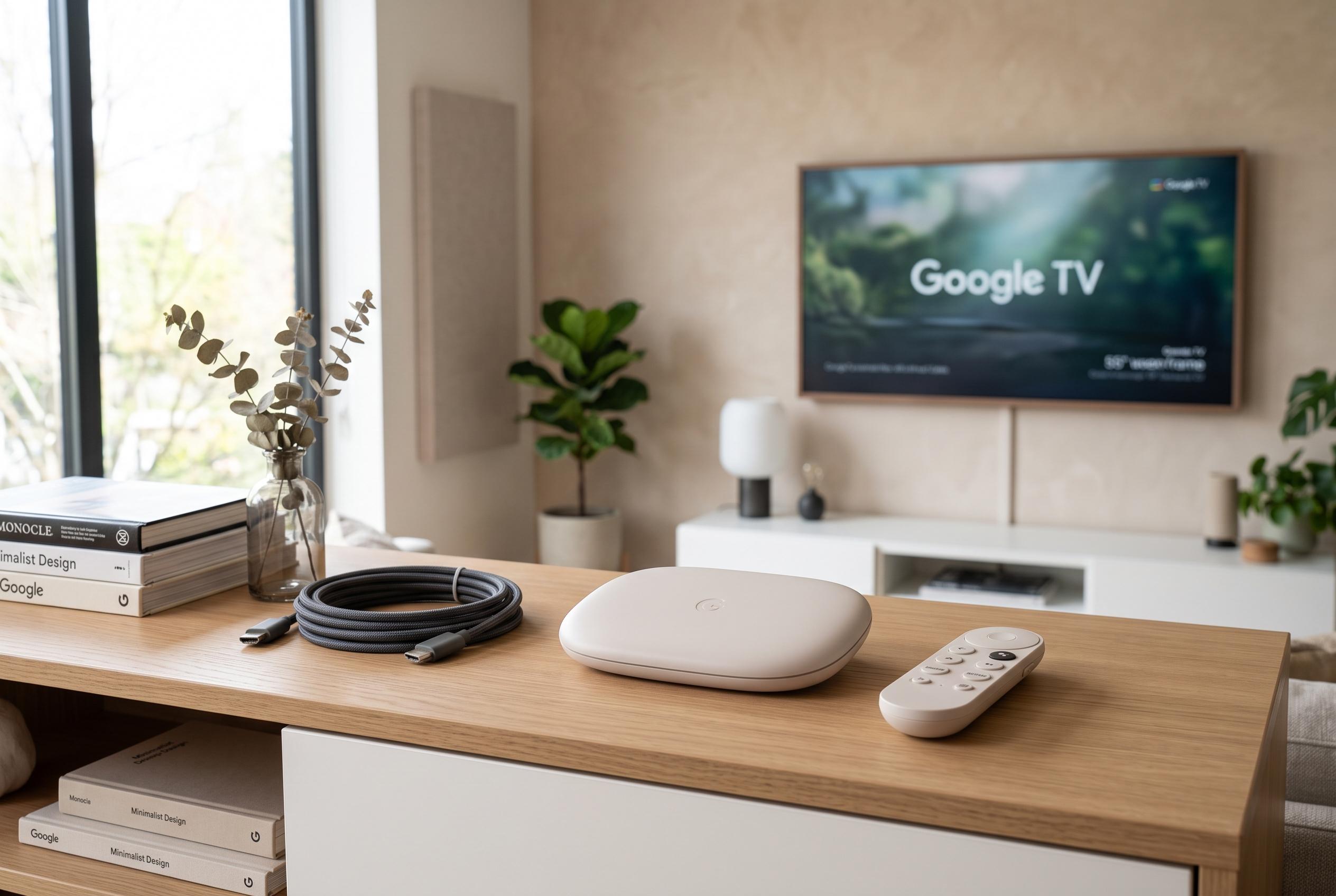

Practical tips such as cache cleaning, reducing animations, and improving connection quality can significantly boost the responsiveness of Google TV Streamer, enhancing user experience and device longevity.
The Google TV Streamer is one of the quicker set-top boxes on the market, helped by 4GB of RAM and a newer quad-core processor. But, like any streaming device used every day, it can become less responsive over time. Menus may hesitate, apps can take longer to open and the whole interface may feel heavier than it should.
The good news is that much of that slowdown can be reversed with basic maintenance. Google’s own support guidance and several device tutorials point to cache management as the first place to start. Cached data is meant to speed things up by storing temporary files, but it can build up and start working against performance if it is left unchecked. On Google TV Streamer devices, the relevant path runs through Settings, System and Storage, where users can free up storage and clear cached data.
Another useful adjustment is to reduce or limit interface animations. Google TV includes Developer Options, and once enabled, these settings allow users to cut animation timings from the default 1x level to 0.5x. That does not change the underlying hardware, but it does make the system feel more immediate because transitions complete faster. It is a small change, but it can have a noticeable effect on perceived speed.
A cleaner home screen can also help. Apps Only mode removes much of the recommendation-heavy layout and places installed apps front and centre, which makes navigation simpler and faster. For users who want a more substantial change, third-party launchers such as Projectivy can create an even more stripped-back interface. That may be useful for people who value speed and clarity over Google’s default content-led layout.
Connection quality matters as well. The Google TV Streamer is unusual among mainstream devices because it includes a Gigabit Ethernet port, which can deliver a far more stable connection than Wi-Fi. In practical terms, that means fewer buffering issues, steadier video quality and faster downloads. Support pages and troubleshooting guides also recommend checking for software updates, restarting the device if problems persist and, as a last resort, performing a factory reset if glitches remain after everything else has been tried.
Disclaimer: This content is intended for informational purposes only. Readers are advised to exercise their own judgement, conduct due diligence, or consult a qualified expert before acting on any information provided.