

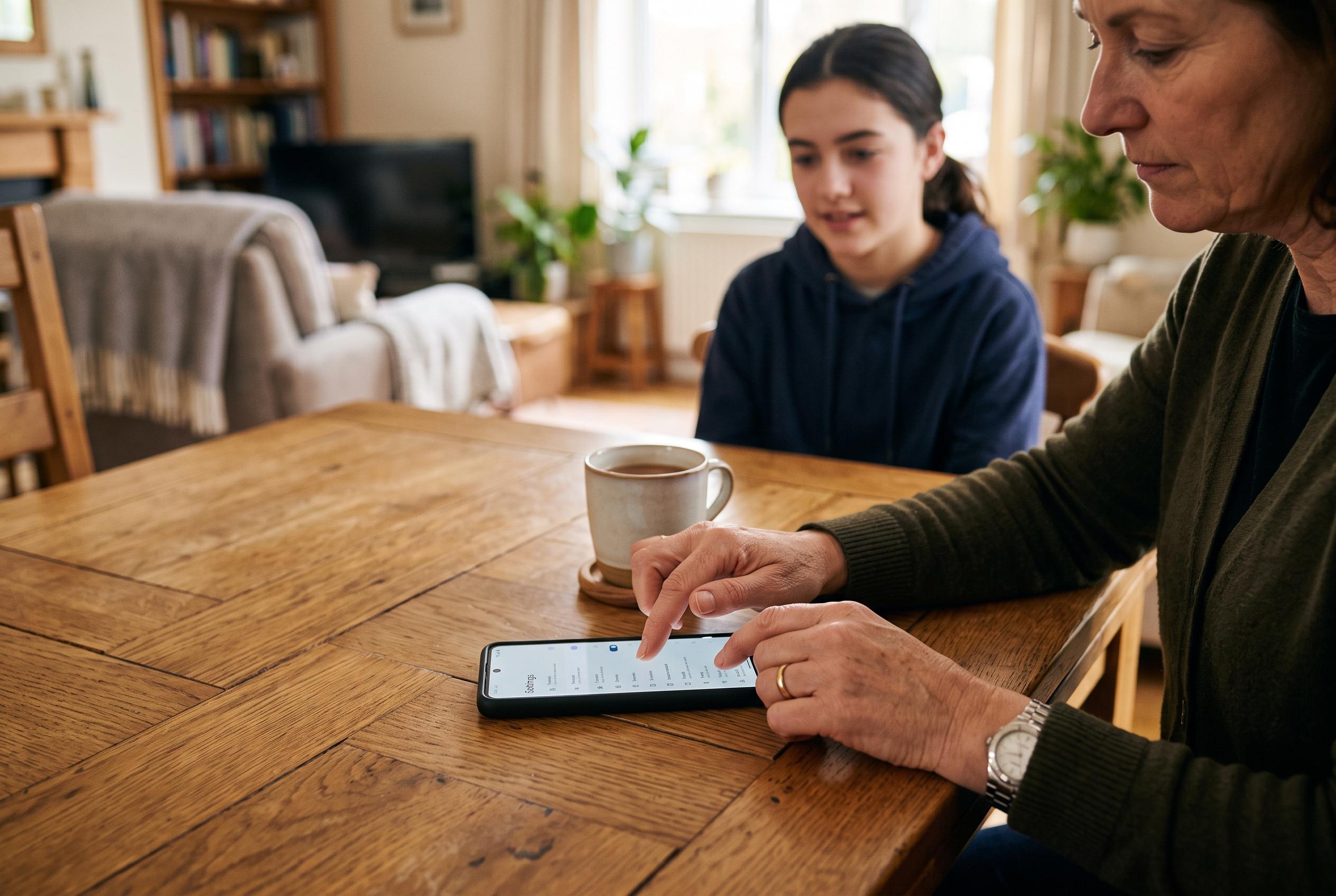

Apple and Google offer powerful tools for managing screen time, spending, privacy and safety , but parents need to set them up before a new phone reaches a teenager’s hands.
A teenager’s first phone can arrive with more default freedom than many parents expect. The initial setup often moves quickly, yet those early choices determine how much control the family has over screen use, purchasing, contact, privacy and safety. Both Apple and Google now build child and teen management into their platforms, while major apps have also added their own protections.
The strongest starting point is to create a supervised account before the handset is handed over. Apple Support says a child account can be added to Family Sharing so that parental controls are linked to the child’s Apple Account, while Google’s support guidance explains how to create a supervised Google Account for a child on Android. That linked setup matters because it allows many restrictions to be managed remotely from a parent’s own device rather than adjusted one by one on the phone itself.
Screen limits are usually the next place families look. Apple’s Screen Time and Google Family Link both allow daily app limits and scheduled downtime, during which most apps are blocked while calls and selected tools remain available. Families often use those settings to cover overnight hours and homework periods, and many find that it helps to begin with moderate limits rather than imposing a strict cap immediately. Recent reporting from TechRadar, T3 and Tom’s Guide suggests Apple has continued to refine these controls, including more granular time allowances and a redesigned interface for managing access.
Content filters are another key safeguard. Apple lets parents restrict explicit material, age-rated media and website access through Content and Privacy Restrictions, while Google Play and Family Link can limit app, film, music and book content by maturity level and apply Chrome and Search filters. These tools reduce exposure to unsuitable material, although they are only one layer of protection. They work best when paired with clear conversation about what a teenager is likely to encounter online.
Many parents also choose to control app downloads and in-app spending. On Apple devices, Ask to Buy sends a request whenever a child tries to install an app or complete a purchase. Google Family Link offers similar approval controls for Google Play. That approach not only prevents surprise charges but also gives parents a chance to review an app before it reaches the phone. Some families approve every request, while others reserve oversight for new downloads or purchases above a certain threshold.
Location sharing is useful, but it needs to be handled openly. Apple’s Find My and Google’s location tools can show where a device is, which can help with pickups, lost phones and emergencies. Many families use that feature sparingly, and the conversation around it matters as much as the setting itself. When teenagers understand when location is checked and why, the arrangement is usually easier to accept.
Social media deserves separate scrutiny, because the app defaults can be as important as the phone settings. According to recent reports from TechRadar and T3, Instagram has introduced Teen Accounts that default to private settings and place limits on who can message younger users and what they see. Other platforms have their own age-based protections and parental tools, but they change frequently. Parents therefore need to check each app’s current controls, confirm who can contact the teen and make sure the birthdate entered at sign-up is accurate, since many safeguards depend on it.
Messaging settings also merit attention. Apple’s Communication Safety feature can detect nudity in images sent or received in Messages on a child’s device and warn before the image is displayed. Apple says it is enabled by default for children under 13 in Family Sharing, and parents of older teens can turn it on as well. Screen Time communication limits can also restrict who a child may contact, which helps families set clear boundaries around unknown numbers and group chats.
Finally, basic security remains essential. A strong passcode, biometrics such as Face ID or fingerprint unlock, and a working device-finding service all matter if the phone is lost or stolen. Parents can also review which apps have access to the camera, microphone, contacts and location, and many families agree on a simple rule so that a trusted adult can access the device in an emergency. Adding two-factor authentication to the teen’s account and revisiting app permissions every few months helps keep those protections current rather than forgotten.
Disclaimer: This content is intended for informational purposes only. Readers are advised to exercise their own judgement, conduct due diligence, or consult a qualified expert before acting on any information provided.



