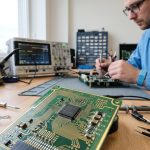
From basic socket and cable inspections to internal motherboard diagnostics, learn how to identify whether your laptop’s charging problem is simple or signals a more serious fault, and explore the steps to fix it.
A laptop that stops charging can be a minor inconvenience or a sign of a deeper fault, but the first step is usually the same: work through the charging chain in order. PC Fixer Computer Repairs says the issue may begin with the wall socket, the charger, the cable, the port, the battery or internal power circuitry. HP’s troubleshooting guides make the same point, noting that many apparent charging failures turn out to be simple power-supply or connection problems rather than a full hardware breakdown.
The simplest checks are often the most useful. Try a different socket, remove any extension lead or surge protector from the chain and see whether the charger has an indicator light. A dead light can suggest either a failed adapter or a problem with the power supply itself. Charger and cable damage are also common, especially where the lead has been bent, wrapped tightly or pulled repeatedly. Visible wear, overheating, a burnt smell or unusual noise are all signs that the charger should be stopped and replaced only with a unit that matches the laptop’s voltage, connector type and wattage.
The charging port deserves close attention as well. According to Anker and Manchester PC, loose connections, dust in the socket and damaged barrel-jack or USB-C ports are frequent causes of intermittent charging. A laptop that only charges when the cable is held at a certain angle often points to port wear or internal breakage. USB-C systems can be particularly sensitive because the wrong port, cable or power delivery rating may prevent proper charging even when the connector fits.
Battery health is another major factor. HP says laptop batteries naturally degrade over time, losing the ability to hold charge or reaching a point where they stop charging at all. A failing battery may also drain unusually fast, refuse to go past a certain percentage or switch the laptop off as soon as the charger is unplugged. Some machines will still run on mains power even if the battery has effectively failed, which means a battery replacement may solve the problem without further repair.
The message “plugged in, not charging” does not always mean a fault. HP and Anker both note that some manufacturers build battery protection settings into their software, limiting charging to around 80% to reduce long-term wear. If no such limit is active, the warning can indicate a driver issue, a software conflict or a genuine problem with the battery or charger. Rebooting the system, checking for updates and reinstalling battery-related drivers through Device Manager can sometimes restore normal operation.
Heat can also interrupt charging. Modern laptops are designed to slow or stop charging if internal temperatures rise too far, to protect the battery and motherboard. Dust build-up, blocked vents and soft surfaces such as beds or sofas can make overheating worse by reducing airflow. If a laptop feels unusually hot, let it cool down and make sure the cooling openings are clear before testing it again.
If those checks do not help, the fault may be deeper inside the machine. Charging circuits, power-management components and motherboard connections can fail after liquid damage, electrical surges or physical impact. At that stage, diagnosis usually requires specialist equipment. PC Fixer Computer Repairs says professional testing can help separate a bad charger from a worn battery, damaged socket or internal fault, which is often cheaper and safer than replacing parts at random.
Disclaimer: This content is intended for informational purposes only. Readers are advised to exercise their own judgement, conduct due diligence, or consult a qualified expert before acting on any information provided.