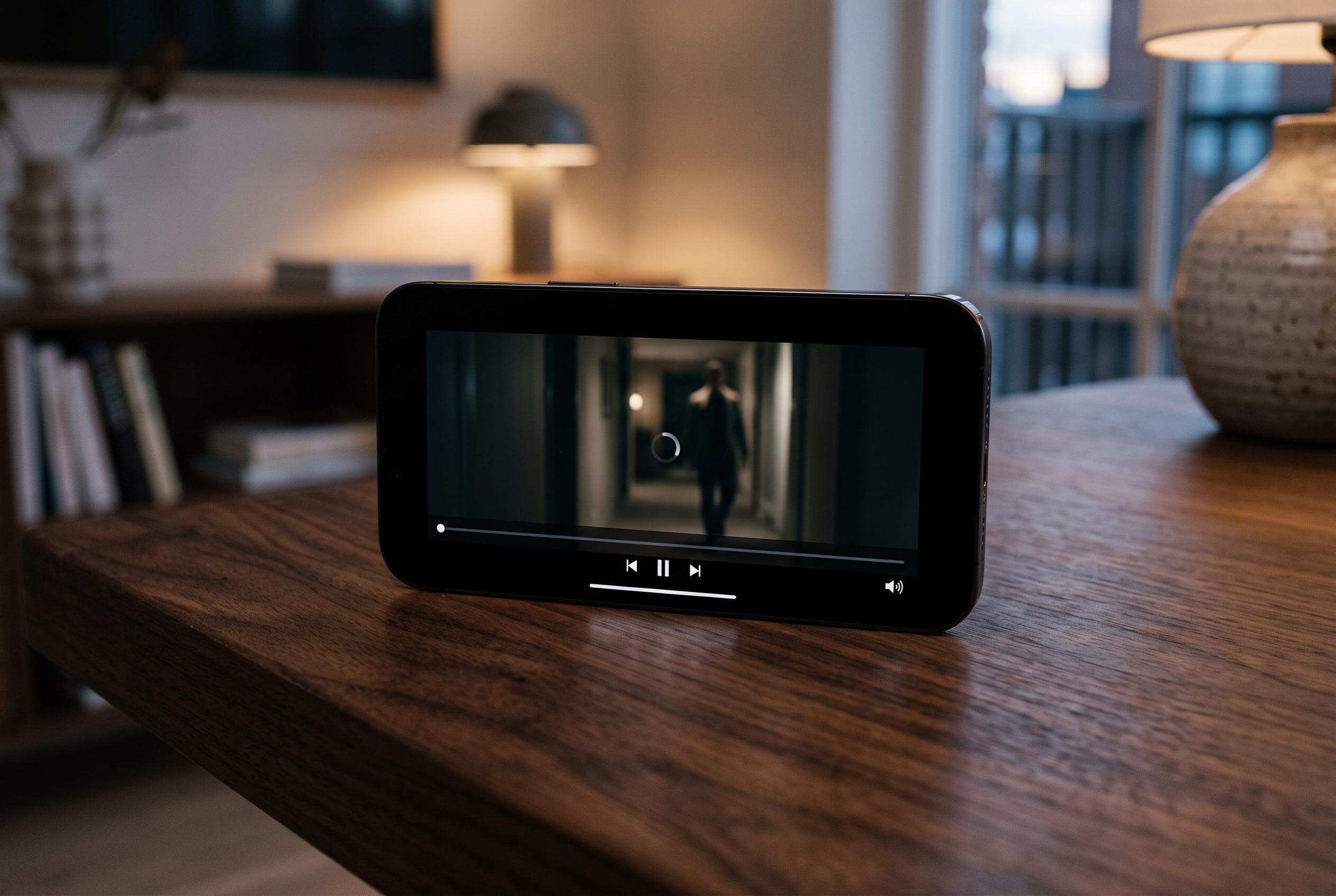

Buffering during video playback is often linked to server congestion, device limitations, or network conditions, not just slow broadband. Experts suggest targeted troubleshooting steps to identify and fix the common culprits affecting seamless streaming.
Video buffering is not always a sign of slow broadband. In many cases, the connection itself is working well, but the stream is being interrupted by server congestion, Wi‑Fi instability, browser faults, device strain, or playback settings that are too demanding for the hardware in use. The result is the same: the video pauses while the player waits for enough data to continue.
A speed test can be misleading because it measures only one moment, not the whole streaming path. A service may be struggling on its own servers, especially during busy periods or live events. The route between the platform and the viewer can also be affected by latency, packet loss, DNS issues, or routing problems, all of which can disrupt playback even when download speeds look healthy.
Local network conditions are often just as important. Weak wireless signal, router placement, interference from other networks, or several devices competing for bandwidth can all trigger buffering. Guides from MarketScale, InstaIP, Fone.tips and SpeedtestHQ all point to the same practical step: test the stream closer to the router, reduce other network activity, and use an Ethernet cable where possible to separate Wi‑Fi problems from wider internet issues.
The device itself can also be the bottleneck. An overloaded browser, excessive extensions, a full cache, outdated graphics drivers, or hardware acceleration conflicts can all interfere with video playback. InstaIP and other technical help guides also note that dropped frames, high CPU use, and limited memory can make a computer or smart TV struggle to keep up, particularly with high-resolution streams.
Video quality settings matter as well. A 4K stream places far greater demands on bandwidth, decoding power and graphics performance than standard HD. If buffering stops when the quality is reduced to 1080p, 720p or automatic mode, that is a strong sign that the issue lies with available resources rather than the line itself. Outdated software can worsen the problem by creating compatibility gaps with newer streaming formats.
The most effective approach is methodical rather than random. Check whether the issue affects only one service, one browser or one device. Restart the browser and the hardware, clear cache data, disable extensions, lower the resolution and test a wired connection. If the same problem persists across multiple platforms and devices, the fault is more likely to be in the network configuration, the computer, or the streaming setup than in the internet connection alone.
Disclaimer: This content is intended for informational purposes only. Readers are advised to exercise their own judgement, conduct due diligence, or consult a qualified expert before acting on any information provided.