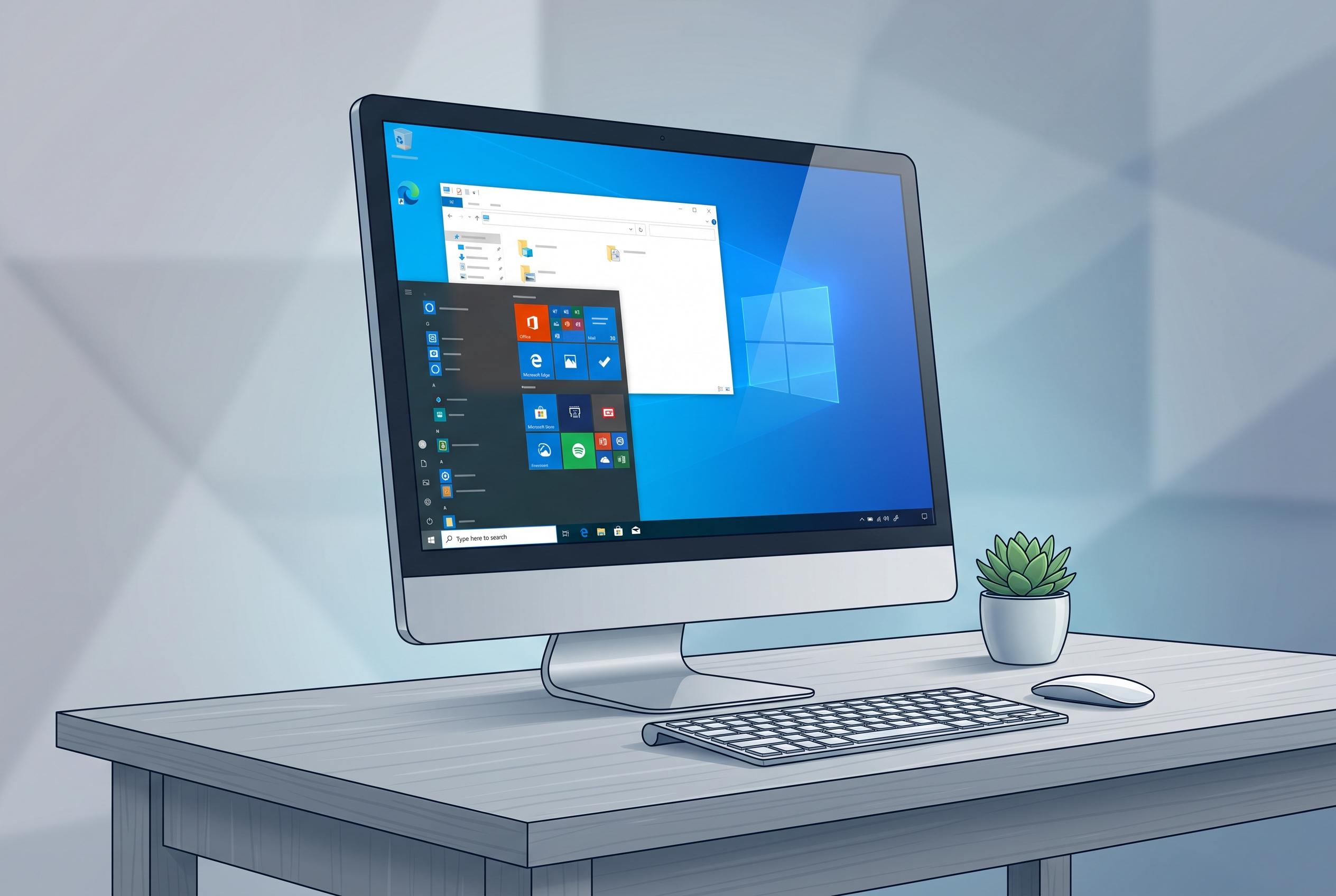

Common Windows 10 taskbar visibility issues often stem from settings or display routing problems. Experts advise straightforward checks, including adjusting automatic hide settings, restarting Explorer, and verifying display outputs, to resolve the most frequent glitches affecting users.
Windows 10 taskbar visibility problems are usually caused by a setting rather than a fault. The first check is simple: move the pointer to the bottom edge of the screen. If the bar appears, open Settings, then Personalisation, then Taskbar, and switch off automatic hiding. Microsoft’s support guidance says the same controls are available for both desktop and tablet behaviour, although the wording can vary between Windows 10 builds.
If the taskbar does not appear, the next step is to rule out a stalled desktop shell. Restart Windows Explorer from Task Manager, which reloads the interface without closing open apps. If Explorer is not listed, use File, then Run new task, and launch explorer.exe. Microsoft and Lenovo both describe this as a practical fix when the Start menu or taskbar stops responding.
Tablet mode can also alter how the taskbar behaves, particularly on touch devices and 2-in-1 PCs. In that case, turn off Tablet mode from Action Centre and then check the tablet-mode taskbar setting as well. On a standard desktop, however, Tablet mode is less likely to be the cause. That distinction matters because Windows 10 can hide the taskbar separately in desktop and tablet layouts.
A missing taskbar after connecting a monitor, dock or television is often a display-routing issue, not a Windows shell problem. Press Windows key + P to cycle through the available display modes and confirm that output is being sent to the intended screen. If the taskbar has moved to another edge, Windows 10 still allows it to sit on the top, left or right side, so it is worth checking all four edges before treating it as lost.
A visible bar with missing icons is a different issue again. Windows can place notification icons in the hidden overflow area, while the Start button, clock and pinned apps remain separate from those tray controls. Full-screen apps can also cover the taskbar intentionally, so exiting a game, video player or presentation may be enough to bring it back. If the problem keeps returning after a reboot, then a Safe Mode test is a sensible way to separate a basic settings issue from a driver, startup or policy conflict.
It is also worth noting the support context. Microsoft ended standard Windows 10 support on 14 October 2025, so ordinary free updates and technical assistance are no longer provided under standard support. That does not change how the taskbar works, but it does mean some repair outcomes, update paths and servicing options may depend on whether the device is covered by paid or organisation-managed support.
Disclaimer: This content is intended for informational purposes only. Readers are advised to exercise their own judgement, conduct due diligence, or consult a qualified expert before acting on any information provided.